

How to Fix Issues with Your Outlook 2016 Search
If the Outlook search suddenly stops working, a solution is needed quickly. Often, it helps to check the index or repair the PST files. If this does not help, the problem usually lies with the program itself. Since Microsoft’s March 2018 update for Office 365, there have been consistent issues with Outlook’s search function on Windows 10. Emails retrieved via POP or IMAP accounts could no longer be indexed by the search function and therefore returned no results. A temporary solution was to switch back to the original Outlook search and disable the desktop search feature.
How to Fix Issues with Your Outlook 2016 Search
With Lookeen, you no longer have to stress about searching in Outlook. Learn more now!
Recently, Microsoft has released a solution on how you can repair the Outlook 2016 search again.
- Make sure your Outlook 2016 is up to date by checking Office 365 for updates.
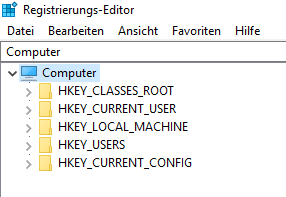
- Enable the Desktop Search function in your registry if you had temporarily disabled it. Open the registry by pressing the Windows key & R, type regedit, and click “OK”. In the Registry Editor, navigate to \HKEY_LOCAL_MACHINE\SOFTWARE\Policies\Microsoft\Windows\Windows Search
-
Delete the “PreventIndexingOutlook” index.
-
Restart your PC.
-
Perform an indexing operation in Outlook. This may take some time.
The issues with the Outlook 2016 search caused by the update are thus resolved.


Comments