

Outlook 2010 and 2013: Create an Out-of-Office Message – Here's How
Are you on vacation or otherwise unavailable, unable to respond to your emails? In that case, you should set up an out-of-office notice in Outlook for the relevant period. An out-of-office notice sends an automatic reply to your email inquiries. In this blog post, you will learn how to create an out-of-office notice in Outlook 2010 and 2013. Click here for instructions on older Outlook versions.
Create an Out-of-Office Notice – Step-by-Step Guide
Step 1: Start Outlook and click File.
With the Lookeen search, you can find all your lost Outlook files in real time!
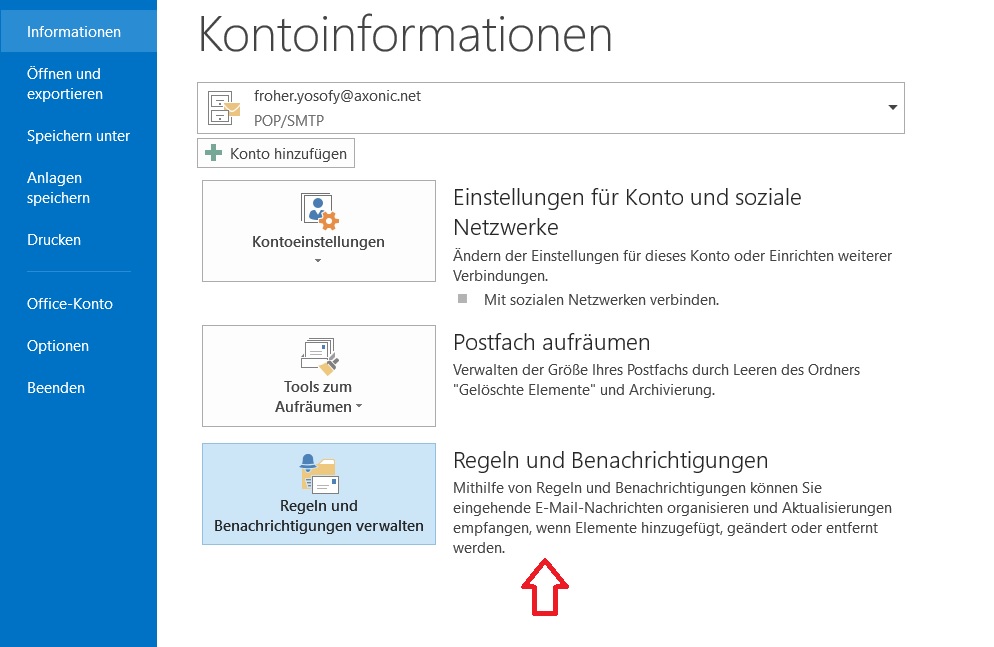
Step 2: Click on the Rules and Alerts field.
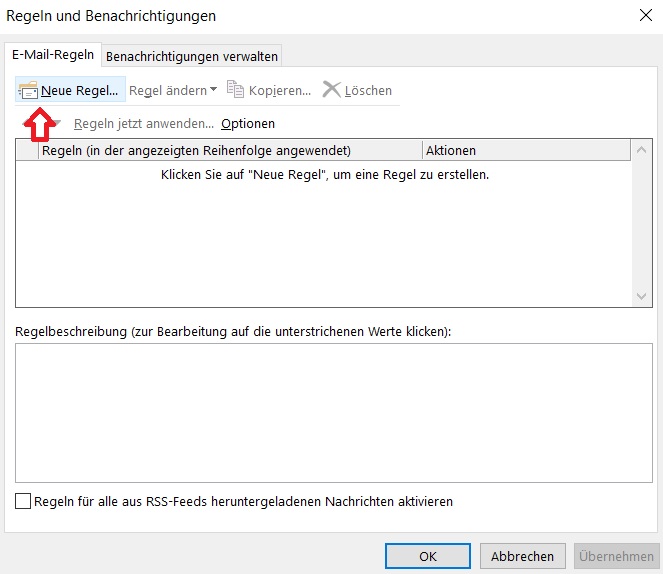
Step 3: A new window will now open. Under the E-mail Rules tab, you will find the New Rule… field. Click on it.
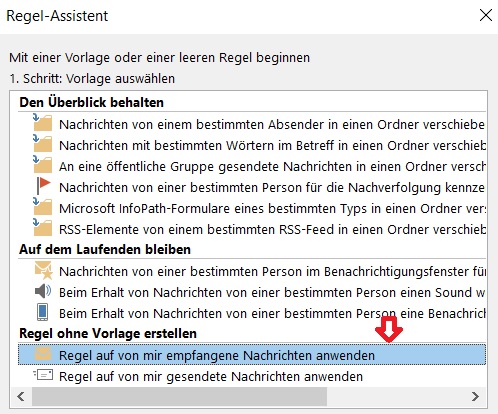
Step 4: Now select Apply rules on messages I receive and confirm with Next.
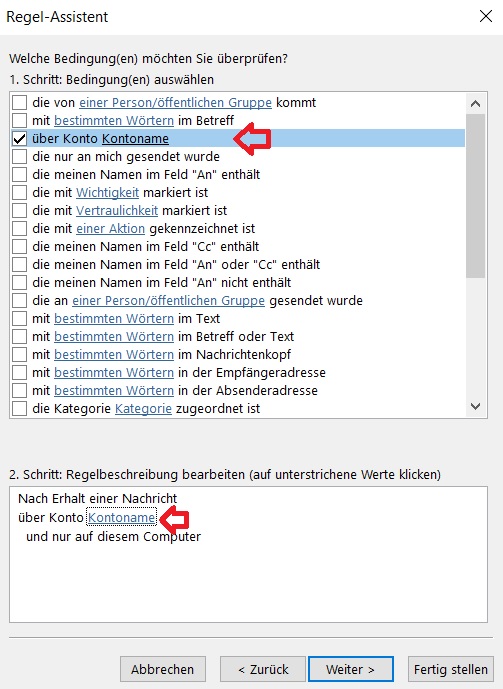
Step 5: Now select the through account name field and click in the lower window on account name to set your email address or account. Confirm again with Next.
Step 6: In the next step, check the box next to respond using a specific template. Click in the lower window on a specific template… and set your out-of-office notice.
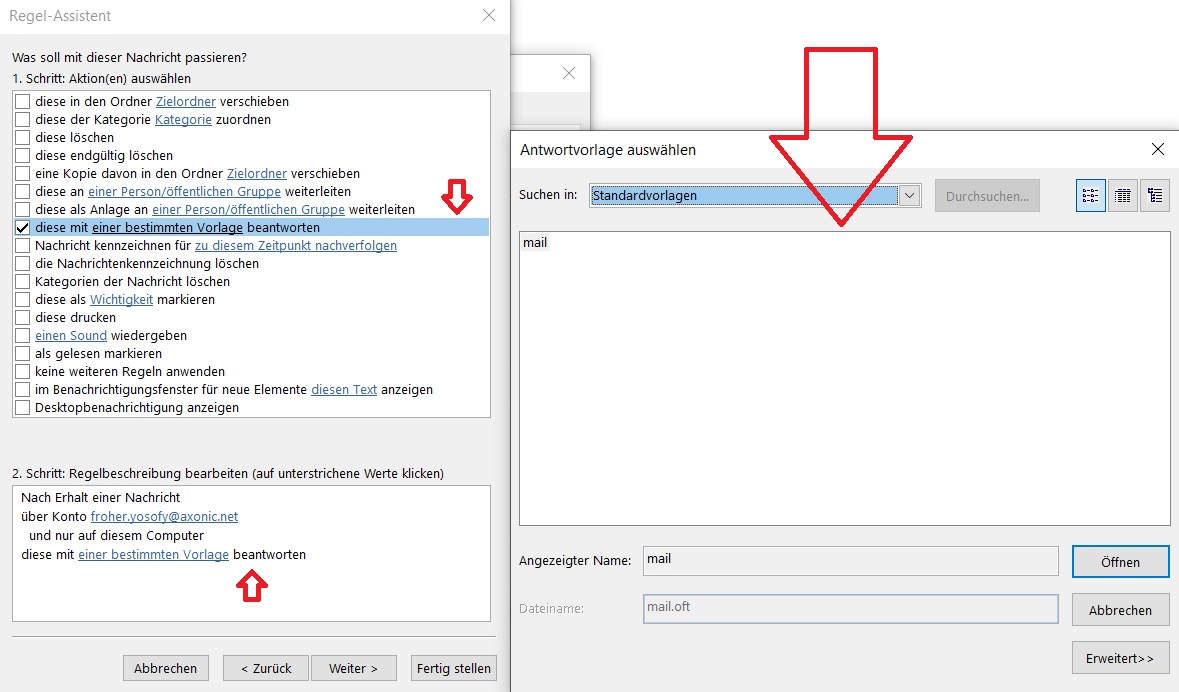
Step 7: After you have set up your out-of-office notice, click Finish.
I hope this article helped you set up your out-of-office notice in Outlook 2010 and 2013. See you soon!


Comments