

Outlook: Change Language – Here's How
Outlook is international. This offers the opportunity to choose from 60 languages in Outlook. You can also add a language for autocorrect in Outlook. This ensures that no errors creep into an email written in a foreign language. Do you want to change the display language in Outlook or get proofreading assistance for your emails? In this blog post, you will learn how this works for all newer Outlook versions from 2013 onwards.
How to Change the Display Language in Outlook
Step 1: Start Outlook.
Step 2: Click File and then Options.
Step 3: Go to the Language tab.
Step 4: Under the Office display language field, click the link: Install additional display languages from Office.com.
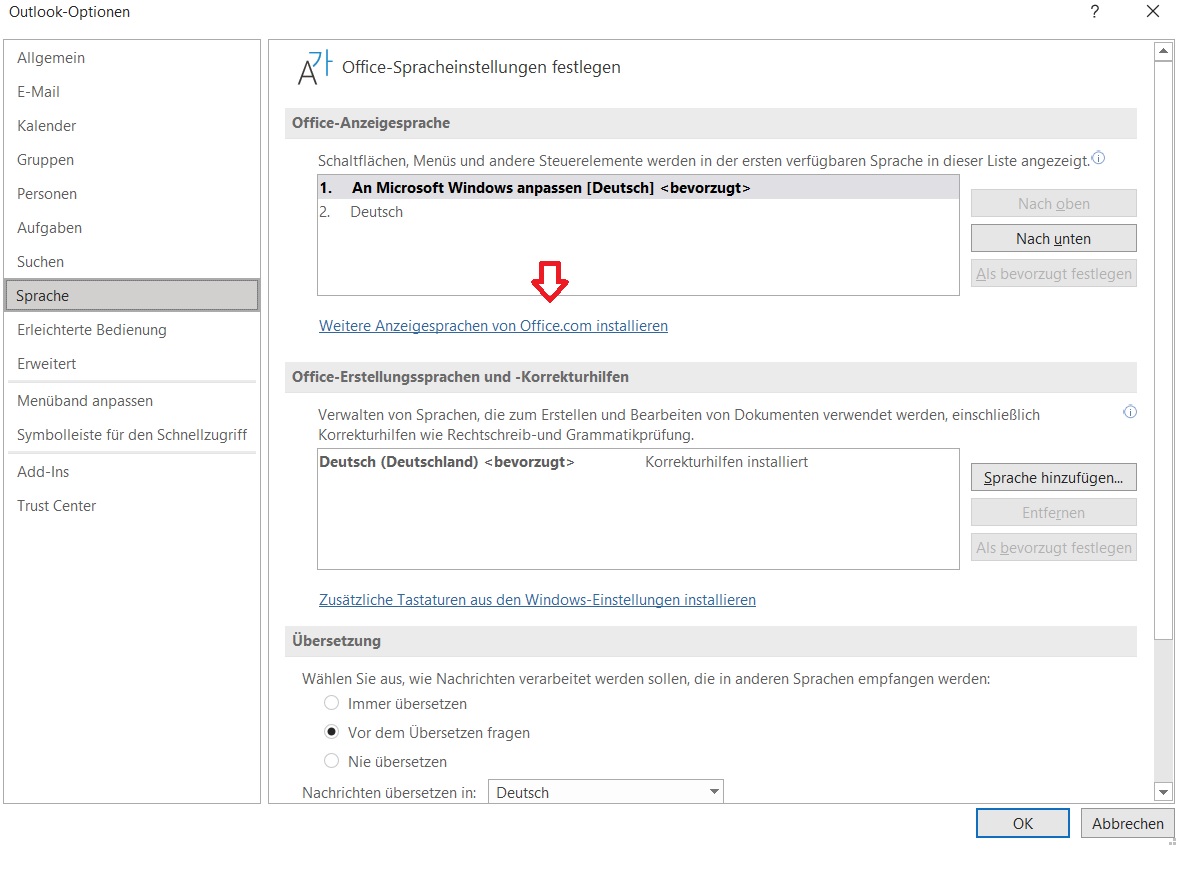
Step 5: In the new window, you can select which language you want to install.
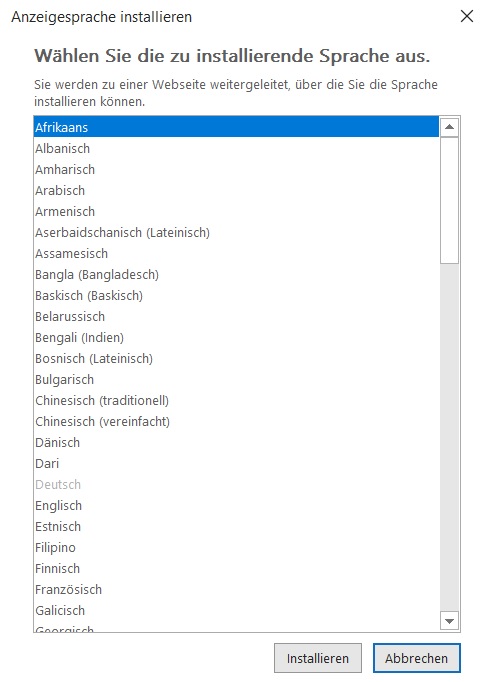
Step 6: With the Set as preferred button, you can also set the respective language as the main language in Outlook.
https://lookeen.de/loesungen/outlook-suche/outlook-suche
Proofing: Add a New Language in Outlook
Step 1: Start Outlook.
Step 2: Click File and then Options.
Step 3: Go to the Language tab.
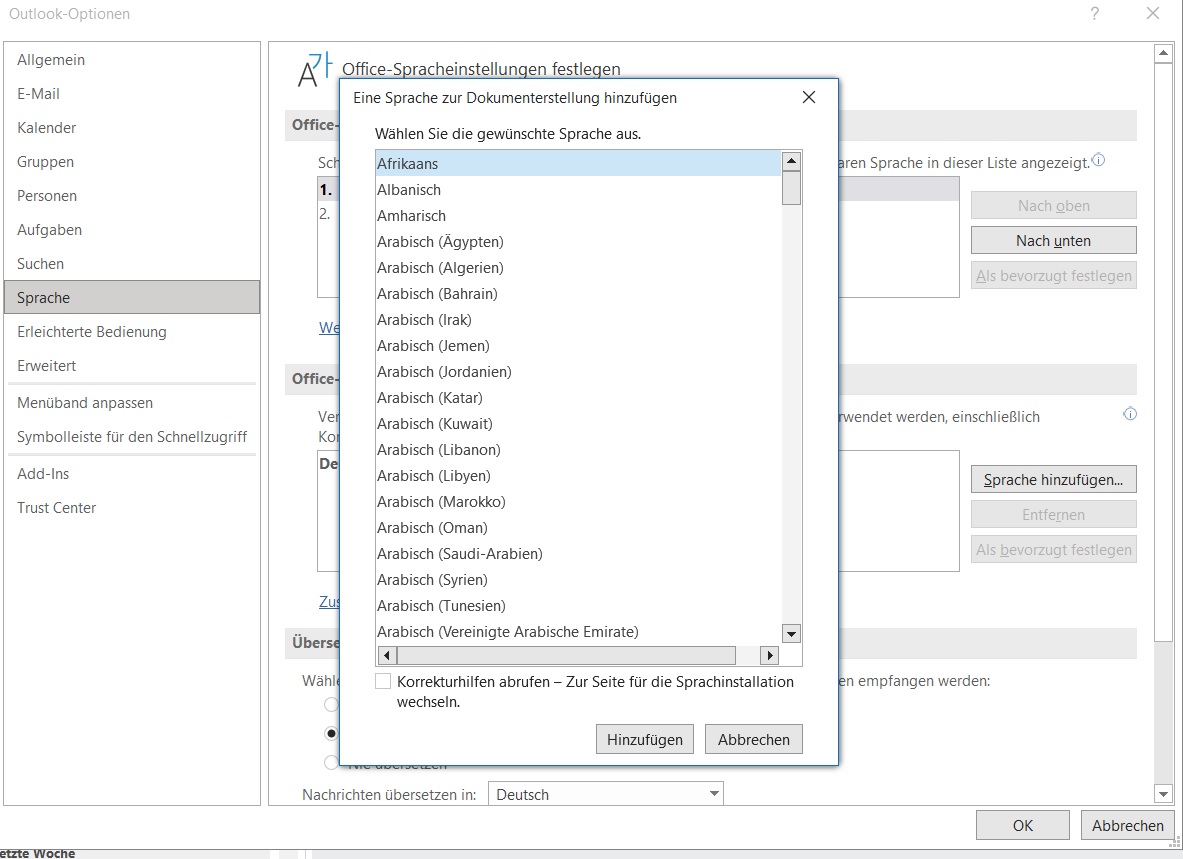
Step 4: Under the Office authoring languages and proofing tools field, click Add a language. You can now freely select a language and set it as preferred.
I hope this article helped you adjust your language settings in Outlook.
See you soon!
Lost an email? With Lookeen, you are guaranteed to find every document again!


Comments