

Outlook: Enable Email Preview – Here's How
Want a glimpse into your unread emails? Then you should enable the email preview in Outlook. Find out how it works in this blog post. The following instructions are suitable for all newer Outlook versions from 2013 onwards. Click here to determine your Outlook version.
How to Get an Email Preview in Outlook
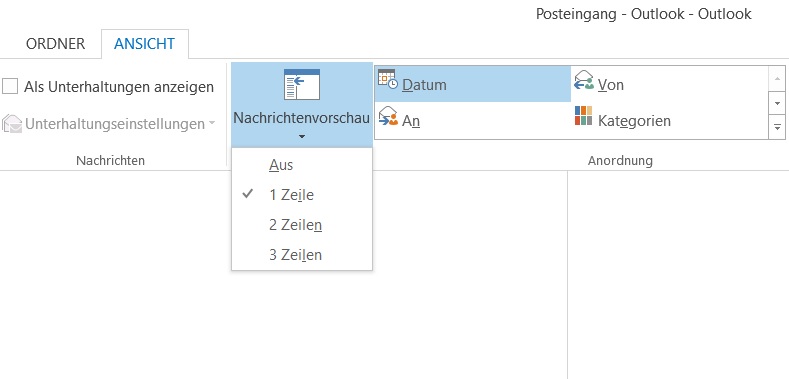
Step 1: Open Outlook and click on the View tab.
Step 2: Click on the Message Preview option.
Step 3: In the final step, you can choose whether you want one, two, or three lines of your email preview in Outlook to be displayed. For a more detailed email preview, I recommend setting it to 3lines.
I hope this article helped you set up an email preview in Outlook.
See you soon!


Comments