

Outlook: Favorite folders – here's how
You have countless folders, some of which are more important than others? Then you should consider favoriting your important folders to give them priority. This way, you always have separate access to your important folders in the Favorites section. This method can help keep your mailbox organized. Click here for the best strategies for an empty and organized mailbox. In this blog post, you’ll learn how to easily favorite your folders in Outlook. The following instructions apply to all newer Outlook versions from 2013 onwards and Outlook.com. Find out how to determine your Outlook version here.
Add Folders to Favorites in Outlook
Step 1: Start Outlook.
Step 2: Find the folder you want to add to your favorites.
Step 3: Right-click and select Add to Favorites. Alternatively, you can simply drag the folder into the favorites pane. You can also right-click the Favorites tab and manually select the folder.
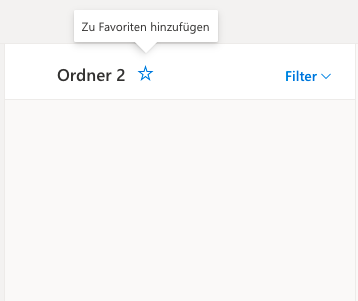
In Outlook.com, you can easily favorite your desired folder by clicking the star icon.
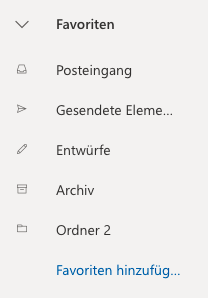
To view your selected folders, click the Favorites tab. All your favorited folders will now be displayed in Outlook.
I hope this article helped you favorite your folders in Outlook.
See you soon!
Find all your folders in Outlook in seconds. The Lookeen search makes it possible!


Comments