

Outlook: Permanently delete emails immediately – here's how it works
Are you sure that you no longer need a specific email? Then you should delete it permanently. A permanently deleted email in Outlook will no longer be found in the Trash and therefore will no longer take up any storage space. So, it is quite sensible to permanently delete your emails in Outlook. Find out how easy this works in this blog post. The following instructions apply to all Outlook versions.
How to Permanently Delete Your Outlook Emails
Step 1: Start Outlook.
Step 2: Hold down the Shift and Delete keys on your keyboard (shortcut Shift+Delete).

Step 3: A new window will open. Confirm with OK here.
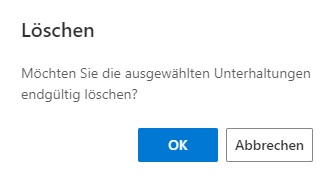
Your email in Outlook is now permanently deleted. Do you want to undo the deletion of an email? Click here for the appropriate guide.
I hope this article helped you permanently delete your emails in Outlook and save time.
See you soon!
This is how you search your Outlook with Lookeen in seconds!


Comments