

Outlook: Print Email – Simple and Straightforward
If you prefer to keep your e-mails in paper format rather than digitally, there is no way around printing them. Click here to learn how you can secure your e-mails digitally. Printing in Outlook is simple and straightforward via a keyboard shortcut. It becomes even easier if you add a “Print” command, so that the printer icon appears directly in your Outlook menu. Find out how to proceed in this blog post. The following instructions can be applied to all Outlook versions.
Outlook: Print Emails – Simple and Straightforward
Step 1: Open Outlook and open the email you want to print.
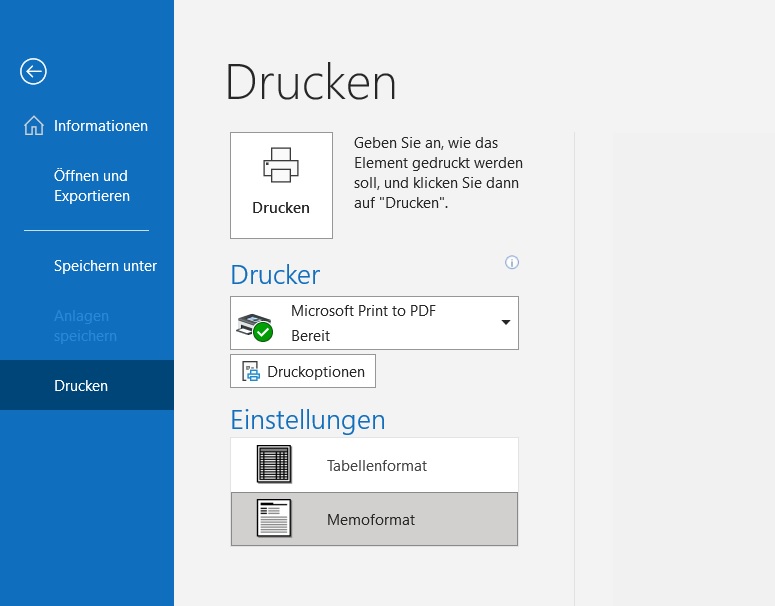
Step 2: Use the keyboard shortcut Ctrl+P. Select the memo format to print your email. The table format creates a list of your inbox, which you can also print.
Step 3: Click the printer icon to print your email in Outlook.
Outlook: Configure the Print Command – Here’s How
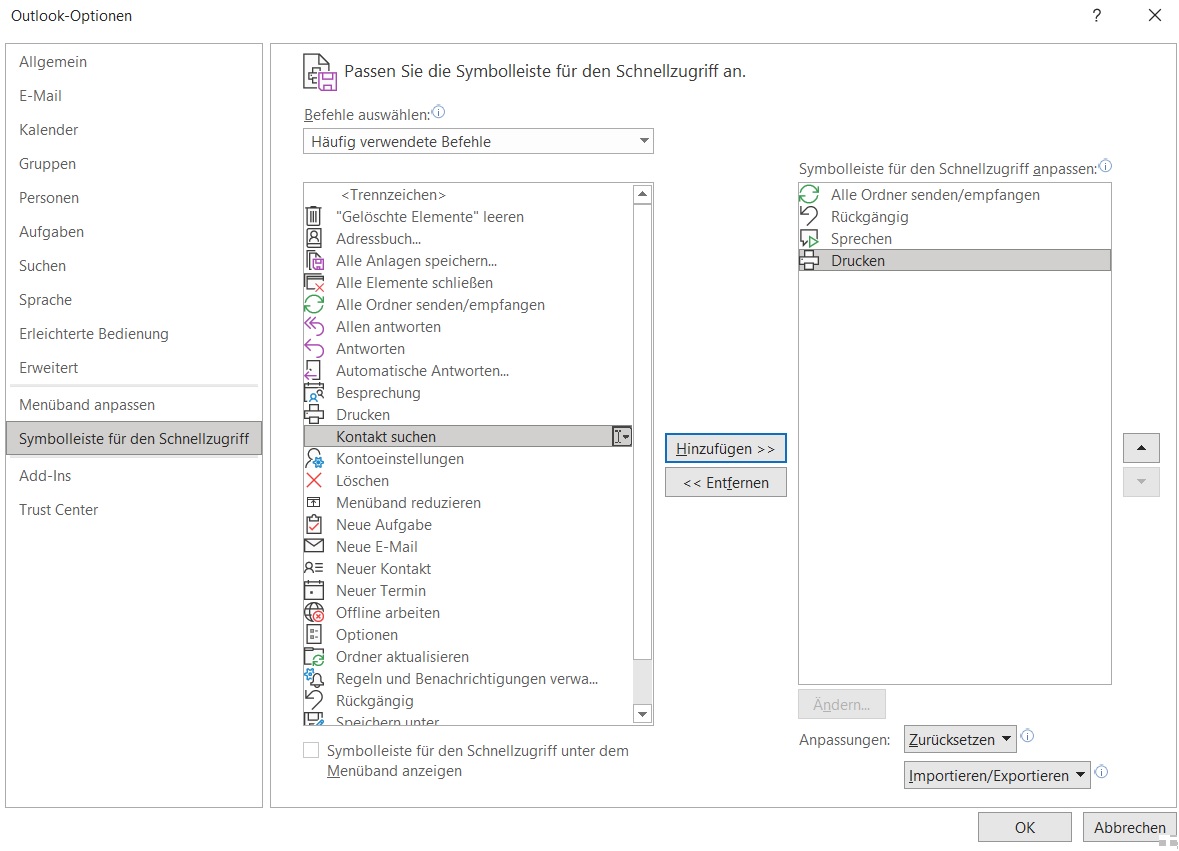
Step 1: Open Outlook and click on File and then on Options.
Step 2: In the list, select the Quick Access Toolbar option.
Step 3: Find the Print command and click Add.
Step 4: Confirm with OK. You will now be able to find the printer icon directly in your Outlook menu.
I hope this article has helped you print your emails in Outlook quickly and easily. Do you prefer emails in paper form, or do you usually keep them digital?
See you soon!
With Lookeen, you are guaranteed to find any email in Outlook in seconds!


Comments