

How to Import Contacts into Outlook: Step-by-Step Guide
When switching email providers, for example, it is often tedious to enter contacts manually and one by one. For Outlook, there is an easy way to import important contacts. Whether you are switching to a new computer, updating your email services, or simply want to create a backup copy of your contacts, the following guide will help you with that. In the following blog post, you will learn how to easily integrate your contacts into Outlook step by step.
How to Import Your Contacts into Outlook
Step 1: Export your contacts from the source. Before you can add contacts to Outlook, you must export them from your current email provider or contact management software. Most services offer an option to export your contacts to a CSV file (Comma-Separated Values) or in vCard format. Look for an export option in the settings or help section of your current service and follow the instructions. Then open Outlook and click on File and then on Open & Export.
Step 2: Click on Import/Export.
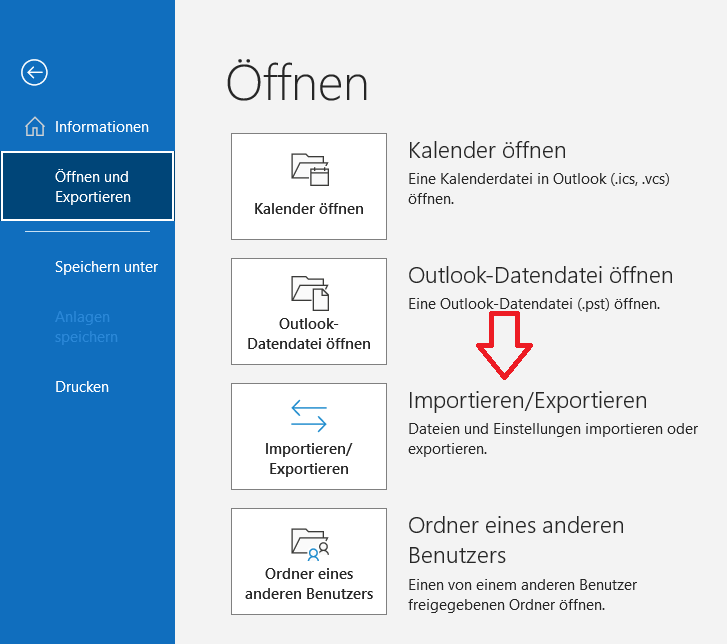
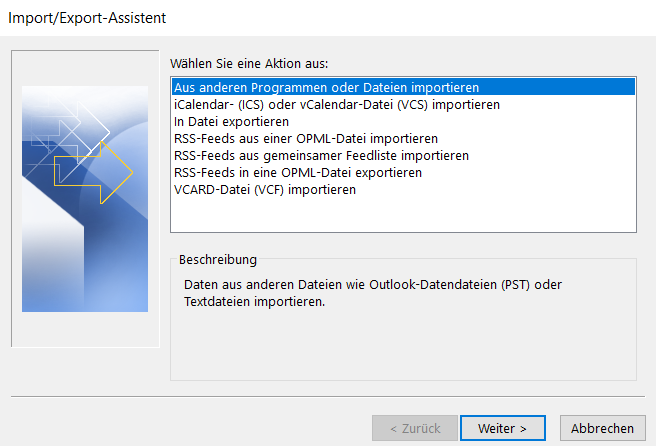
Step 3: Select Import from another program or file and then click on Next.
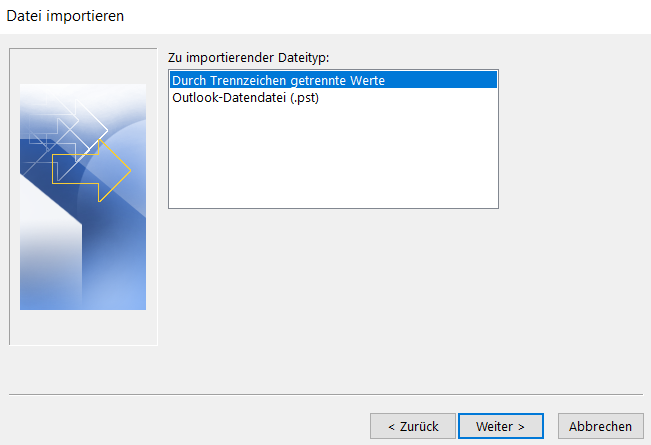
Step 4: Now you need to select the type of file you want to import. For a backup from an older Outlook program, click on PST file. For other formats, select Comma Separated Values (CSV). Then click on Next.
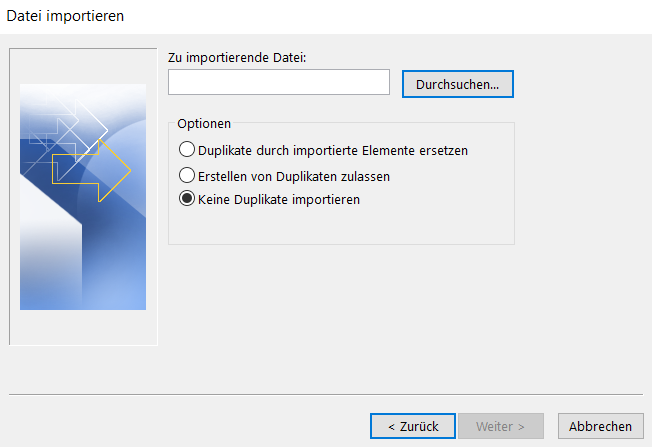
Step 5: Navigate to the file you want to import by clicking Browse. Outlook also offers you various options for how duplicates should be handled:
Replace duplicates: Existing contacts are replaced by the imported information. Allow duplicates: New contacts are created, even if they are identical to existing contacts. Don’t import duplicates: Only contacts that are not already in Outlook are imported. Select the desired option and click on Next.
Step 6: Select the folder into which the contacts should be imported. Usually this is the Contacts folder, but you can also choose or create another folder if you wish.
Step 7: After selecting the target folder, click on Finish to start the import process. Outlook will now import your contacts.
Step 8: After the import is complete, go to your Contacts folder in Outlook to ensure that all contacts were imported as expected.
I hope this article helped you import your contacts into Outlook.
See you soon!
Lookeen searches your Outlook contacts in seconds and recovers lost data!



Comments