

Outlook: Linking Images in Emails – Here's How
Adding images to your email can provide that personal touch. This is particularly beneficial for marketing-related messages. For example, you can insert an image that links to your social media accounts or use it as a call to action. In this article, you will learn how to easily add hyperlinks to your images in Outlook.
How to Add a Hyperlink to Your Outlook Images
Step 1: Open Outlook and click on Insert > Image and add the desired image.
Note: You can also simply copy an image with Ctrl + C and paste it into your message with Ctrl + V.
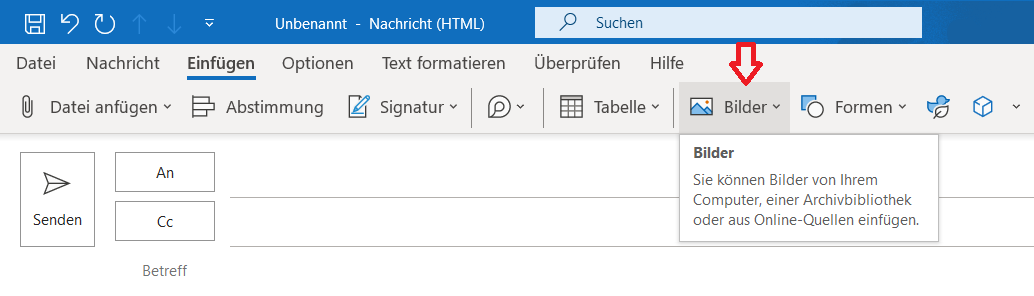
Step 2: Click on the image. This selects it. You can also adjust its title here. You can resize it by clicking and dragging the edges with your mouse. Make sure that the image remains selected in Outlook for Step 3.
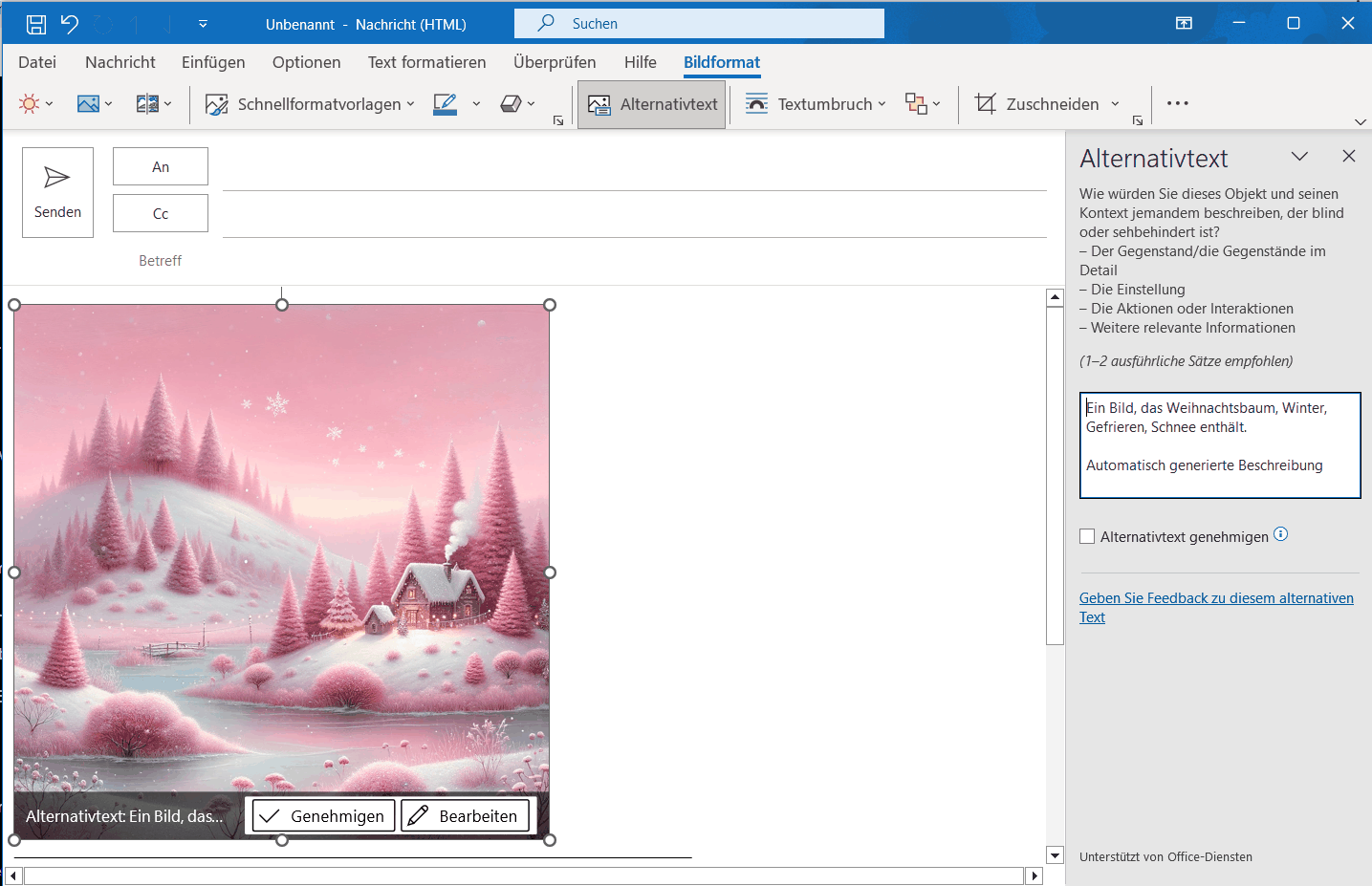
Step 3: Now select the Insert tab again as in Step 1, click on the Link field and then on Insert Link.
Step 4: A new window will open. In the address bar at the bottom, you can enter or paste the desired URL.
Step 5: At the bottom, you will find an address bar. Paste the corresponding URL there and finally click OK.
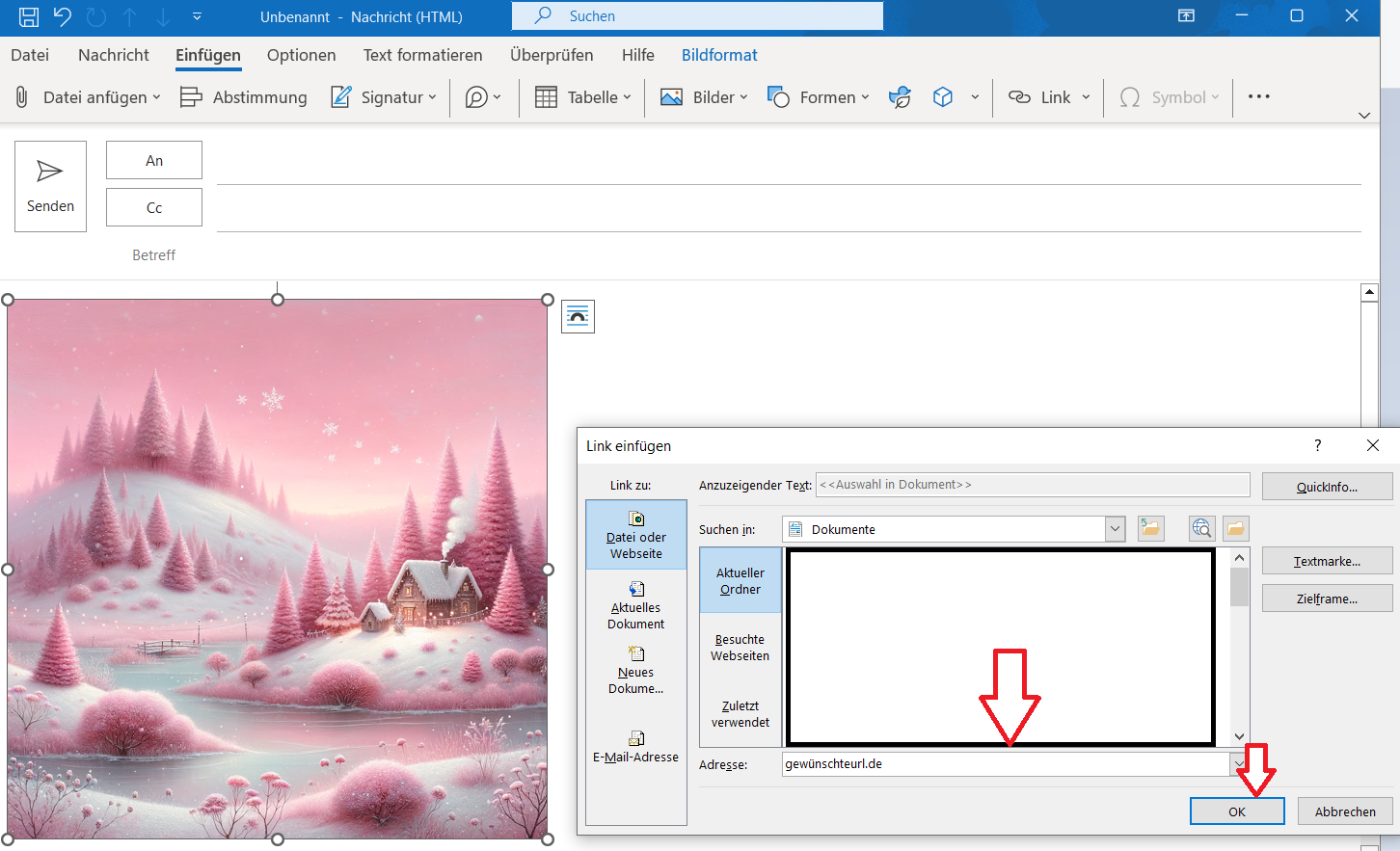
You have now successfully linked your image. To ensure everything worked correctly, hover your mouse over the image. If the correct URL appears, you have successfully followed the instructions.
I hope I was able to help you add a hyperlink to your images in Outlook.
See you soon!
Want to find a file again? With Lookeen, that’s done in seconds!



Comments