

Inbox Zero – The Best Strategies for an Empty Email Inbox
Is your email inbox almost overflowing and can you barely distinguish important emails from spam? Are you sitting in the office and have no desire to open your email program, fearing demotivation and unproductivity? Inbox Zero and other methods can help you improve your email and time management. Here you will find the best strategies for doing so.
What is Inbox Zero?
With Lookeen's real-time indexing, you can now search your emails in Outlook even faster!
Inbox Zero was first put into words by Merlin Mann, an American blogger and productivity expert, at the very beginning. To him, a cluttered inbox is confusing and important emails easily get forgotten. He calls his solution to this problem Inbox Zero. When applying the Inbox Zero method, you process your inbox at regular intervals and empty it as much as possible until the number of emails approaches zero. The virtual messages are either strictly deleted, moved to appropriate folders like “To-Do” or “Archive”, or partially processed directly. This grants you the freedom of an empty inbox, which increases your personal satisfaction and productivity. Furthermore, your time management can improve significantly through better overview.
How do I get started with Inbox Zero?
To get started with Inbox Zero, you must first clean up your existing mailboxes and set up the corresponding folder structure. The following tips should make the transition easier for you.
Create a single mailbox for all emails Managing multiple mailboxes takes a lot of time. There is also the risk of easily losing track. A central mailbox can help with this. Select an existing inbox or create a completely new email address. Then set up forwarding for all your emails, whether professional or private, to this address. If you still want to separate your addresses or keep work and personal life apart, an email client like Outlook would be beneficial. All email addresses can be added to Outlook so that you can switch between the individual mailboxes with just one click. It is important here that, despite a unified mailbox or a single client, you can reply using the original email address.
Avoid distractions The incoming sound or desktop notifications are constant distractions and break our concentration. Therefore, you should disable them. However, certain professions, such as sales, require a quick response to emails from specific contacts. The trick here is to save these customers as VIP contacts or set up specific rules for them. The messages will then still get through and you can respond promptly.
Reduce the number of incoming emails It is important to keep the inbox at zero. It becomes easier if you minimize incoming mails directly. Be consistent and unsubscribe from uninteresting newsletters. You should also cancel or block promotional emails and other spam. Also delegate any tasks that do not directly concern you. Inform your colleagues which mass emails or information are irrelevant to you and have yourself removed from the distribution list. The following questions can simplify your decision:
- Do I even read the newsletter?
- Do these emails give me an advantage?
- Can I also receive the news differently, e.g., via social media or apps?
- Is this information important to me or does it concern me at all?Tip for advanced users: Set up rules for incoming emails in your email client. For example, block spam emails that you cannot unsubscribe from. Newsletters can be moved directly to the “Read Later” folder or invoices forwarded directly to your accounting department. Emails containing tasks from your colleagues can also be sent directly to project management tools like Zenkit to create a task there. Go through all email addresses that regularly land in your inbox before creating rules, and consider whether a rule can be applied to them. Through automation, your email management will improve and you will save time on manual sorting.
How do I create the perfect folder structure?
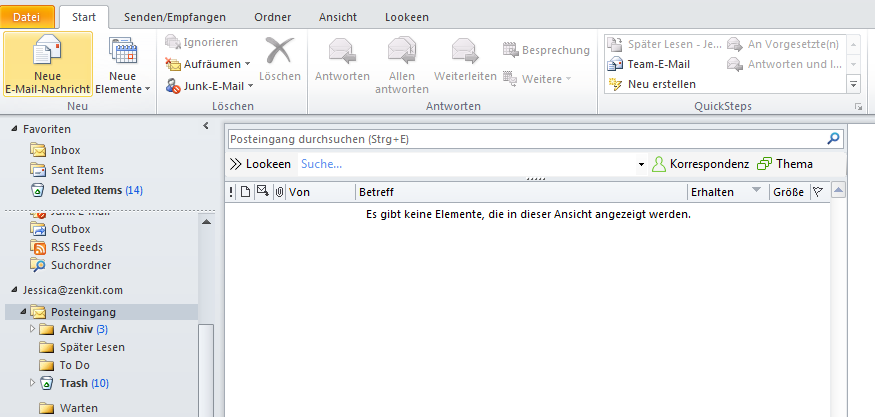
An ideal folder structure can be customized individually for each person according to their preferences. For this reason, there is no one-size-fits-all solution. One of many possible approaches would be to name the folders as follows:
- “Inbox”
- “Action or To-Do” Emails that require action and cannot be processed immediately go into this folder. You can divide it into different sections for more structure. When naming the subfolders, you have many options; for example, you can use “Reply” or “Appointments”, but dividing them into categories like “Sales Inquiries” or “Press Contact” is also possible.
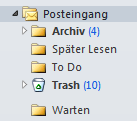
“Waiting” You forwarded emails and are now waiting for a response? You cannot process an email yet because you are missing information? Such emails are stored in this folder and processed at a later time, once the necessary information is available, or moved to the “Action” folder or the trash.
“Read Later” In this folder you collect newsletters, for example. These do not require an active response but are solely for information gathering.
“Archive” The archive is for storing emails that contain important information or where you are unsure whether to delete them. Also note here that certain business and corporate messages must be retained for up to 10 years.
“Trash” Unnecessary messages, completed tasks, and other emails you no longer need end up here. If there are no automatic deletion intervals, you should empty the trash can regularly by hand.
The various folders form the center of this productivity technique and support your email management. By categorizing your emails, you create order, clarity, and are close to achieving “Inbox Zero”.
Is your inbox a mess? Search your emails effectively with Lookeen now!
Alternative
Before you manage your “to-dos” via your emails, it is better to use Zenkit . With the free project management software, you can create to-do lists and manage tasks. The associated feature Zenchat allows you to easily chat with your colleagues. You can convert these chats into tasks using the innovative software and also chat within the created tasks. Through this globally unique communication structure, you save yourself daily email traffic and keep your mailbox clear and empty.

Further Strategies of the Inbox Zero Method
Getting the Inbox to Zero This is probably the most labor-intensive part when using Zero Inbox. Be prepared that emptying the mailbox will take some time.
Sorting Sort your emails into the differently named folders I introduced to you in the previous step. Focus here on the most important emails.Archive Do you not have time to clean up your inbox? You are not sure if you might need a specific email again? Then move your entire inbox to the archive. You can also perform archiving only after you have sorted some of the important emails into other folders.
Delete “All or nothing” is the motto here. Be consistent and delete all messages you no longer need. On the one hand, it feels good; on the other hand, you finally have more storage space again. Anyone who wants to start completely from scratch can of course move all emails to the trash.
How do I correctly apply Inbox Zero in the future?
If you have read the article attentively up to this point, you have already understood the basic framework of Inbox Zero. Building on that, you can now begin the transition. Keep in mind that this method can only increase your productivity and motivation if you also adhere to the following rules.
Check emails at intervals Set fixed times or intervals for checking your emails. Experts recommend checking the inbox only 2-4 times a day. However, this is likely difficult to implement in a professional setting. Since this method is designed to help you focus more on time and activities outside the virtual mailbox, you should allow at least one hour between processing sessions.
Regularly update folders Simply clearing the inbox will hardly get you anywhere. Your folders also require regular maintenance to keep them up to date and check off tasks. Either process your various folders in conjunction with your inbox, or set different intervals.
2-Minute Rule Tackle any emails that can be processed or answered within two minutes immediately. It would cost you more time to go through the email again later than to process it right away.
Inbox = Zero Ideally, your mailbox should be as empty as possible at the end of your processing time. This way, you can focus on other tasks with a satisfied feeling.
Additional Tips & Tricks Beyond the Inbox Zero Method
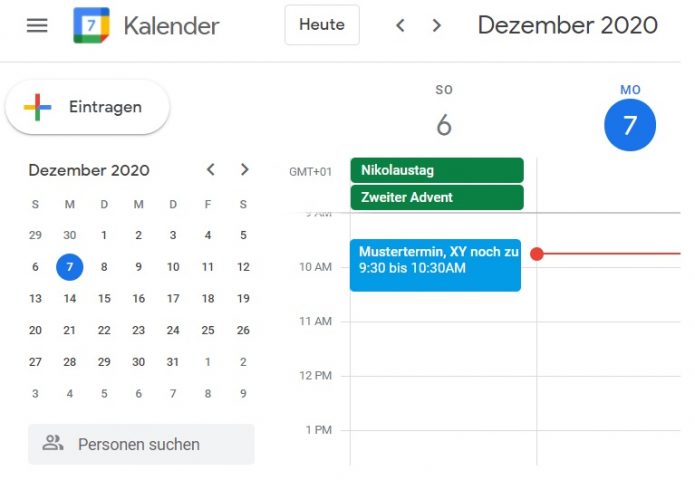
- Add tasks & appointments to calendar Add tasks and appointments that have been sent to you via email to your calendar. Ideally, transfer all important information. This way, you can delete the relevant emails with peace of mind and relieve the load on your email mailbox.
 - Just One Archive Now that you have a great folder structure, you will certainly want to keep your archive organized as well. However, this is no longer necessary today and only wastes time. Use a single archive where you temporarily store all important emails. If you need a specific message or piece of information, use either the built-in search function or a tool like Lookeen, which can even search through files.
- Time Blocking This is another time management and productivity technique that pairs perfectly with Inbox Zero. It involves blocking out a specific period of time for a task, such as processing emails. Let all your colleagues know that you must not be disturbed during this time and are unavailable for calls, meetings, or similar activities. This way, you have no distractions and can focus on achieving Zero Inbox.
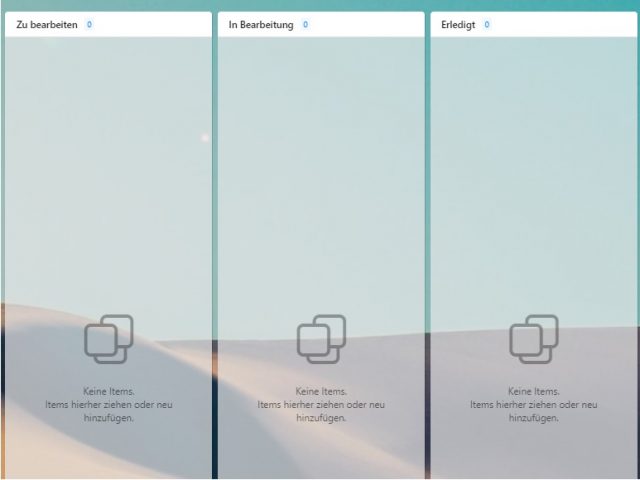
- Getting Things Done This is also a productivity technique. It closely resembles the Inbox Zero method through its structured working environment. You can implement this method either using a tool like Zenkit or on a real whiteboard on your wall. It features several columns, ranging from “To Do” to “In Progress” and onward to “Done”. Of course, there are additional columns that the user can create themselves. Each task is written on a card and placed in the “To Do” list. The task is then moved further along based on its status until it reaches “Done”. This helps keep your email inbox clean.
- Eisenhower Principle Apply the Eisenhower Matrix to your emails. To do this, you need to divide your emails into four categories as follows:
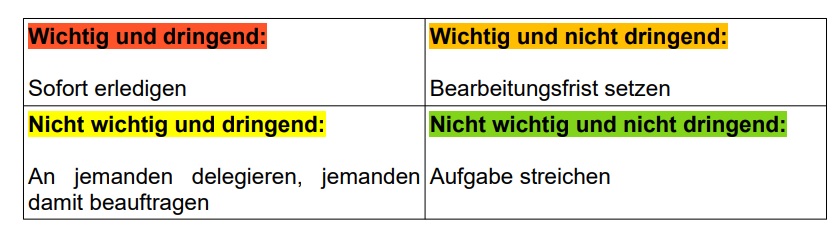
- Do you have an important and urgent email in your inbox? Process it immediately.
- Do you have a non-important but non-urgent email in your inbox? Set a processing deadline.
- Do you have a non-important but urgent email in your inbox? Delegate it if possible.
- Do you have a non-important and non-urgent email in your inbox? Delete it immediately.
The Eisenhower method is also designed to categorize your emails and help you achieve an empty and clear inbox, just like Inbox Zero.
A complete switch overnight is not for everyone. Therefore, experts recommend gradually introducing the Inbox Zero method (as well as the other strategies presented here) and increasing its use over time. Start by adhering to it on just one day a week. Then, gradually increase the number of days you apply these strategies. Be consistent! You will quickly notice the positive effects and the liberating feeling of an empty inbox.
See you soon!
With Lookeen's email search, you can keep track of your inbox! Click here for more information!


Comments