

Open PST File: How It Works With and Without Outlook
Have you backed up your data in Outlook or created a backup and now want to access it? To do so, you need to open the Outlook Data File (PST). This file is always saved in PST format within Outlook. PST stands for “personal store” and contains all your emails, calendar entries, notes, or email templates that are backed up in Outlook. In this article, we will show you how to easily open the Outlook.pst file. If you are using a newer version of Outlook from 2010 onwards, read the following chapter. For older versions of Outlook from 2007, you can scroll down to the next-but-one chapter. If you want to open the Outlook Data File (PST) without Outlook, you will find the appropriate instructions in the final part of this article.
How to Open a PST File with a Newer Outlook Version from 2010 Onward
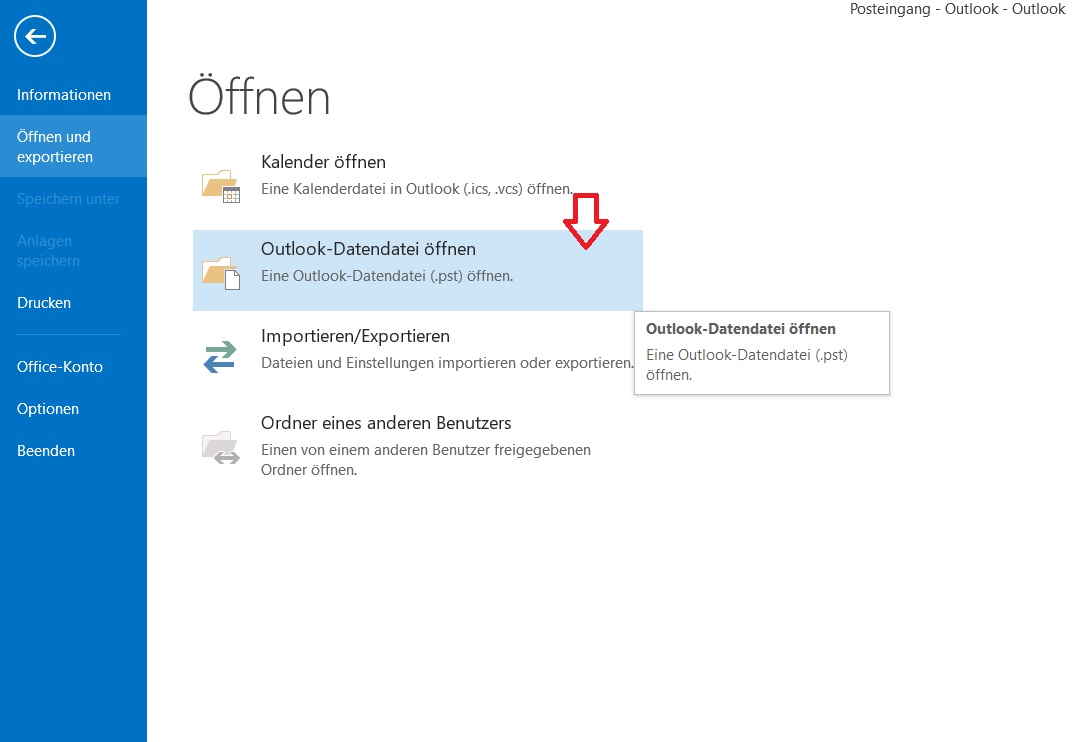
Step 1: Start Outlook and click on File and then on Open & Export.
Step 2: Now click on Open Outlook Data File.
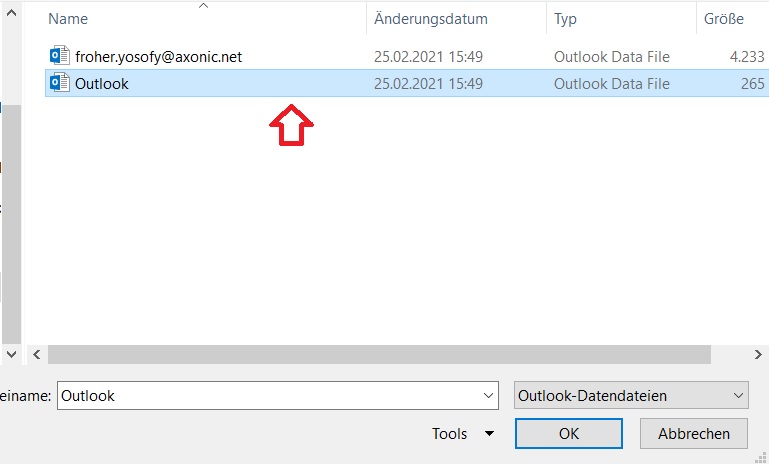
Step 3: Select the file in the directory. Confirm your selection with Open. Outlook will then open your PST file.
How to Open a PST File with an Older Outlook Version from 2007 Onward
Step 1: Start Outlook and click on File and then on Open.
Step 2: Select Import. A new window will now open with the Import/Export Wizard from Outlook. Click on Import from another program or file and confirm with Next.
Step 3: Press the field Personal Folders File (.pst) and confirm again with Next.
Step 4: In the final step, you can choose how Outlook should handle duplicates. Before replacing old files, you should first select Allow duplicate items to be created for safety. This way, older PST files that might contain important data will not be lost.
Step 5: Click on Next, select the file location, and confirm your selection with Finish. Shortly after, you can access and open your Outlook Data File (PST).
Search your Outlook emails with the Lookeen search tool now in real time!
Search your Outlook for your PST file in seconds with Lookeen!
How to Open a PST File without Outlook
If your Microsoft Office license has expired and you want to open your PST files without Outlook, you should download an external tool. The free program “Coolutils Outlook Viewer”, for example, allows you to open your PST file even without Outlook. Additionally, you can use the program to change the format of your PST file to “EML”. This way, you can also open your Outlook Data File (PST) with other email providers.
Here you can learn how to open your PST files with the “Coolutis Outlook Viewer”.
If you haven’t created a backup for Outlook yet, you should do so to secure your data. Find out how this works in this blog post.
I hope this article has helped you open your PST files with or without Outlook.
See you soon!


Comments