

Outlook: Back up data and create a backup – here's how
To prevent data loss, it is essential nowadays to create a backup of your data. The same applies to your Outlook files and emails. You should store your Outlook emails and your Outlook backup on an external hard drive. This ensures that your data is secured independently of your computer’s operational performance. You can export and back up both individual emails and your entire mailbox in Outlook. Find out how this works in this article. The instructions are applicable to all Outlook versions from 2003 onwards.
Outlook: Backing Up Data and Creating a Backup – Step-by-Step Guide
Should your PC ever break down, you can use a backup to restore your lost Outlook emails and data. Using the following simple step-by-step guide, you can create a backup for Outlook and secure your data.
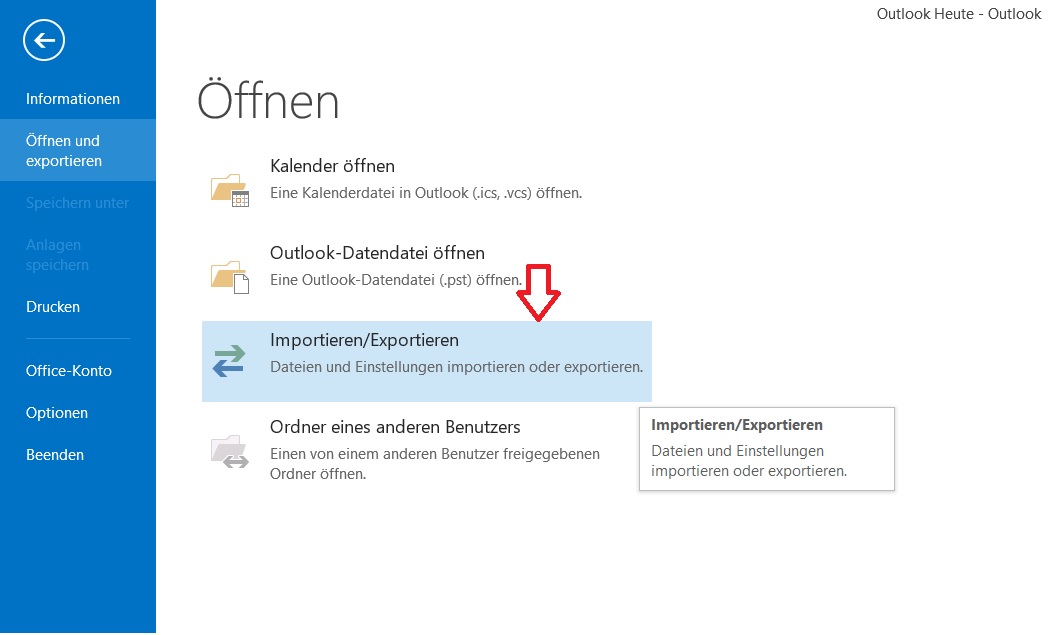
Step 1: Start Outlook and click the File tab at the top left of the menu. Now click on Open & Export and then on Import/Export.
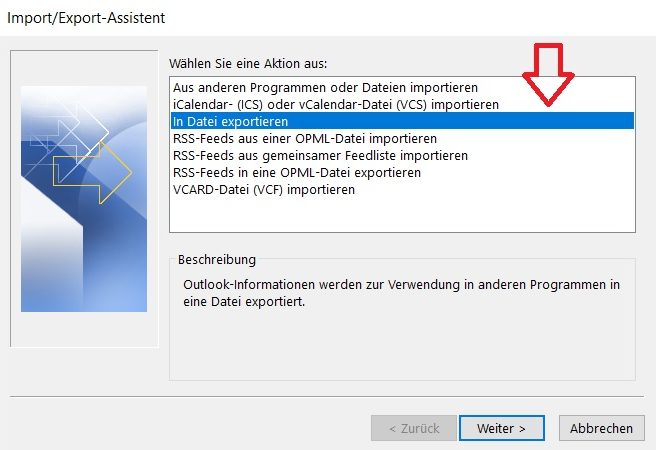
Step 2: The Outlook Import/Export Wizard opens. Click on Export to a file.
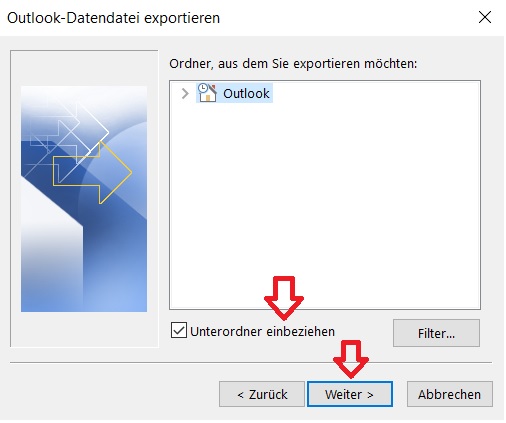
Step 3: Now select all folders you want to save. Additionally, click on the Include subfolders option so that all your folders including subfolders are included in your Outlook backup.
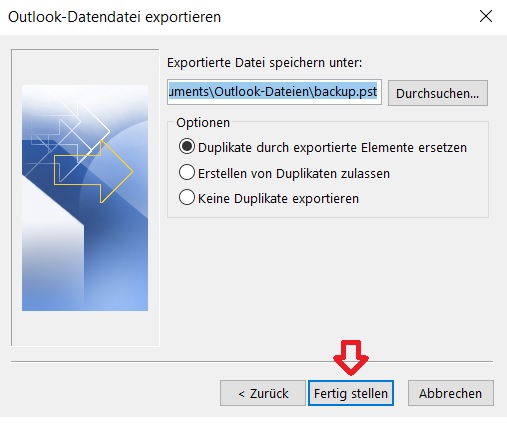
Step 4: In the final step, you can configure how to handle duplicates. Select Replace duplicates with exported items to avoid backing up your data twice. At this point, you can also specify the location for your backup. This should ideally be on an external hard drive to securely store your data long-term. Afterwards, click Finish and keep the hard drive with your completed Outlook backup in a safe place. Do you want to restore your data using your Outlook backup? In this blog post, you will find out how it works.
Outlook: Saving Emails – Step-by-Step Guide
Before you print all your important emails, you can save them directly to your hard drive via Outlook instead. This way, you avoid a mess of papers! Find out how it works here.
Step 1: Open your Outlook mailbox and click the email you want to save. It should now be highlighted in blue. Hold down Ctrl and select additional messages if you want to save multiple emails at once.
Step 2: Now click File at the top left of the menu, followed by Save As.
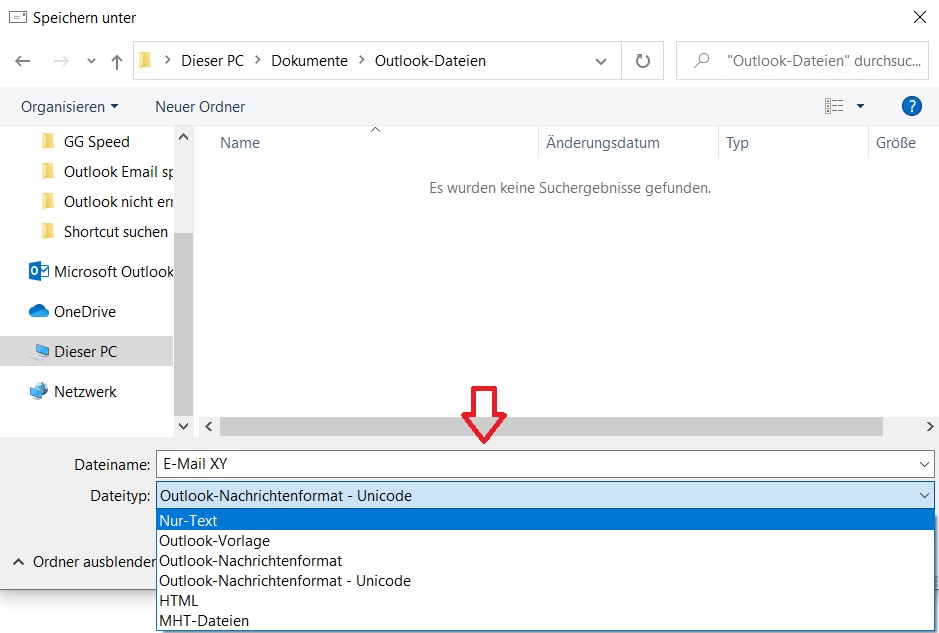
Step 3: Specify the location and choose the format in which Outlook should save your emails. You can choose between the default Outlook Format, HTML, or Plain Text. The latter saves only the text content of your email. Once you have followed these steps, your emails are saved on your hard drive and you can access them at any time. For a better overview, it is advisable to sort the backed-up data into appropriate folders.
I hope this article helped you secure your Outlook data.
See you soon!
With Lookeen, you can search your data and emails in real time. Click here for more information!
With Lookeen, you can search your data and emails in real time. Click here for more information!



Comments