

Outlook and Microsoft Office: Which version do I have? Here's how to find out
In the jungle of various Microsoft Office and Outlook versions, it is often difficult to recognize which edition you are using yourself. Although the versions share many similarities, they also differ in some respects. Therefore, it is not insignificant which Microsoft Office or Outlook version is installed on your PC. In this article, I will show you how you can easily find out which Microsoft Office and Outlook you are using.
Which Microsoft Office version do I have?
Step 1: Open Outlook and click on File.
Step 2: Click on the Office Account field. If this option is not available, you are likely using an older version of Outlook. In this case, look for the Help field.
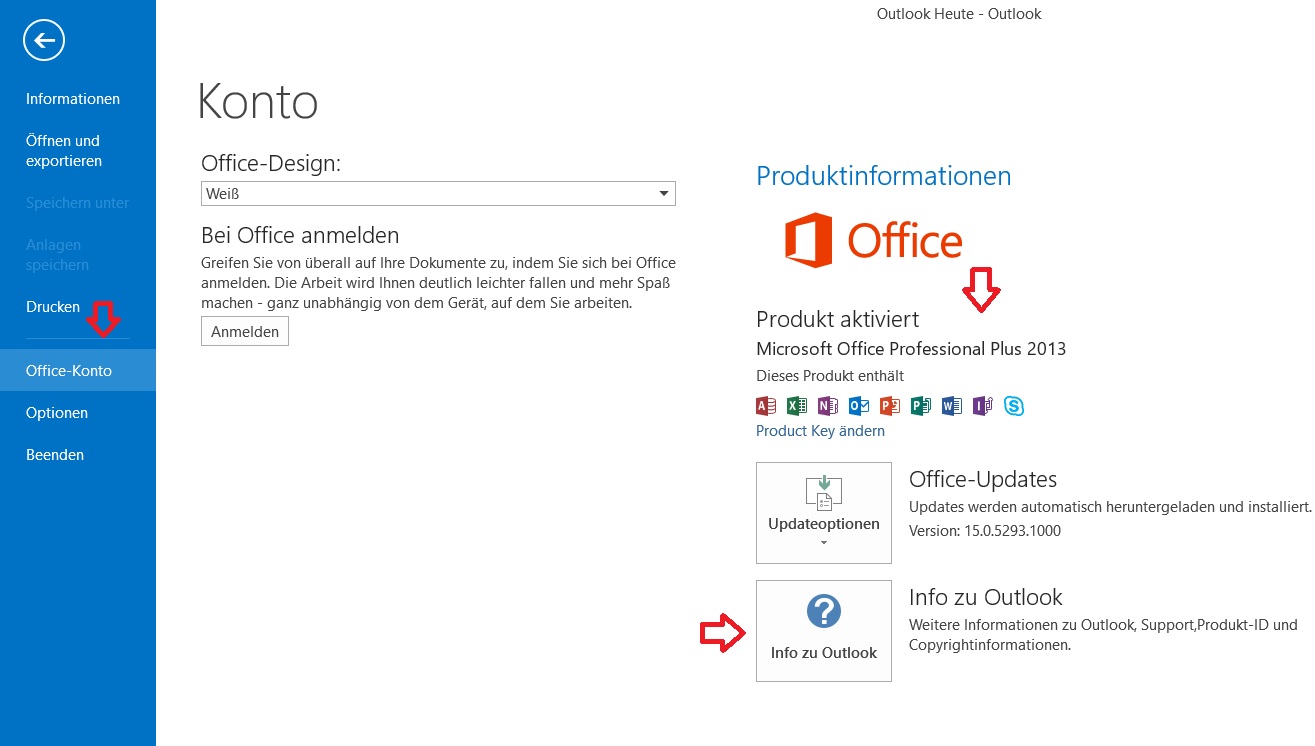
Afterwards, you can see which Microsoft Office version you have installed. The product information will be displayed on the right. In my example, it can be seen that the Microsoft Office Professional Plus 2013 version is being used.
Which Outlook version do I have?
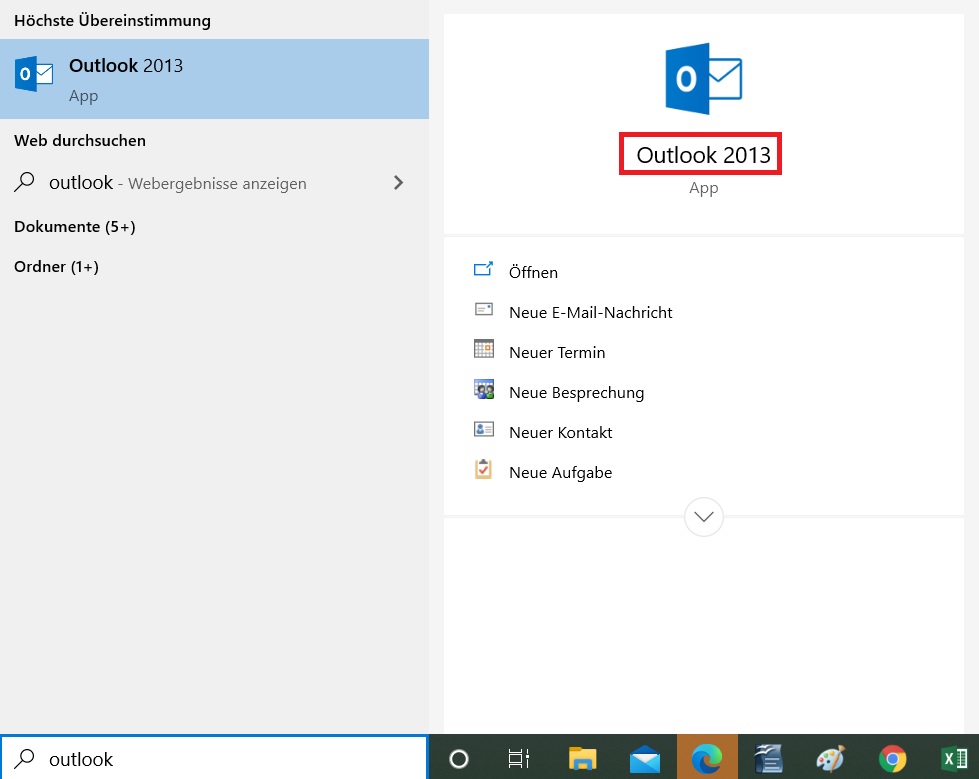
If you only want to know which Outlook version you are using, you can open Outlook via Start or enter it in your Windows search. Your respective Outlook version will already be displayed there. For more details about your Outlook edition, use the next guide in this article.
Which Outlook bit version do I have?
Do you want to find out whether you are using the Outlook 32-bit or the Outlook 64-bit version? In the following, you will learn how this works.
Step 1: Open Outlook and click on File.
Step 2: Click on the Office Account field. If this option is not available, you are likely using an older version of Outlook. In this case, look for the Help field.
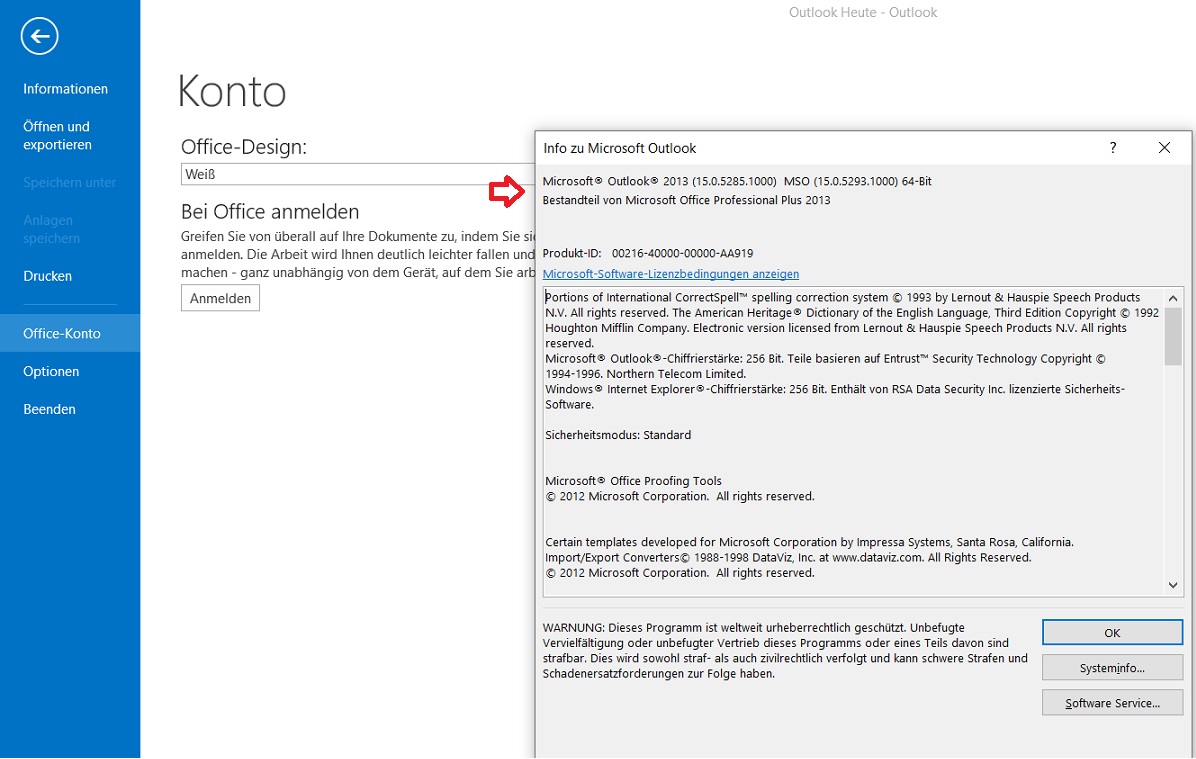
Step 3: In the final step, click on About Outlook. A new window will now open that displays your Outlook version. You can also read whether you are using the 32-bit or 64-bit Outlook version.
Which Outlook version do I have on my macOS or smartphone?
Here you will find all the guides to help you find out which Outlook version is installed on your macOS, iPhone/iPad, Android, or browser.
Find out here how to check your Outlook version on your macOS.
Find out here how to check your Outlook version on your iPhone/iPad.
Find out here how to check your Outlook version on your Android.
Find out here how to check your Outlook version on your browser.
I hope this article has helped you determine your Microsoft Office and Outlook version.
See you soon!
Use Lookeen’s real-time search now and find your Outlook files lightning fast!

Comments