

Outlook No Longer Starts – Here's How to Get It Working Again
Is your Outlook no longer working or unreachable? There can be various reasons for this. When issues arise with Outlook, the email program often fails to start or simply crashes. As a result, you lose access to your emails, which can be very frustrating. But don’t worry, because in this article I will show you all the solutions that can get your Outlook running again.
Resolving Startup Issues in Outlook
Before you begin troubleshooting your Outlook issues, first check whether there are any current disruptions affecting Outlook. You can find all current and past Outlook disruptions here. However, many Outlook problems can already be resolved with the following simple steps.
Now you can search your Outlook in real time with Lookeen!
Simple Solutions
Restart – As a first step, restart your PC. In many cases, this alone will resolve the issue.
Check for updates – Make sure you have the latest version of Microsoft Outlook installed on your PC. On Windows 10, you can enable automatic updates.
Step 1: In your Windows search bar (bottom right next to the Windows icon), type “Windows Update”. Then click on Advanced options.
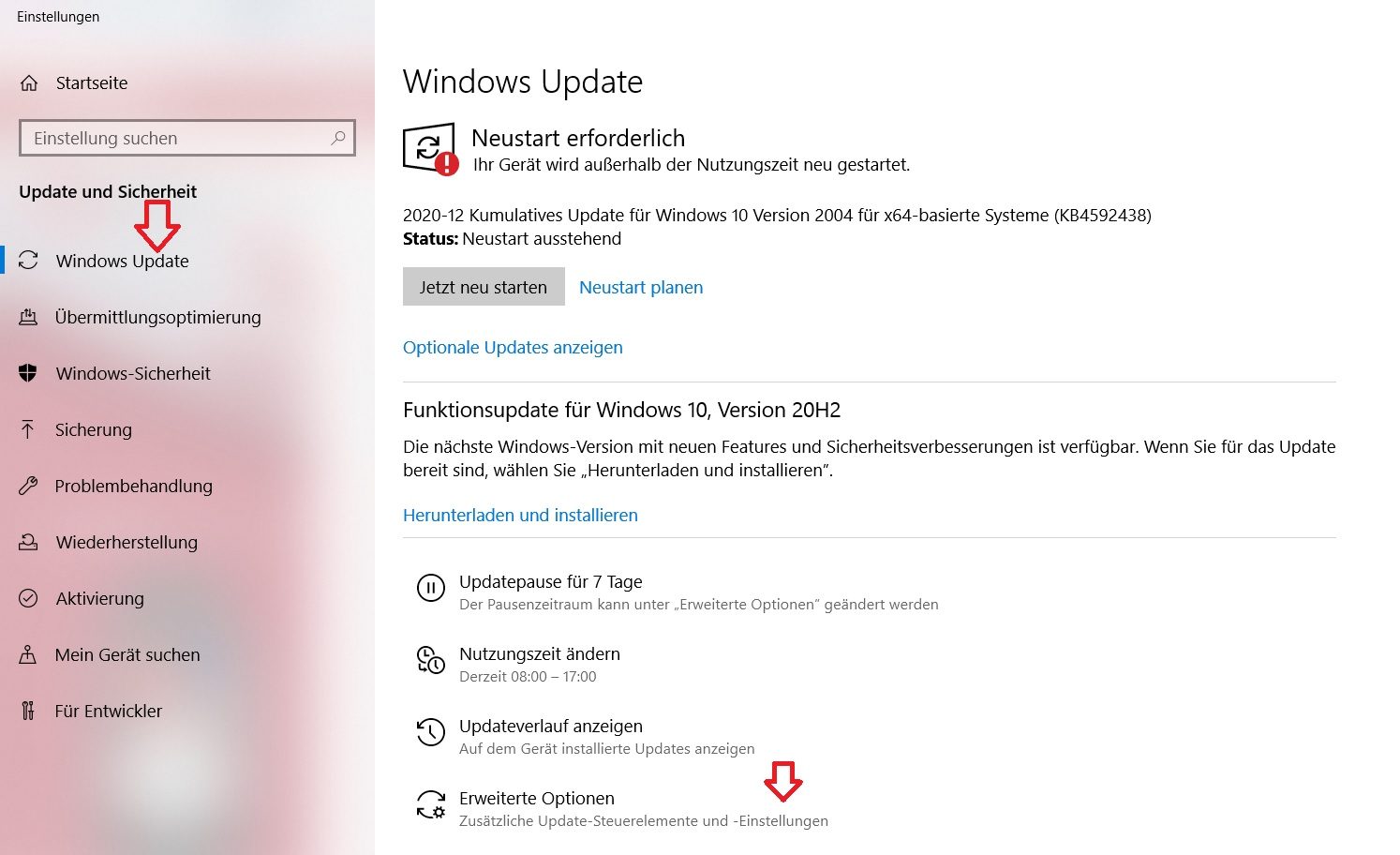
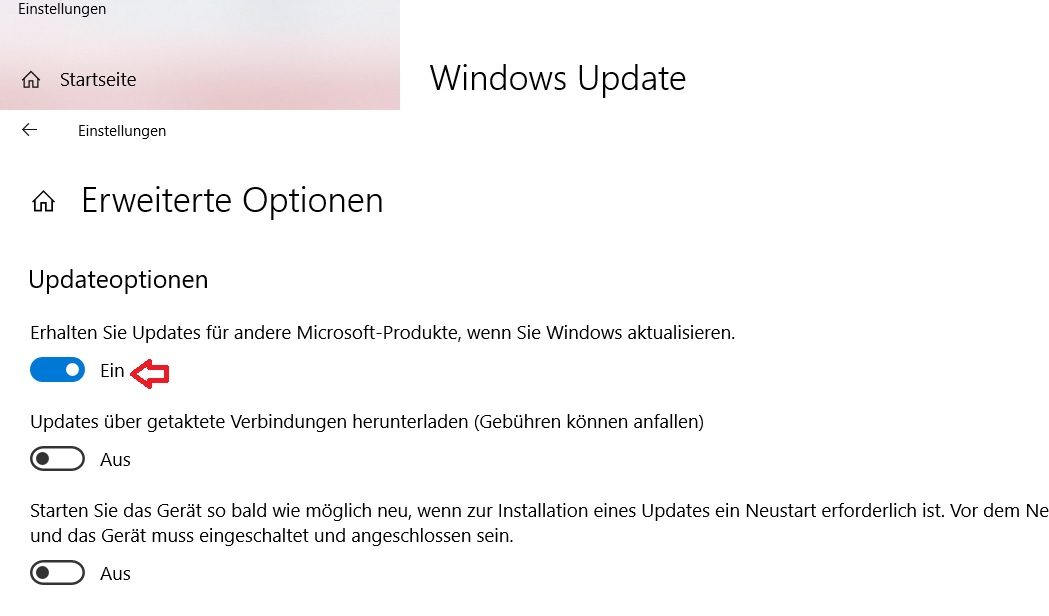
Step 2: There, on the setting labeled Get updates for other Microsoft products when you update Windows, switch it to On.
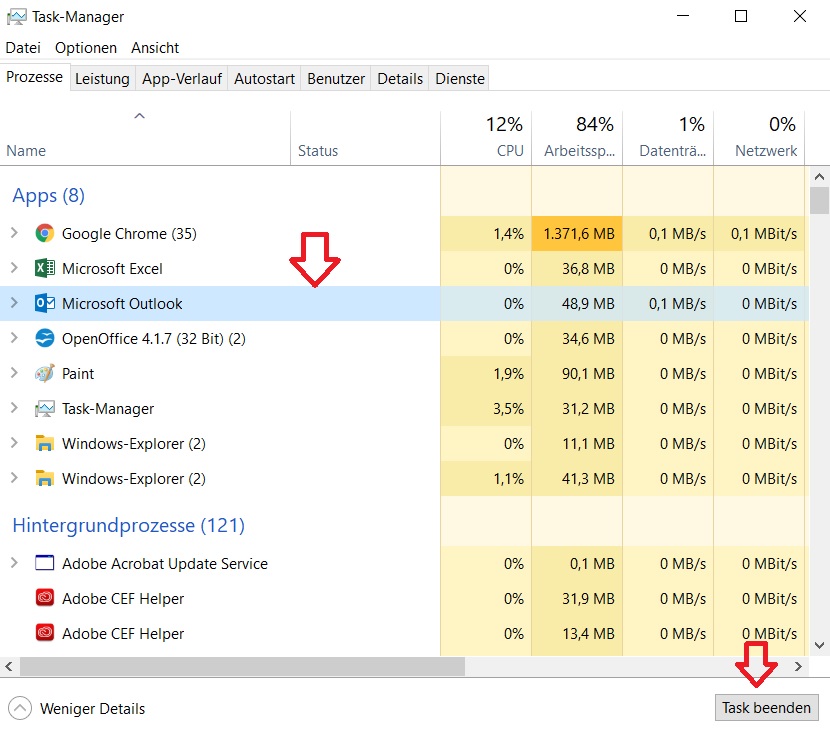
Close Outlook in Task Manager – In some cases, Outlook continues to run unnoticed in the background on your computer. As a result, the program becomes unresponsive or freezes. Therefore, make sure that Outlook is closed in the Task Manager.
Step 1: Use the shortcut Ctrl+Alt+Del to open your Task Manager.
Step 2: Look for Outlook and click on End task.
Is your Outlook still not working? Then the problem might be a bit more complex. In the next part of this article, you will learn what else you can do to get Outlook running smoothly again.
Uninstalling Outlook Add-ins
One of the biggest triggers for Outlook issues is unnecessary Outlook add-ins. Therefore, you should remove them. Here is how it works.
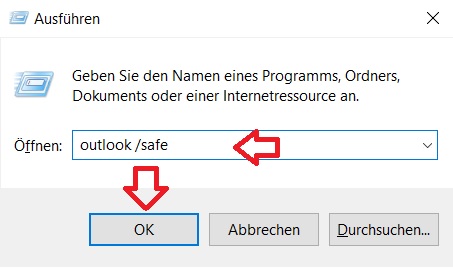
Step 1: Open Outlook in safe mode. To do this, use the shortcut Windows key + R and enter in the Run field: outlook /safe. This will automatically start Outlook in safe mode.
Step 2: Afterward, follow the instructions in our blog article on removing Outlook add-ins. Click here to access the step-by-step guide.
Repairing the PST File
The Personal Store file with the .pst extension contains all your emails, appointments, contacts, tasks, etc., that are stored in Outlook. If this file is corrupted, Outlook will no longer start. You can have the Outlook PST file automatically repaired by running Scanpst.Exe. Here’s how:
Step 1: Open the Program Files folder.
Step 2: Depending on your Outlook version, look for the following folder:
for Outlook 2019: Microsoft Office 16
for Outlook 2016: Microsoft Office 16
for Outlook 2013: Microsoft Office 15
for Outlook 2010: Microsoft Office 14
for Outlook 2007: Microsoft Office 12
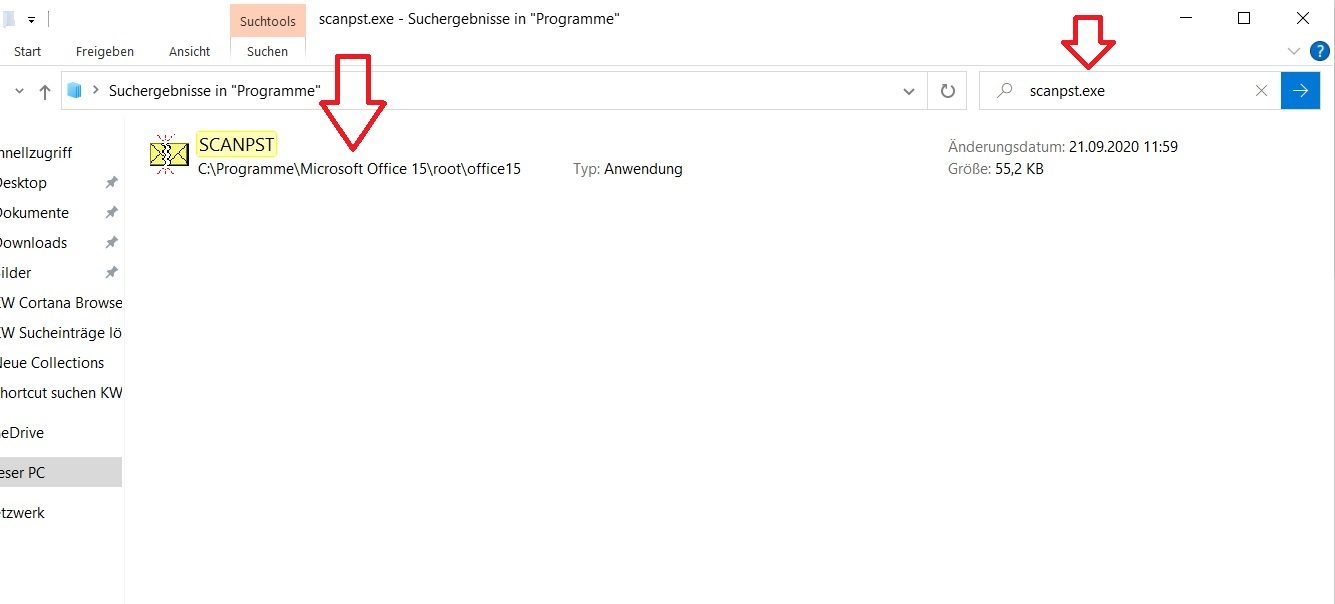
Step 3: In the respective folder, look for the file: Scanpst.Exe.
Step 4: Double-click the file: Scanpst.Exe.
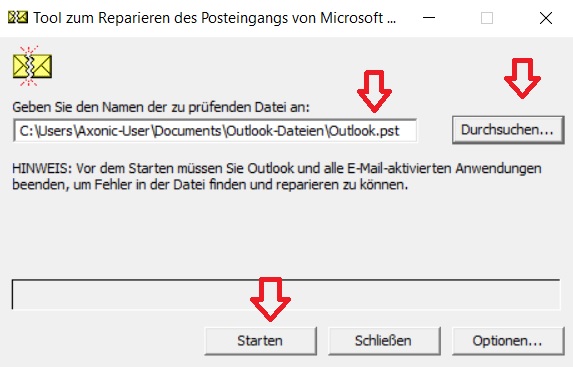
Step 5: Click on Browse and make sure that the Outlook.pst file is selected.
Step 6: Press Start.
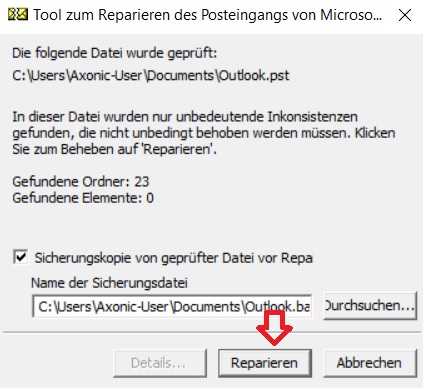
Step 7: Now click on Repair. Afterward, Outlook should work again.
Resetting the Navigation Pane
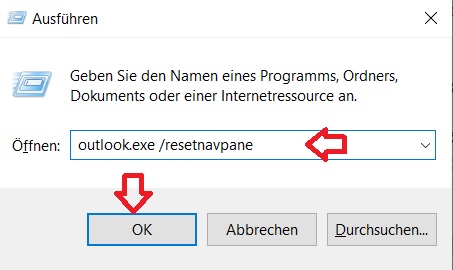
If the navigation in Outlook is corrupted or faulty, this can also lead to startup issues with Outlook. But don’t worry, because you can easily reset the navigation pane using the following steps.Step 1: Use the keyboard shortcut Windows*+R*.
Step 2: Now enter outlook.exe /resetnavpane into the “Run” field and press the Enter key.
Step 3: Start Outlook.
Use the Microsoft Office Repair Assistant
If you download and open the Microsoft Office Repair Assistant, it will perform automatic troubleshooting. Afterwards, Outlook can be repaired using it. Click here to download the Microsoft Office Repair Assistant and the corresponding instructions for it.
Search for your files, including file contents, even faster and more effectively with Lookeen now!
Is Outlook too slow?
Your Outlook is too slow and keeps freezing? Find out how you can resolve this issue in this blog post.
Is Outlook Search not working?
Your Outlook search is no longer working? You can find the appropriate solutions in these blog posts.
If you have problems with your Outlook 2016 search, click here.
If you have problems with your Outlook 2013 search, click here.
General solutions for fixing your Outlook search issues can be found here.
I hope this article has helped you resolve your Outlook issues. See you soon!
With Lookeen, you can search Outlook in real time! Click here for more information!



Comments