

Outlook too slow? Here's what you can do about it
There can be many reasons why your Outlook is no longer running as fast as it did shortly after installation. Outlook performance issues can stem from the software itself, but also from how you use the program. To restore Outlook’s original performance, you need to troubleshoot the application. Find out what you should pay attention to and which habits you might need to break in this article.
If Outlook suddenly becomes slow, it could be due to seemingly minor issues. Use the following list to identify the error(s) and proactively rule out future problems.
Keep Windows Up to Date
Keeping Windows consistently up to date makes sense not only for security reasons. New updates often also resolve performance issues or bugs that have previously gone unnoticed. On the other hand, updates can sometimes introduce new sources of errors. However, these are usually fixed quite quickly with subsequent updates. Nevertheless, you should always keep your system as up to date as possible, since software developers typically target the latest version. If your Outlook search suddenly becomes slow, this could correspondingly be due to your Windows no longer being up to date.
Archive Your Inbox
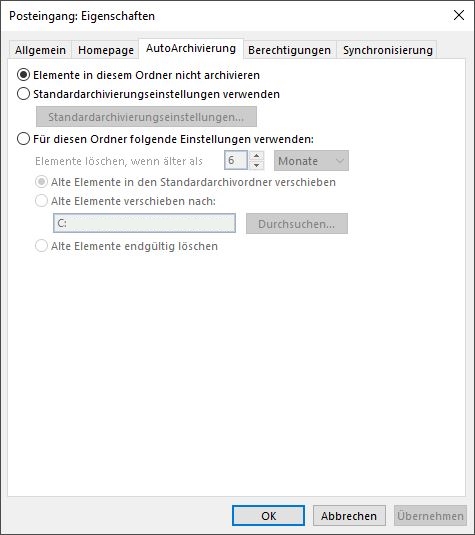
To ensure Outlook continues to run at an appropriate speed even after extended use, you should archive your inbox from time to time. The more emails you accumulate in your inbox, the greater the likelihood that your Outlook search will suddenly slow down. By enabling Outlook’s AutoArchive, you can easily bypass this problem. To do this, right-click your inbox and left-click on Properties. Under AutoArchive, you can make all the important settings for it. For a future empty inbox, you can also apply the Inbox Zero strategy.
Do Not Share the Outlook Calendar
Sharing or publishing an Outlook calendar online can be a very sensible solution for you. However, if you do not strictly need these options, especially given that your Outlook search is running slowly, you should limit their use. If your Outlook search is not slowing down due to these options, you can re-enable the shared calendar settings. However, the more data you share via Outlook and the more data Outlook has to process through online calendars, the slower the email client will ultimately run.
Disable RSS
If you use RSS, keep in mind that Outlook natively synchronizes web feeds from Internet Explorer. If you have added a correspondingly large number of RSS feeds to your browser’s favorites, this could also be a reason why your Outlook is running slower.
Disable Add-Ins
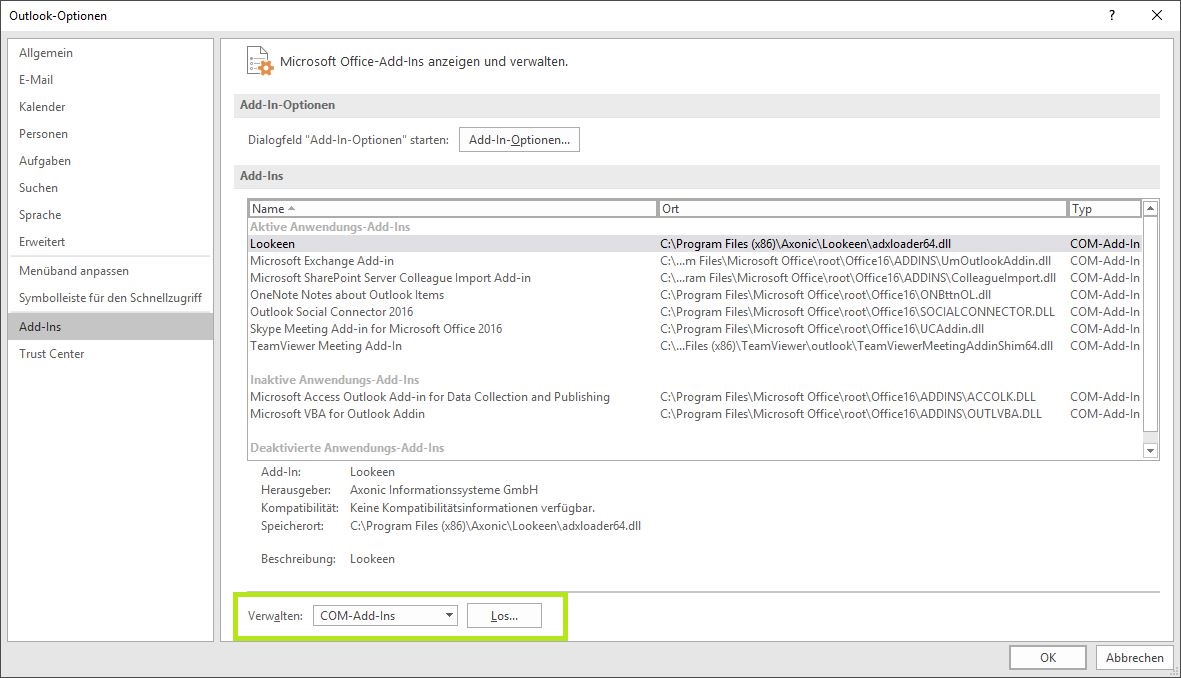
Using programs that extend Outlook’s functionality and integrate seamlessly into the user interface (so-called Add-Ins) can be a great help in your daily work with the email client. On the other hand, too many Add-Ins can become a problem for Outlook and significantly limit its performance. Could an Add-In have installed itself directly into your Outlook client when you installed another program, without you noticing? A look at the corresponding setting is worthwhile: Via *File – Options – *Add-Ins, you can access the relevant overview. Under COM Add-Ins, you will receive a list from which you can simply uncheck unnecessary Add-Ins.
Download Items Completely
If you have connected your Outlook to another email provider, make sure that all items are downloaded completely. You can set this up under the download setting “Download items completely”. This ensures that not only the header but the entire message is downloaded. This should improve Outlook’s speed.
Further Causes of Errors
If your Outlook search is still running slowly, this could also be due to any of the following causes:
- Insufficient system performance
- Folder application data is redirected to a different location
- Your antivirus program is causing issues with Outlook
- Your desktop search index is corrupted
- Your PST and/or OST files are not closed properly
- Your Outlook messaging profile is corrupted
I hope these tips have helped you improve the speed performance of your Outlook.
See you soon!



Comments