

Outlook: Removing Add-ins – Here's How
Third-party add-ins allow you to customize the email client Microsoft Outlook according to your preferences. Features that Outlook does not offer by default can be easily added in this way. While add-ons merely extend a program with new options, add-ins integrate as seamlessly as possible into a software’s user interface. Many companies now offer add-ins alongside their programs. In this article, you will learn how to easily remove unnecessary add-ins from your version of Outlook.
Are Outlook Add-Ins Even Useful?
For popular programs, there are usually software solutions that can serve as a foundation for add-in development. For Outlook, there are thousands of different extensions. However, installing an add-in is not always advisable, since not every extension is fully mature or regularly updated. Additionally, Outlook requires more processing power for each additional add-in. Too many add-ins slow down Outlook both during startup and in daily use within the program itself. It can also happen that you have installed an add-in without realizing it and haven’t noticed what else is running in your email client. Just for this reason, it’s worth taking a look at the Outlook settings and specifically the COM Add-Ins. Here, all of Outlook’s add-ins are displayed, and you can decide which ones you prefer to disable. Depending on the Outlook version, you will reach these settings via a different path. At the end of this article, you will also learn how to completely uninstall add-ins.
Outlook 2003: Disabling Add-Ins
In Outlook 2003, you must disable the add-ins not only in the COM Add-Ins menu but also in the Add-In Manager:
- Open Options via Tools
- Open the Other tab and click on Advanced Options .
- There you will find the Add-In Manager. Turn off all add-ins that you no longer need.
- Go back to Advanced Options and click on COM Add-Ins. Also disable the add-ins here that you no longer need.
Outlook 2007 / Outlook 2010: Disabling Add-Ins
In Outlook 2007, you must disable the add-ins via the Trust Center, while in Outlook 2010, as usual, via Options:
- In Outlook 2007, open the Trust Center via Tools. In Outlook 2010, open Options via File.
- Now open the Add-Ins tab in both versions. A list of all add-ins will be displayed. If you click on an entry, you will receive additional information such as the manufacturer or name. Note down which add-ins you want to disable.
- Navigate to Manage and select COM Add-Ins. Click on Go To and uncheck all the boxes for the add-ins that you no longer need.
Outlook 2013 / Outlook 2016: Disabling Add-Ins
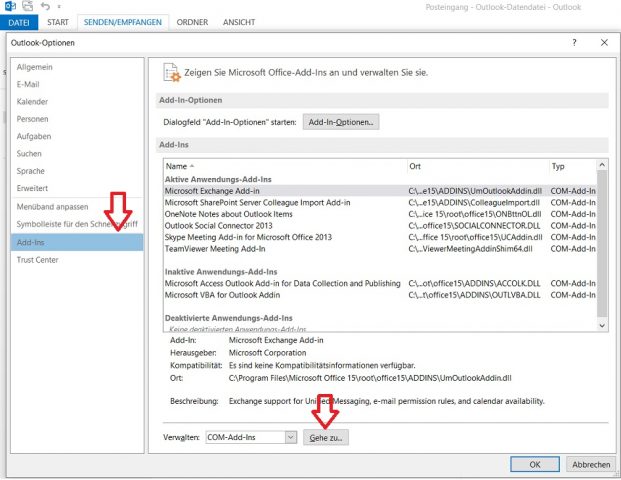
- Open Options via the File ribbon.
- In the lower-left area, you will find Add-Ins.
- Next to Manage, on the right side, is COM Add-Ins. By clicking on Go To (Outlook 2013) or Go (Outlook 2016), a list of all active add-ins will open in a new window.
- Now disable the add-ins that you no longer need.
Outlook: Uninstalling Add-Ins
Even if you have disabled an add-in, its associated files are still not removed from your system. This can lead to conflicts with other programs, which is why uninstalling add-ins is the safest way to get rid of them. While some programs come with their own uninstaller, others must be removed via the Control Panel.
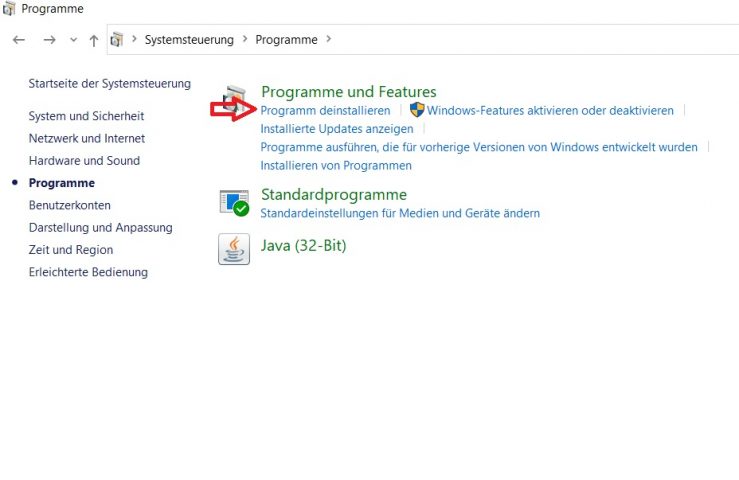
- To do this, close Outlook and open your Control Panel.
- Via Software, Uninstall a program, or Programs and Features, you will reach Windows’ program list.
- Uninstall the add-ins one by one by following the instructions of the installation wizard. After uninstallation, you can reopen Outlook. It is very likely that you will notice an immediate performance increase. You may also need to restart Windows for the changes to take effect.
By applying these settings, Outlook add-ins should no longer cause you any problems in the future. I hope this article was helpful to you.
See you soon!



Comments