

Outlook 2013 Search Not Working
Outlook 2013 is one of the most widely used email programs worldwide and has become almost indispensable in the professional world. Nevertheless, users frequently complain that their Outlook 2013 search is not functioning properly. This is particularly frustrating when you are trying to compose or receive an important email. Unfortunately, there is no quick and easy solution for some issues, but many of the most common errors can be resolved in no time.
Outlook 2013 Search Not Working
Do you need a reliable and professional Outlook search? Find out more about Lookeen’s search features here!
The following issues are among the most common ones you may encounter when using Outlook 2013. If you follow the instructions below, your Outlook search should be working again shortly.
Known Error Messages
If your Outlook 2013 search displays “No results found” after entering a search query, or if you receive significantly fewer results than expected, it may be due to incomplete indexing. Ensure that your indexing is complete as follows:
-
In Outlook, click into the Instant Search field so that the “Search” tab opens in the ribbon.
-
Now, under “Search Tools”, click on “Indexing Status”.
-
In the “Indexing Status” dialog box, it should say “Outlook has finished indexing your items. 0 items remain to be indexed.”
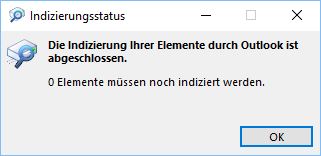
If indexing of all items is not yet complete, wait five minutes and try again. If nothing has changed after that, you should check whether your indexing options are configured correctly.
Check Indexing Options
-
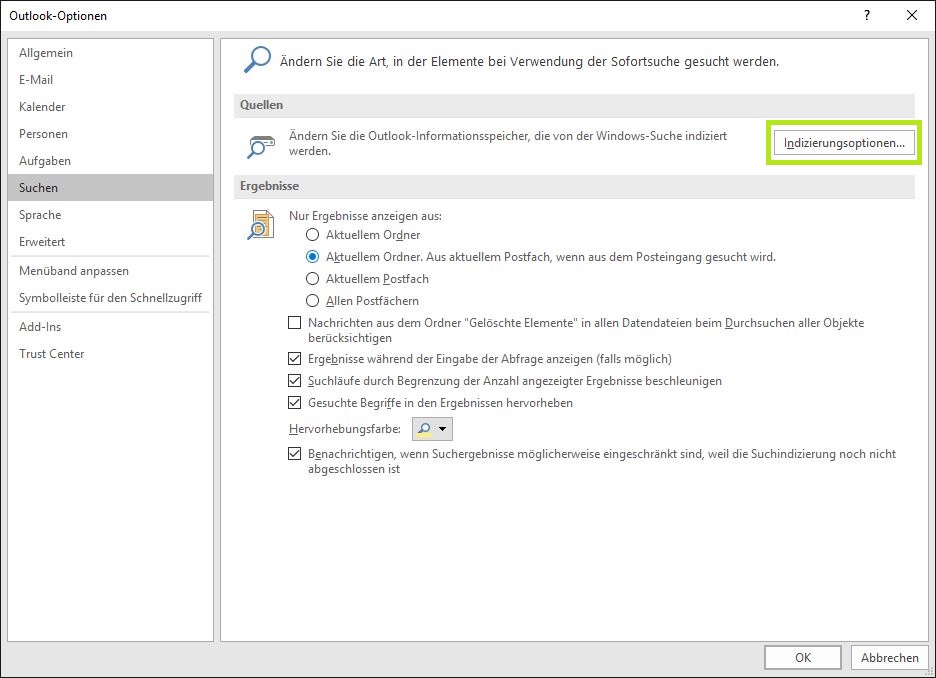
To do this, click the “File” ribbon in Outlook.
-
A pop-up window will appear where you will find the sub-item “Options” on the left. After clicking “Options”, a new window titled “Outlook Options” will open.
-
Under “Search”/“Browse”, you will find a gray-bordered field on the right side labeled “Indexing Options…”.
-
Via “Change”, you need to open “Indexed Locations”.
-
A list will open showing all locations indexed by Outlook. If “Microsoft Outlook” is not selected, check the box next to it.
-
Confirm your change with “OK” and close the open windows.
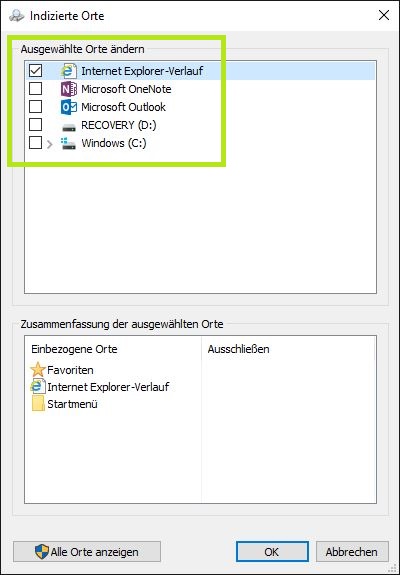
If “Microsoft Outlook” was already marked as indexed, you should uncheck it and check it again:
-
Uncheck “Microsoft Outlook”.
-
Close Outlook and make sure that “Outlook.exe” is no longer displayed in the Task Manager (“CTRL”+“ALT”+“DEL”) under “Processes” (if necessary, end it by right-clicking – “End Task”).
-
Wait at least five minutes.
-
Add “Microsoft Outlook” back to the index.
Repair Faulty PST Files with scanpst.exe
If your Outlook 2013 search still does not work, your PST file is likely the problem. PST files are a file type that Outlook uses to store your data. A distinction is made between OST and PST files. While OST files are used for offline data, PST files are designed for web-based accounts such as POP3 or IMAP. If your PST file is corrupted, it will cause major issues with your Outlook search because it cannot correctly access stored data.
With the Microsoft tool scanpst.exe, you receive software with Outlook that can diagnose your PST files. You can find Microsoft’s scanpst.exe either via Windows Search or directly in the folder directory. Since Outlook 2013, it is located under C:\Programme (x86)\Microsoft Office/root/OfficeXY (on 32-bit systems under C:\Programme…).Run scanpst.exe to scan your PST files for errors. If the number of items to be indexed remains unchanged for an extended period, the issue has not been resolved directly. Do not close scanpst.exe. Remove the PST file where scanpst.exe has stalled from your index for at least five minutes, as you have already described above for “Microsoft Outlook”.
After this time period, add the file back to the index. The status in scanpst.exe should change to “0 items remaining”. If this is not the case, you will likely need to completely delete and recreate your index.
Delete and Recreate Index
The final, yet most promising solution for indexing issues is to completely delete your index. Depending on the index size and computer performance, this process can take several hours. Accordingly, it is recommended to only perform this when you do not need to work simultaneously on your device.
-
Return to the “Indexing Options” in Outlook, as you already did when checking your indexing options.
-
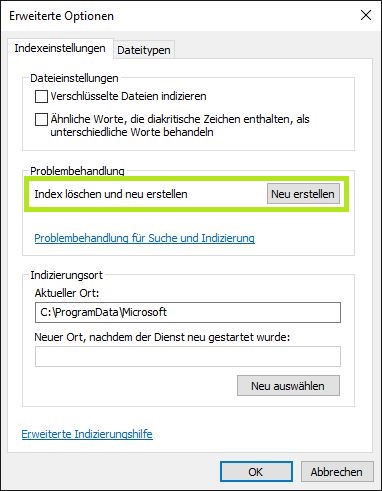
Click on “Advanced”. You will be taken to the “Advanced Options”.
-
Here, under the sub-item “Troubleshooting”, you can delete and recreate your index.



Comments