

Outlook: Disable AutoArchive – Here's How
AutoArchive keeps your mailbox in Outlook organized and less cluttered. However, it can happen that individual emails or folders disappear. Learn how to find your emails in Outlook here. For this reason, disabling AutoArchive in Outlook is certainly also beneficial. You can learn how to do this in a few steps in this blog post.
How to disable AutoArchive in Outlook
Step 1: Start Outlook.
Step 2: Click File and then Options.
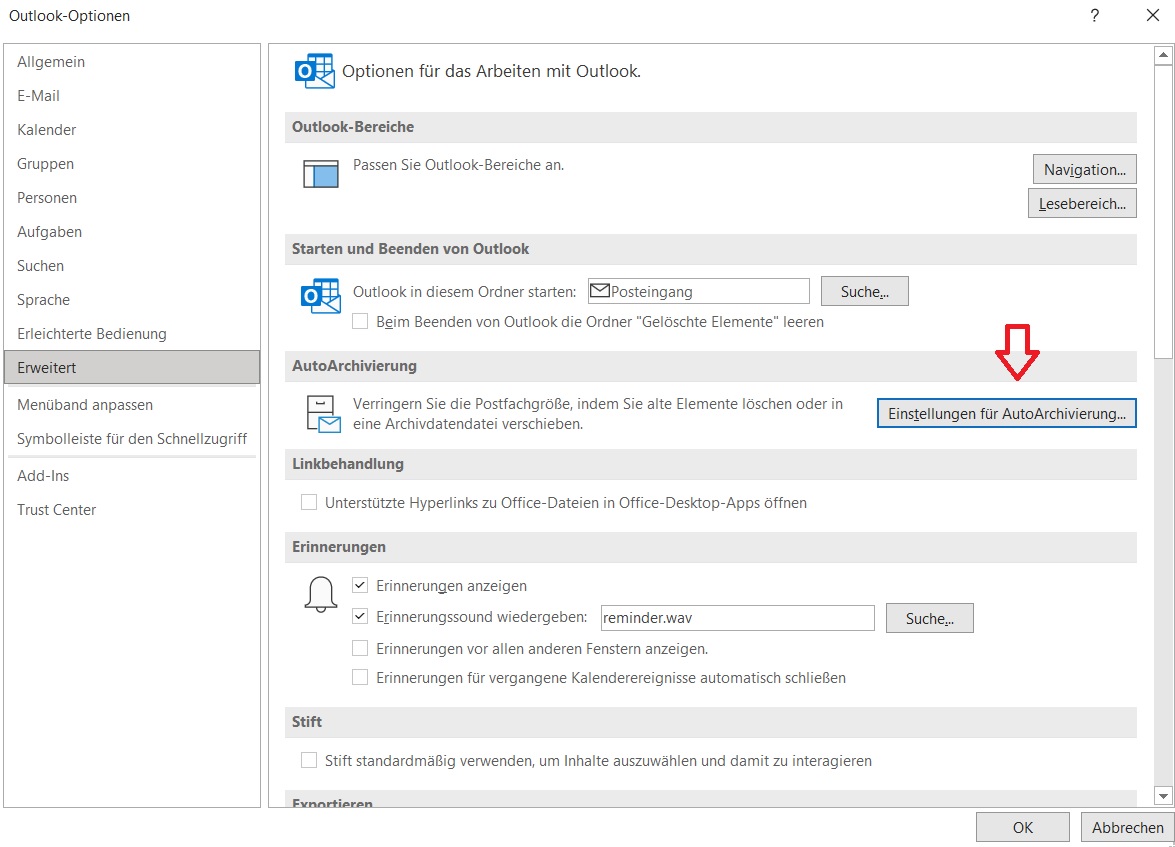
Step 3: Locate the AutoArchive field and click AutoArchive Settings.
Step 4: Uncheck the Run AutoArchive every X days option and confirm with OK.
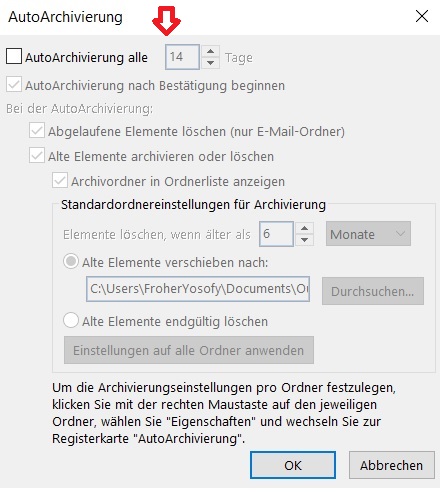
Your AutoArchive in Outlook should now be successfully disabled. Do you find this feature useful in Outlook?
See you soon!


Comments