

Outlook: How to find your email again – here's how
You have an important email that you simply can’t find in Outlook? Don’t panic; in this blog post, you will learn how to locate emails in Outlook again. Often, the basic Outlook search is not sufficient to find an email. Therefore, it is necessary to set additional filters or a search folder, or to use an Outlook plugin like Lookeen. Below, you will find the details. The guides presented here can be easily applied to all newer Outlook versions from 2013 onwards.
Find E-mails via Outlook Search Folders
To narrow down your search and make it easier to find your e-mails, it makes sense to create a search folder in Outlook. Here is how it works step-by-step:
Step 1: Start Outlook.
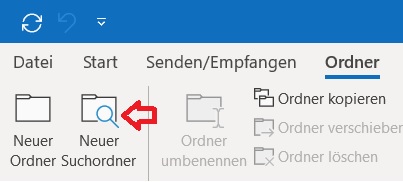
Step 2: Click on Folders and then on New Search Folder.
Step 3: In the new window, you can create a search folder and set the desired criteria for the e-mail you are looking for. Are you searching for an e-mail from a specific person? Then enter that person’s name and create a search folder that only contains that person’s e-mails. You can then search within this folder to find your e-mail. Additionally, you can specify a time period. The same applies to all other search filters Outlook offers you.
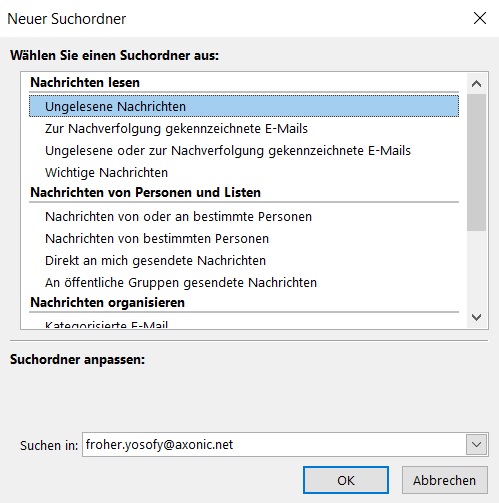
The advantage of a search folder in Outlook is that the storage path of the e-mail does not change. This means the e-mails are not automatically moved into the search folder, but are only taken into account during the search.
However, both the Outlook search and the Outlook search folders often cannot search through Outlook archives, sometimes simply do not work, or take a very long time and are cumbersome. It can certainly happen that an e-mail is no longer findable in Outlook using this method. In this case, it is worth installing Lookeen as an Outlook plugin.
Find E-mails with Lookeen
Lookeen replaces the cumbersome creation of search folders in Outlook and finds all information related to a keyword in seconds. After downloading, Lookeen is integrated into your Outlook toolbar.
Step 1: Start Outlook and look for the Lookeen bar.
Step 2: Simply enter your query into the search bar and Lookeen will open to show you your search results. Your search terms will be highlighted both in your results and in the preview of your e-mails and documents.
Bonus: Refine your search and filter by date, recipient, file type, or size. You can also easily perform your most important e-mail operations in Lookeen. Thanks to real-time indexing, Lookeen finds your e-mails in seconds. This saves you a huge amount of time compared to the Outlook search. You can find further information on this here.
I hope this article helped you find your e-mails in Outlook. See you soon!


Comments