

Outlook: Search all folders - here's how
Are you looking for an important email in Outlook? Then you should search all folders for it. However, the Outlook search is usually preset to a specific folder. Find out how you can change this and include all your folders in the Outlook search in this blog post. Using the following step-by-step instructions, you can search all folders in Outlook. In the first chapter, you will find guidance for newer Outlook versions from 2010 onwards. The second instruction applies to older Outlook versions such as Outlook 2007.
Outlook 2010 and later: Search all folders
Step 1: Start Outlook.
Step 2: Click File and then Options.

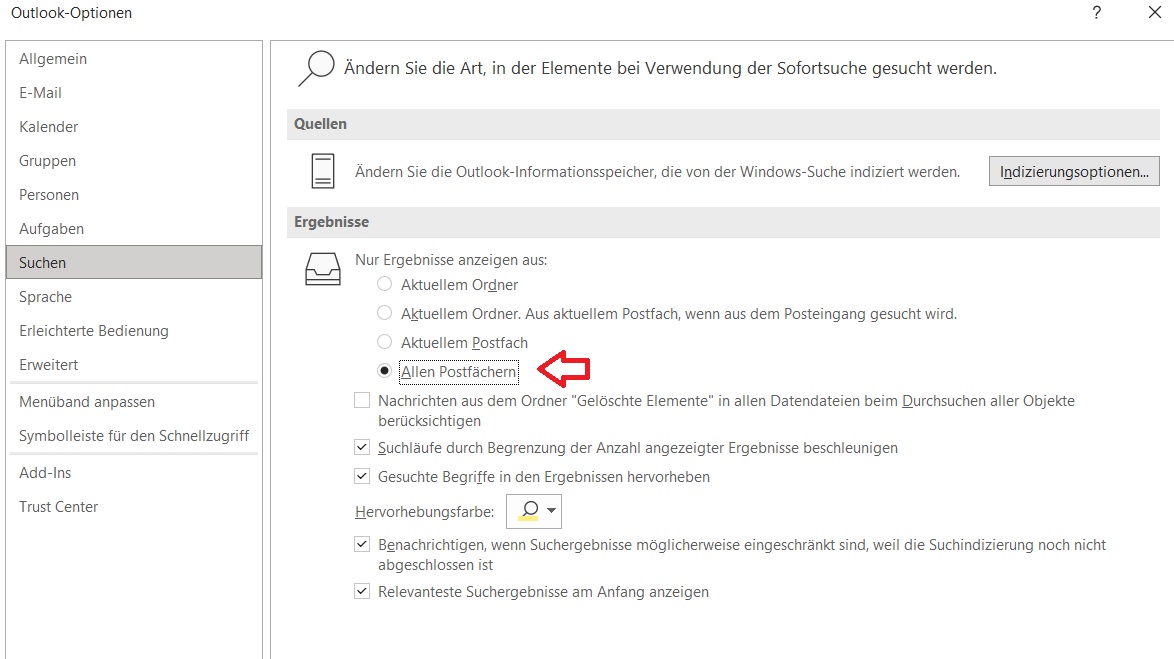
Step 3: Navigate to the Search field and check the box next to All Mailboxes under the Show results from only tab. On your next search query, Outlook will now search all folders.
Outlook 2007 and earlier: Search all folders
Step 1: Start Outlook.
Step 2: Click File and then Options.
Step 3: Navigate to the Search field and check the box next to All Folders under the Show results from only tab. On your next search query, Outlook will now search all folders.
With Lookeen, you can search all folders in Outlook in seconds!
Issues with Outlook Search?
You have searched all your Outlook folders for the important email but still cannot find it? Then you should use an Outlook search plugin like Lookeen. Find more information here.
Is your Outlook search too slow? Click here for the solution.
Is your Outlook search simply not working anymore? Click here for the solution.
I hope this article has helped you search all your folders in Outlook. Does Outlook search work smoothly for you?
See you soon!


Comments