

Synchronize Outlook – here's how it works
Do you want to access your Outlook data from various devices? Then you need to synchronize your Outlook. Initially, synchronization means updating your Outlook and bringing it up to date. However, the main point of synchronization is that changes in your mailbox, such as new emails, etc., are displayed on all devices. Find out how this works in this article. The following instructions can be applied to all Outlook versions. If you definitely do not have an Exchange account, you can scroll down to the chapter: “Synchronize Outlook without an Exchange account”.
Synchronize Outlook via Exchange Server
Whether it’s shared calendars and address books, a new laptop, a new smartphone, or working from home. The reasons that make Outlook synchronization necessary are varied. Synchronizing Outlook allows you direct access to your data from any device at any location. The simplest method is synchronization via an Exchange server and the associated Exchange account.
This is a software that allows multiple users to manage the same data via a shared server. Many companies therefore rely on such an Exchange server. Tasks, emails, contacts, calendars, and notes in Outlook are automatically saved and synchronized on the Exchange server.
Search Exchange servers effortlessly with Lookeen! Click here for more information!
Set up an Exchange Account in Outlook
To set up an Exchange account in Outlook, you need your user credentials. You typically receive these from your administrator. The following step-by-step guide shows you how to easily add an Exchange account to Outlook.
Step 1: Use the PC on which you want to synchronize Outlook. Start Outlook.
Step 2: In older Outlook versions up to 2010, click Tools and then Account Settings. From Outlook 2013 onwards, click File → Info → Account Settings. In both cases, a menu opens where you can view and manage your email accounts.
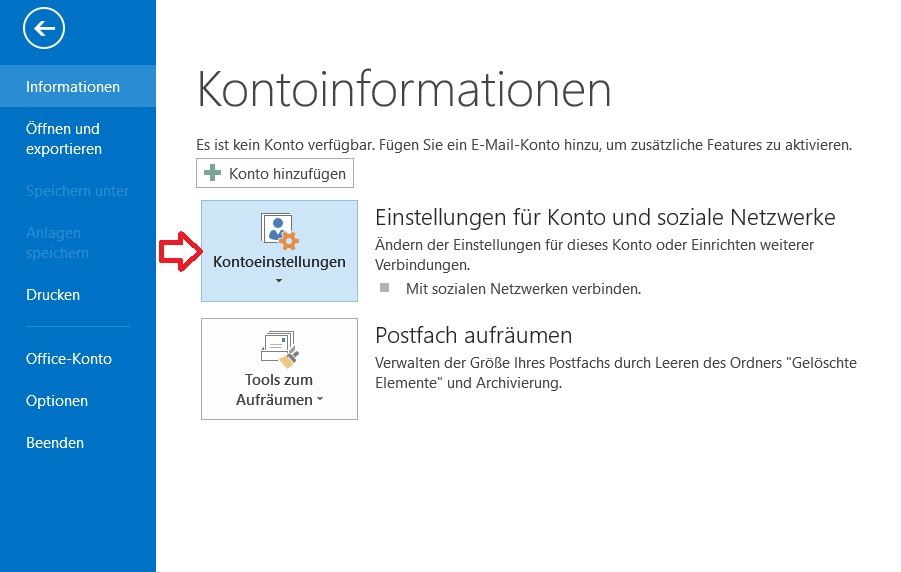
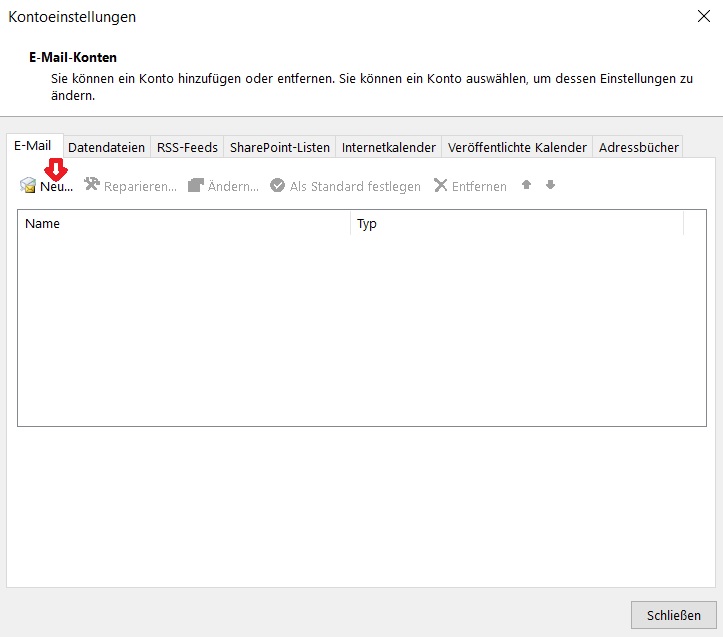
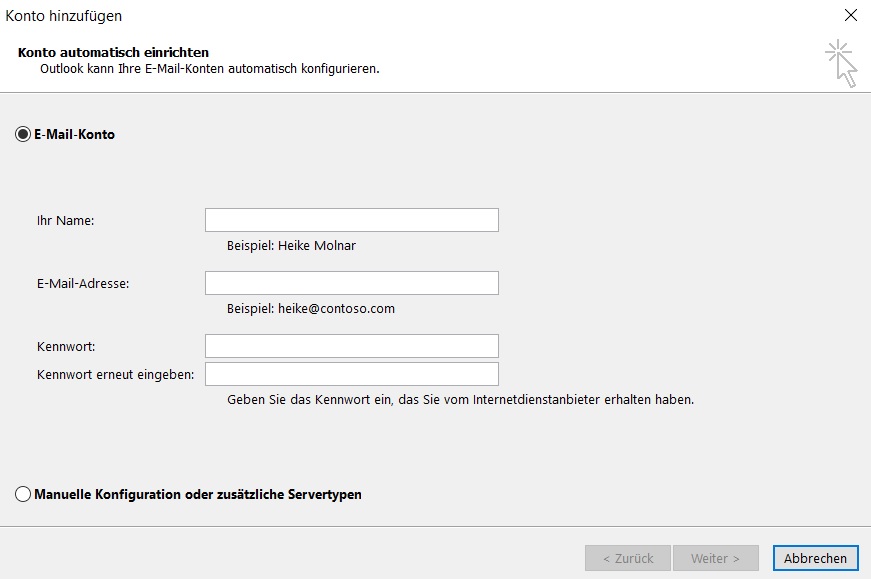
Step 3: Now click New on the Email tab. Enter your Exchange account details. This includes Your name, Password, and optionally the name of your Exchange server.
Synchronize Outlook with a Smartphone
Do you want to synchronize your Outlook with your smartphone via an Exchange server? Then you first need to download the Outlook app for Android or iOS. Since 2015/2016, this app has enabled synchronizing Outlook on smartphones and tablets.
Step 1: In the Outlook app, click Settings → Add Account and then select Add Email Account.
Step 2: Now enter your Exchange account details. This includes Your name, Password, and optionally the name of your Exchange server.
Lookeen searches your Outlook in real time! Click here for more information on Outlook search!
Synchronize Outlook without an Exchange Account
Don’t have an Exchange account? Then you should consider setting up an “Outlook.com” account in Outlook. With an “Outlook.com” account in Outlook, your emails, contacts, calendar events, tasks, and notes are automatically synchronized. “Outlook.com” actually uses its own Exchange server. This ensures that your information in Outlook and on the server where your mailbox is hosted is always up to date.
Another option is to use a synchronization tool like “Easy2Sync” or the freeware “MyPhoneExplorer”. While “MyPhoneExplorer” synchronizes via your smartphone for free, “Easy2Sync” is a paid tool that enables synchronization between different PCs.
Click here for more information on MyPhoneExplorer.
Click here for more information on Easy2Sync.
Is your Outlook not synchronizing? In this blog post, you’ll find out what you can do about it.
I hope this article helped you synchronize your Outlook. See you soon!


Comments