

Connect Outlook with OneNote – here's how
If you want to transfer your notes from OneNote to Outlook, you first need to link the two Microsoft applications together. To do this, a OneNote add-in must be enabled in Outlook. Learn how easy and quick this process is in this blog post.

How to Connect Outlook with OneNote
Step 1: Start Outlook.
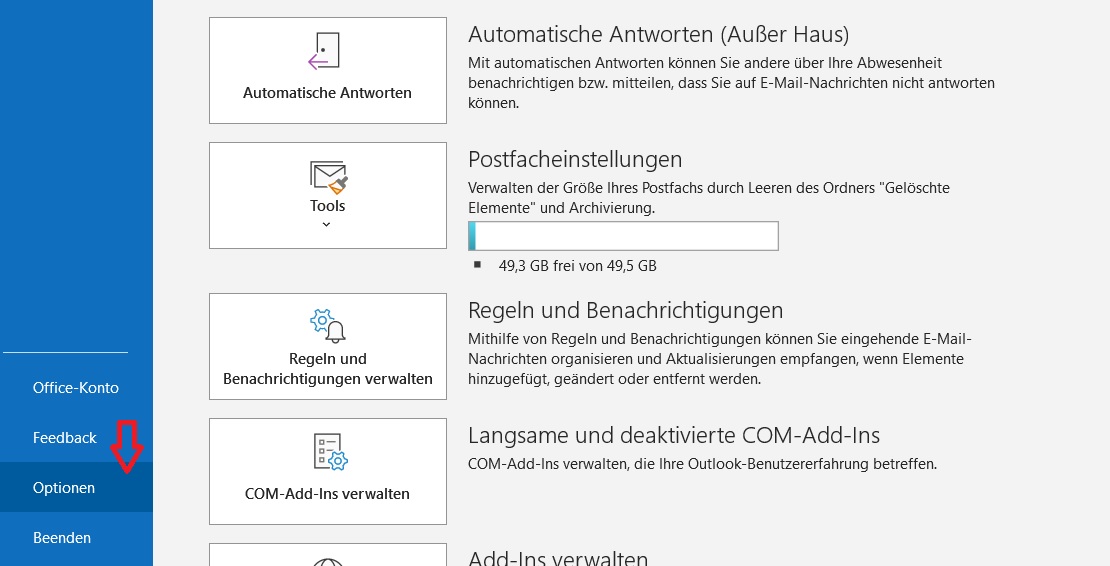
Step 2: Click on File in the top-left menu, then click on Options.
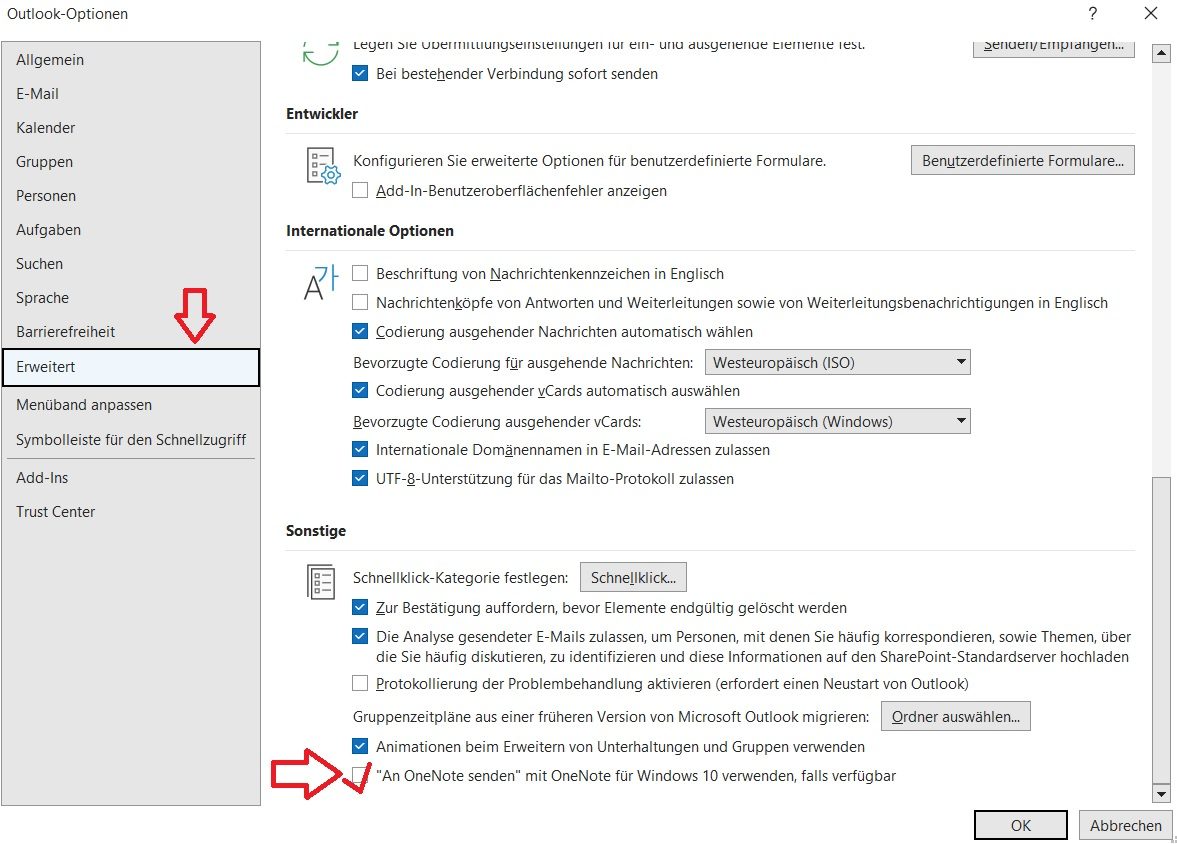
Step 3: A new window will open. Find the Advanced field on the left and click it.
Step 4: Scroll all the way down. You will now see the option: “Send to OneNote” using OneNote for Windows 10, if available. Check this box here.
Your Outlook is now connected to OneNote. Afterwards, you can integrate your notes into Outlook.
I hope this article helped you connect these two Microsoft applications together.
See you soon!



Comments