

How to Delegate Tasks
If you have a task that you would like another person to complete, you can create this task in your Outlook and assign it to another person.
If you have a task that you would like another person to complete, you can create this task in your Outlook and assign it to another person.
- Create the task as usual and enter the usual information such as Subject, Due Date, and Task Description.
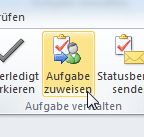
- Click Assign Task.
- A To: field appears above the Subject line.
- Enter the name of the responsible person(s) in the To: field.
- Click Send.
The task has now been sent to the responsible person. This person will find an email containing the task in their inbox. Naturally, it also contains all the information you entered.
Find out here how you can locate important tasks in Outlook more quickly!
In the reading pane of the inbox, above the email, are the two options Accept or Decline.
If the assigned person declines the task, it will be moved to the Deleted Items folder. Additionally, a reply will open to you, the task assigner, to inform you. If the assigned person accepts the task, a reply will open to you, the task assigner. The task will automatically be inserted into the person’s Tasks folder. While working on the task, the person can send you regular status reports. In the open task window, the Send Status Report function is suitable for this.



Comments