

How to Display Holidays in the Outlook 2010 Calendar
A frustrating problem – when planning appointments, it is easy to overlook a holiday since they are not displayed automatically in Outlook. However, there is a very simple way to display holidays in your Outlook calendar.
Here’s how:
Find out here how you can locate holidays in your Outlook calendar more quickly!
- Click the File tab.
- Click Options in the navigation pane on the left.
The Outlook Options window opens.
- Click Calendar in the navigation pane on the left side of the window.
- Click the Add holidays button in the Calendar options section. The Enter holidays in calendar window opens.
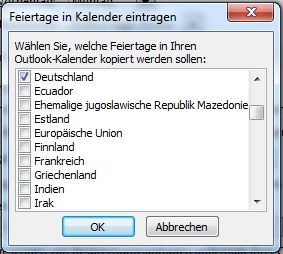
- Select Germany (or naturally any other country whose holidays you would like to be informed about) by clicking the check box next to it.
- Click OK.
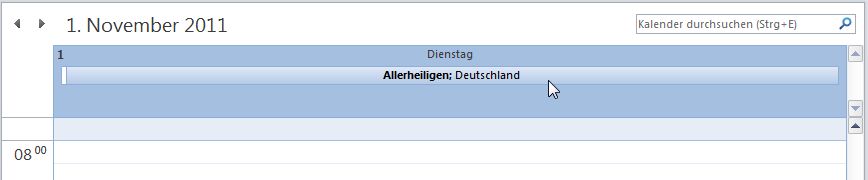
Now all statutory holidays will be displayed, such as All Saints’ Day: Unfortunately holidays here vary from state to state. Now you do have all of them in your calendar – but what if you only want to see the holidays in Baden-Württemberg? There is also a solution for this, although it is not quite as practical.

- Click the File tab again.
- Click Change View….
- Click List.
You will be taken to the view of all holidays in Germany up to the year 2028. Now you can sort the list, etc., and you can simply delete the holidays that are not observed in your state. Another way to display holidays for a specific state in Outlook is to download and import a text file containing the necessary information, e.g., for North Rhine-Westphalia 2011/12.
With our Lookeen Desktop Search, you can also search for appointments and holidays in Outlook.



Comments