

How to Protect Outlook with a Password
Article title: How to protect Outlook with a password Excerpt 1 of 1: You need to leave the office for an appointment and don’t want to shut down your PC because it takes so long to boot up again? You can go ahead with peace of mind – to protect important data in emails, you can easily secure your Outlook with a password.
Want even more security in your search?
Set up password protection for Outlook
- Open Outlook
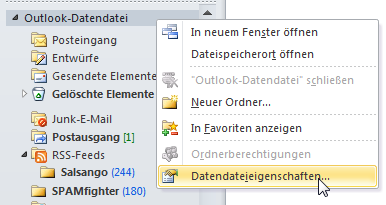
- Right-click on Outlook Data File in the folder list on the left. Alternatively, your mailbox name may be displayed there. A drop-down menu will open.
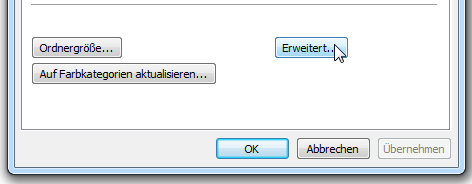
- Click the Advanced button. The Outlook Data File window will open.
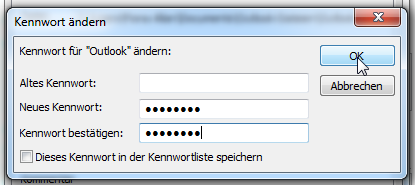
- Click the Change Password button. The Change Password window will open.
- Enter your desired password in the New password field.
- Confirm the password in the Confirm password field.
- Click OK.
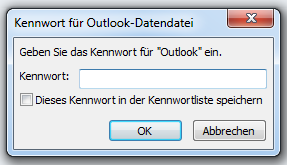
- The next time you start Outlook, this password prompt will appear.



Comments