

How to Set Up Dark Mode in Outlook – Here's How
Dark mode has long been a staple of the smartphone world. I hardly know any users who don’t use it. Dark mode is easier on the eyes and simply looks cooler. Did you know that you can also set dark mode in Outlook? Find out how it works in this blog post.
Outlook: How to Switch to Dark Mode

Step 1: Start Outlook.
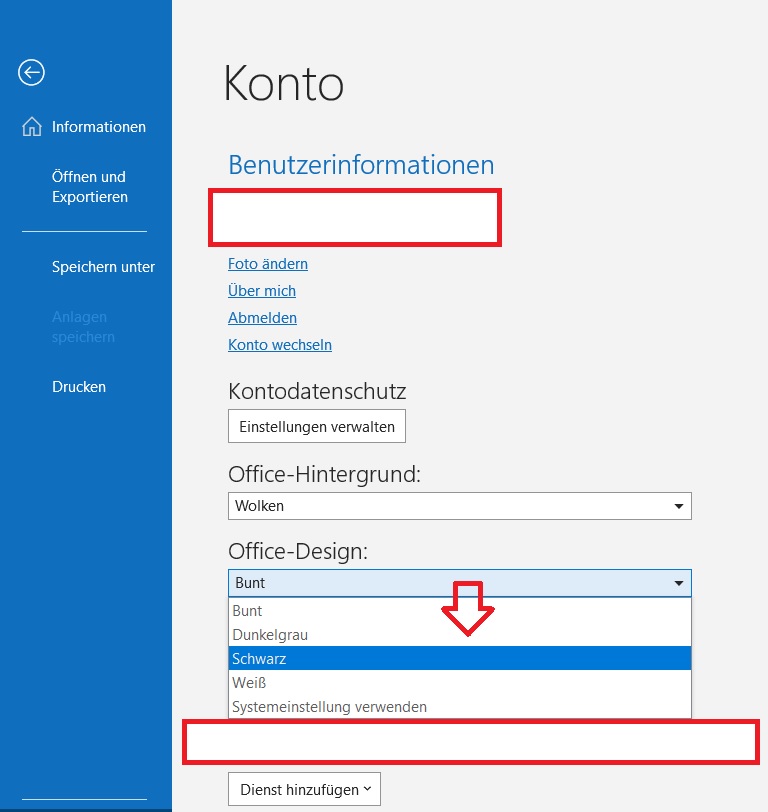
Step 2: Click on File and then on Office Account.
Step 3: Under the Office Theme tab, select the Black option.
Outlook: Manually Turn Dark Mode On/Off for Messages
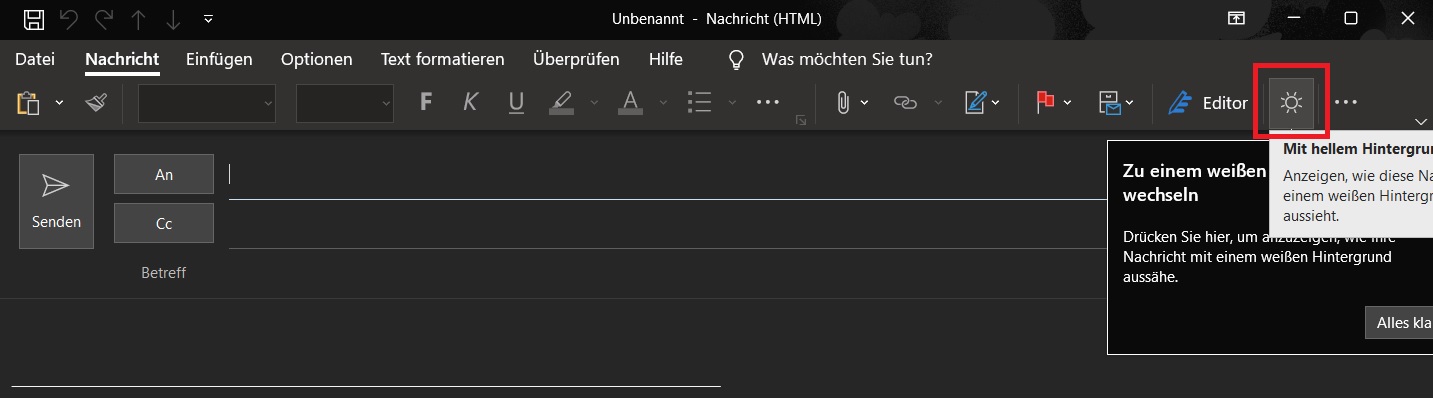
To turn Dark Mode on or off when reading messages, you can use the sun icon to display a light message window. For a dark background, you can select the moon icon.
To turn Dark Mode on or off when composing a message, you can use the sun icon to switch to a light mode. For dark mode, use the moon icon.
Outlook: Light Message Window Despite Dark Mode
If you want to permanently keep a light window when composing and viewing messages, while still keeping Dark Mode in Outlook, you can set this with the following settings:
Step 1: Start Outlook.
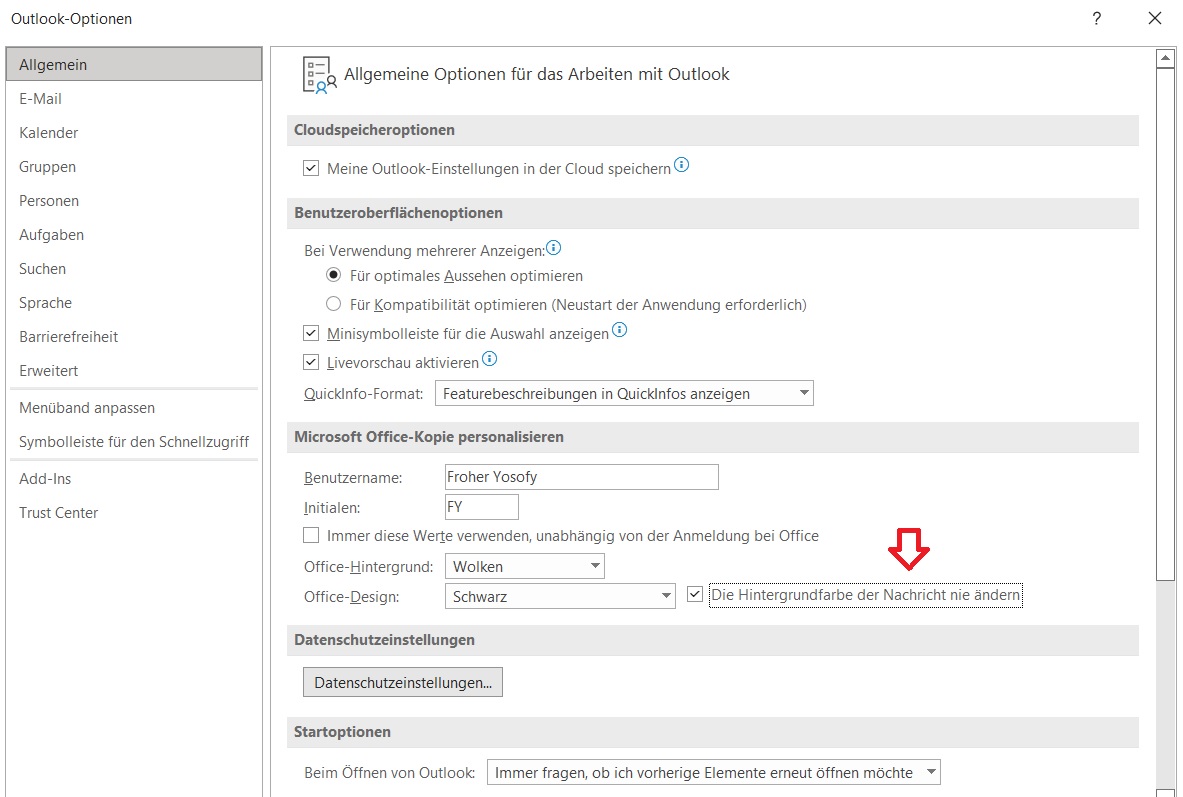
Step 2: Click on File and then on Options.
Step 3: In the General section, go to the tab for Customize your copy of Microsoft Office.
Step 4: Now select Black under the Office Theme tab and check the box for Never change message background color.
Afterward, your Office theme will remain in dark mode and your message window will permanently stay light.
I hope this article helped you choose your optimal Office theme and set up Dark Mode. What does your Outlook background look like? Dark or light?
See you soon!
With Lookeen, you can search your Outlook in seconds!
Whether dark or light, Lookeen search is guaranteed to find every email quickly!



Comments