

How to Use Multiple Calendars Simultaneously
The calendar feature in Outlook is undoubtedly the central planning tool that many people use to organize their entire workday. However, it can just as easily be used for private appointments.
How to create a new calendar:
- Open the main Outlook window.
- Click Calendar at the bottom left to switch to the calendar pane.
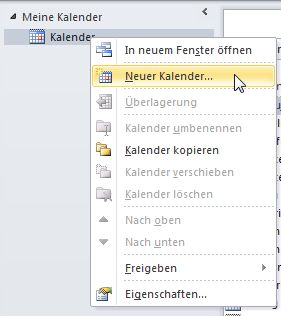
- Right-click the displayed calendar.
- Select New Calendar.
The Create New Folder window opens:
- Enter a name for your calendar in the Name: text field.
- Make sure that under Folders contains items of type: the type Calendar is selected.
- Click OK.
The new calendar appears in the calendar list. You can now work with the new calendar just as you did with the previous one, and of course switch back and forth between the two calendars.
Find out here how you can locate your appointments in the Outlook calendar more quickly!
Display appointments from all calendars:
- Open the main Outlook window.
- Click Calendar at the bottom left to switch to the calendar pane.
- Click on one of the calendars.
The calendar view opens. The other calendars are also listed on the left.
The calendars are displayed side by side in the main window.



Comments