

Outlook: Add, remove, and manage accounts – here's how
Do you want to manage your accounts in Outlook and possibly add a new one or remove an old one? In this blog post, you’ll learn how this works. The following instructions apply to all newer versions of Outlook.
Outlook: Add an Account – Here’s How
Step 1: Start Outlook.
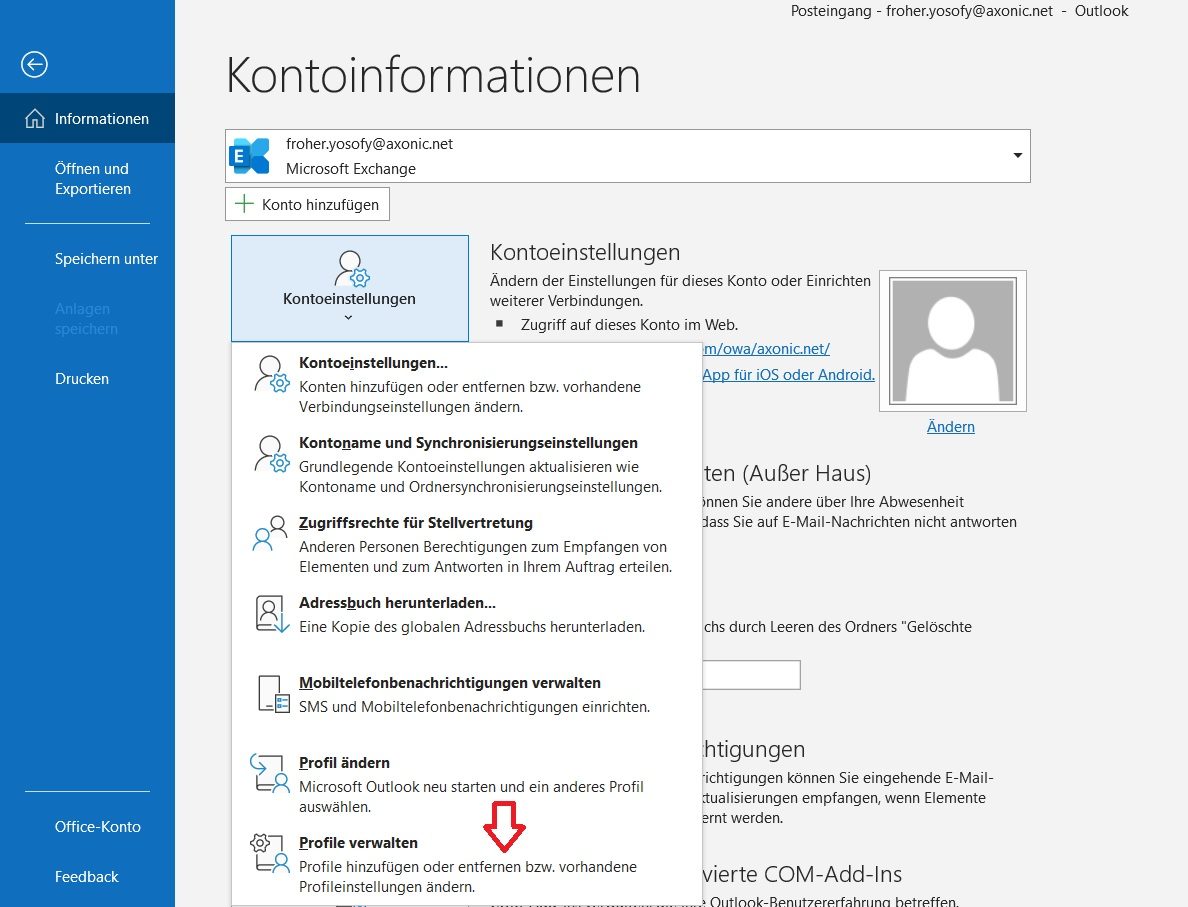
Step 2: Click on File and then on Account Settings.
Step 3: Now click the Manage Profiles field.
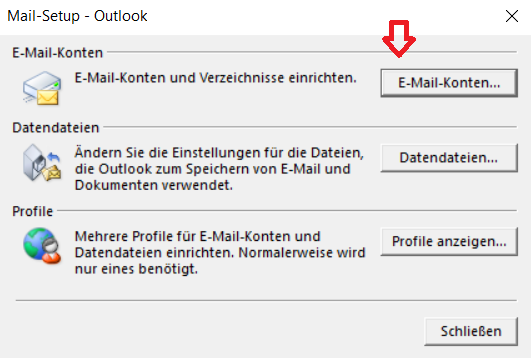
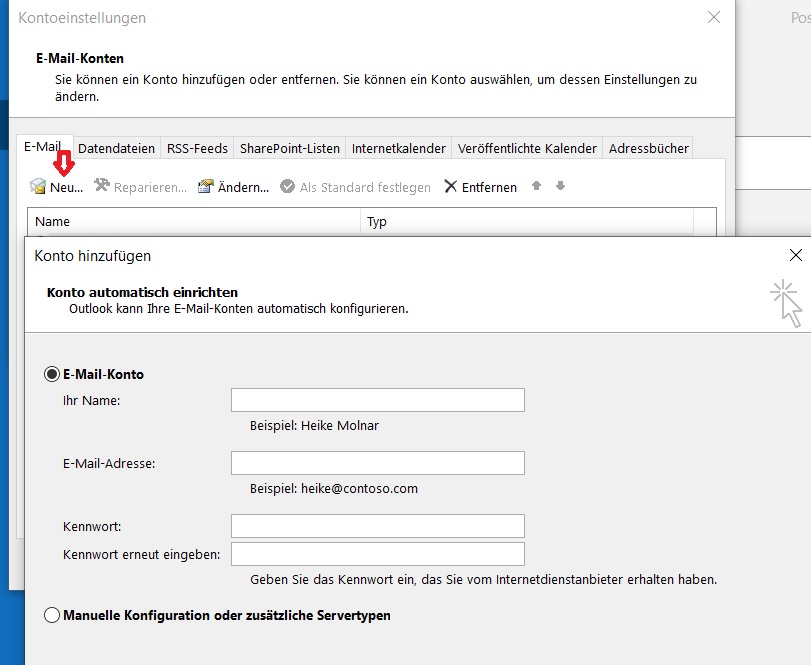
Step 4: A new window will open. Click on Email Accounts and then on New. You can now add a new account to Outlook.
Outlook: Manage and Remove an Account – Here’s How
Step 1: Start Outlook.
Step 2: Click on File and then on Account Settings.
Step 3: Now click the Manage Profiles field.
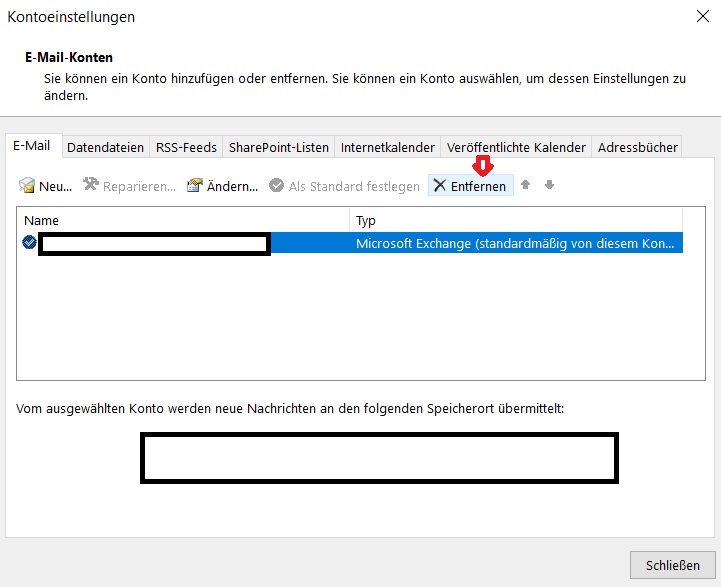
Step 4: A new window will open. Click on Email Accounts and then on Remove. You can now remove the desired account. If you want to make changes to your account, use the Change field.
I hope this article helped you manage your accounts in Outlook.
See you soon!
Search your Outlook accounts and emails in seconds. Lookeen makes it possible!



Comments