

Outlook: Create a Reminder – Here's How It Works
In daily email communication, a message can quickly get lost. This would be fatal for important customers or contacts. For such cases, Outlook offers the ability to create reminders. Find out how easy this is in this blog post.
How to Create a Reminder in Outlook
Step 1: Open Outlook.
Step 2: Right-click the email you want to set a reminder for.
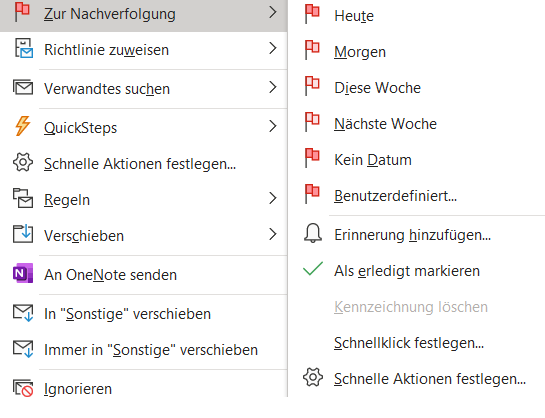
Step 3: Click the Follow Up field. You can then either select a suggested date from Outlook or create your own by going to Custom. On the day you select, Outlook will remind you about the chosen email.
Creating a Reminder in the Outlook Calendar
If you want to set a reminder for meetings, appointments, etc. in your Outlook calendar, please note that this usually happens automatically. As soon as you create a new meeting for your colleagues, all participants will automatically receive a calendar entry including a reminder, as well as an invitation.
Search through all your saved reminders, emails, and archives in Outlook in seconds!
Managing Reminders in Outlook
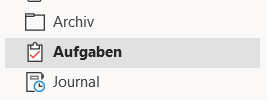
Do you have multiple reminders in Outlook and want to get an overview? To do this, click the three-dot icon in the bottom left corner. Then navigate to the Folders field. Under the Tasks tab, you will find all your reminders. Here, among other things, you can choose whether to keep them, delete them, or mark them as complete.
I hope this article has helped you create and manage your reminders in Outlook.
See you soon!



Comments