

Outlook: Create, save, and forward a note – here's how
Would you like to create, save, or forward a note in Outlook? This article explains how this works for all newer Outlook versions from 2013 onwards. Are you using an older version of Outlook? Click here for the appropriate guide.
The note function in Outlook is quite simple. You create a note in the form of a sticky note and save it. You can then categorize, save, or forward it. However, the note function in Outlook does not offer much more. Would you like more features for your notes? Then you should try out the free Hypernotes software. Click here for more information about Hypernotes.
Create and Save a Note in Outlook from 2013 Onward
Step 1: Use the keyboard shortcut Ctrl+Shift+N.
Step 2: A new window in the form of a Post-it will now open, allowing you to enter your notes.
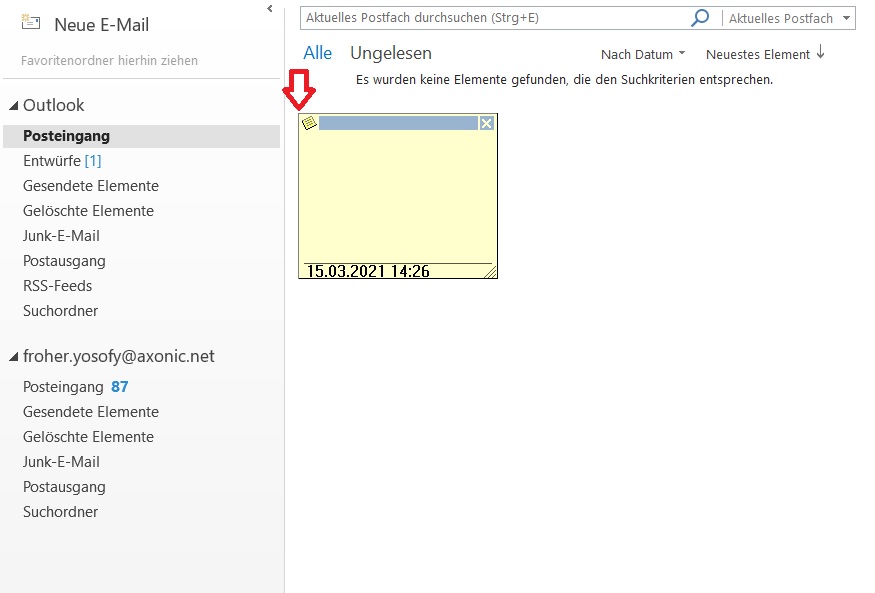
Step 3: To save your note, click the Post-it icon in the upper left corner and then select Save As.
Forward a Note in Outlook from 2013 Onward
Step 1: Use the keyboard shortcut Ctrl+Shift+N.
Step 2: A new window in the form of a Post-it will now open, allowing you to enter your notes.
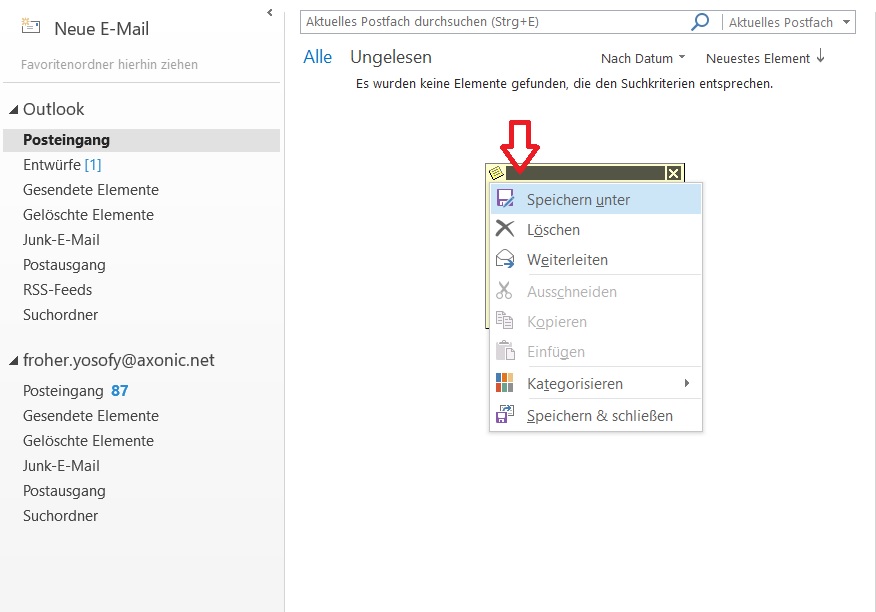
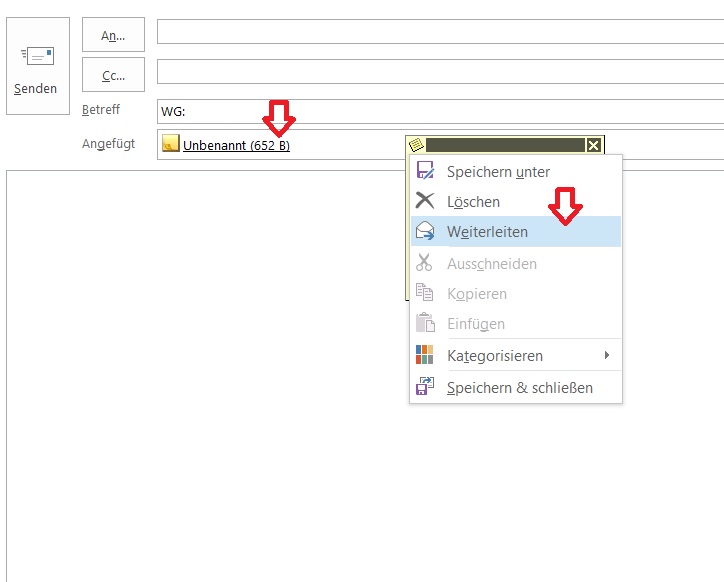
Step 3: Once you have finished your note, click the Post-it icon in the upper left corner and then select Forward. A new window will open where you can compose an email. Your note will be attached as a file.
I hope this article has helped you create your note in Outlook from 2013 onward. See you soon!



Comments