

Outlook: Prevent winmail.dat Attachments – Here's How It Works
How do you prevent Outlook from sending unnecessary winmail.dat attachments in your emails?
What is a winmail.dat attachment?
Do you want to search all attachments easily and without hassle? Find out how here!
Email programs process different formats in different ways. When messages are sent from Microsoft Outlook or an Exchange Server, there is a possibility that received emails will contain a winmail.dat attachment. This happens on the condition that they do not use the Microsoft Outlook Rich-Text Format. The reason lies in how the respective email programs process messages. The Rich-Text Format enables the display of various fonts and styles, as well as different colors within emails. These details along with original attachments are saved in the winmail.dat file, which is attached to the empty email.
If you try to open a winmail.dat file using an archiver, it usually contains no usable information. For this reason, I will show you in the next step how to prevent Outlook from attaching an unnecessary winmail.dat file to your emails:
The good news is that you can indeed prevent Outlook from sending winmail.dat attachments. To do so, simply follow these instructions:
Step 1
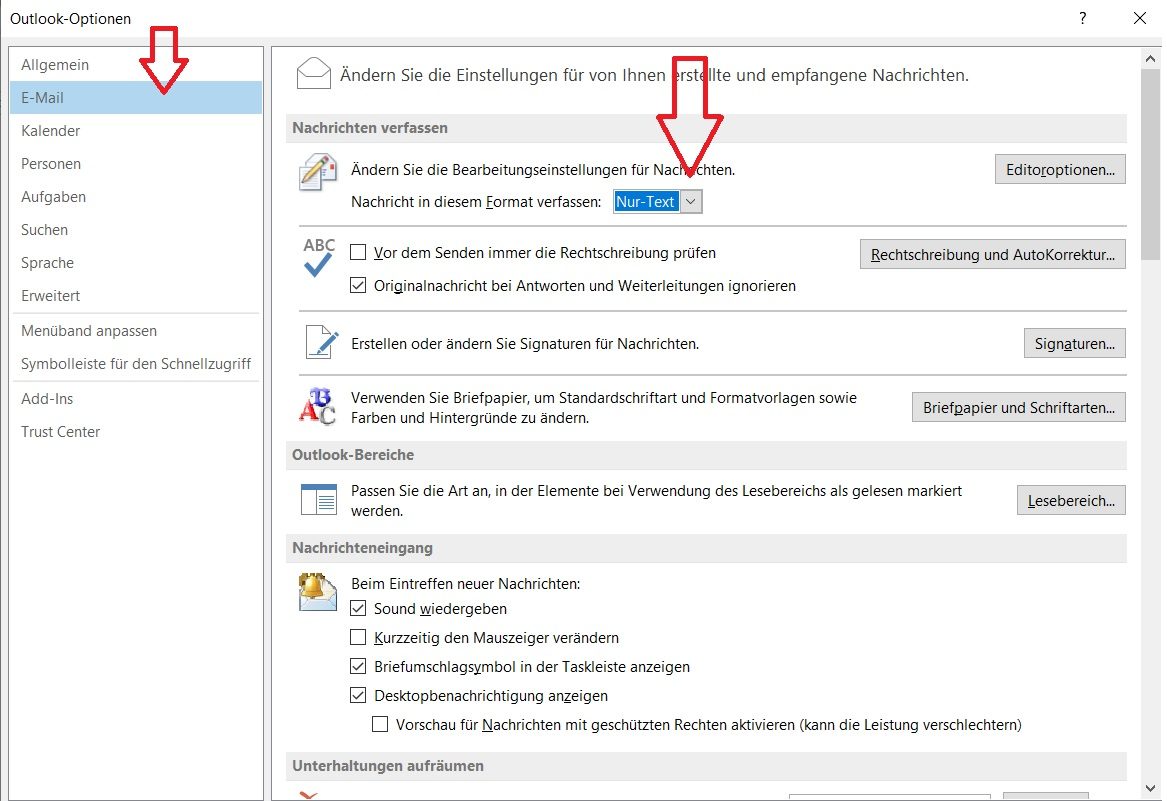
- In Outlook, click on File and open Options
- In Options, click on the Mail category
- Change the setting next to Compose messages in this format to Plain Text
Step 2
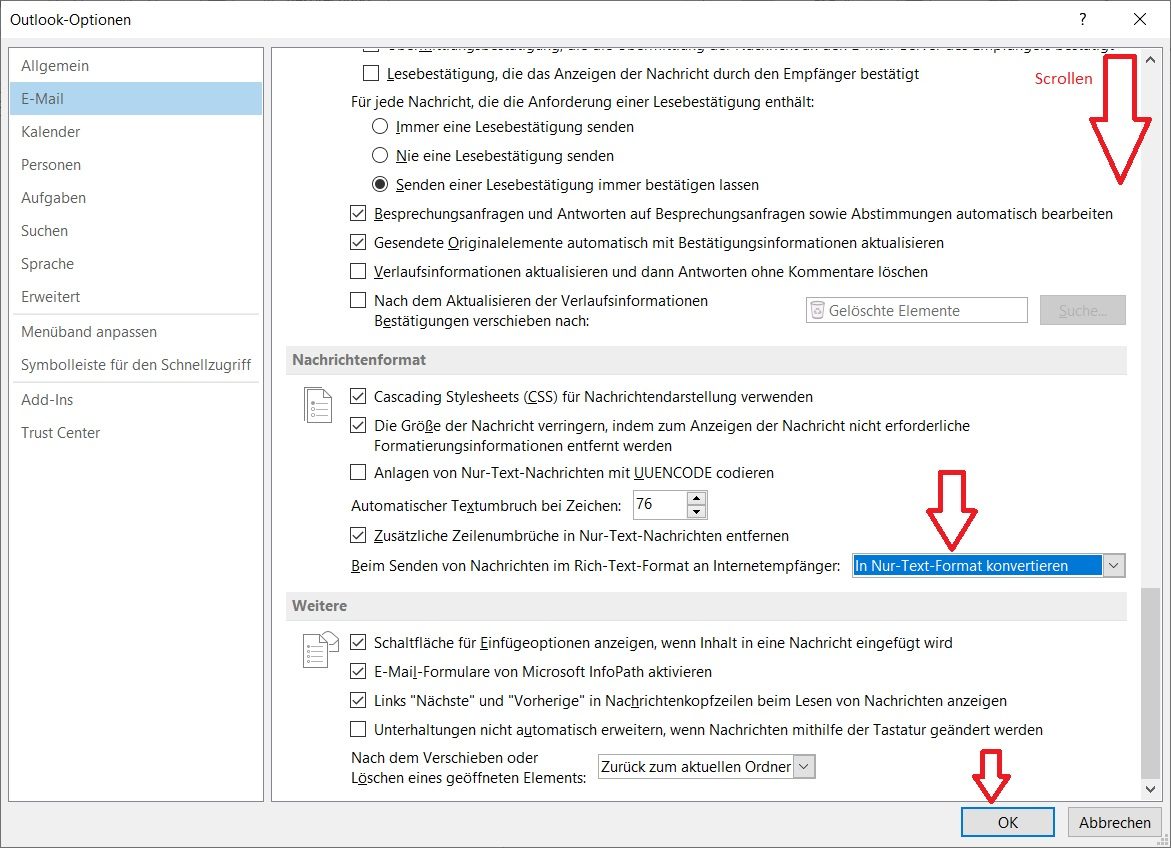
- Scroll down in the same window and ensure that under Message format, the setting next to When sending messages in Rich Text format to Internet recipients is set to Convert to Plain Text format.
Preventing winmail.dat Attachments in Outlook 2002 to 2007
If you are using one of these versions, you need to proceed slightly differently to avoid sending winmail.dat files. Follow these steps:
- Open Outlook and go to Options via Tools
- In the next step, select E-mail Format and also change the setting for Compose messages in this format to Plain Text.
If you encounter the error message When sending an email, the recipient additionally receives a file attachment named Winmail.dat. This attachment was not added by you., then you can find the solution here: the solution.
With these tips, troublesome winmail.dat attachments should no longer cause you any problems. For further support on the topic of “preventing winmail.dat attachments in Outlook 2002 to 2007”, you can find it here.



Comments