

Outlook: Save multiple attachments at once – here's how
Do you want to save one or more attachments in Outlook all at once? In this article, you’ll learn how to do it in simple steps. If you’re using Outlook 2010 or an older version, click here for the appropriate guide. For newer Outlook versions from 2013 onward, read the following section.
How to save attachments in newer Outlook versions starting with 2013
Step 1: Launch Outlook and open your mailbox.
Step 2: Select the email whose attachments you want to save.
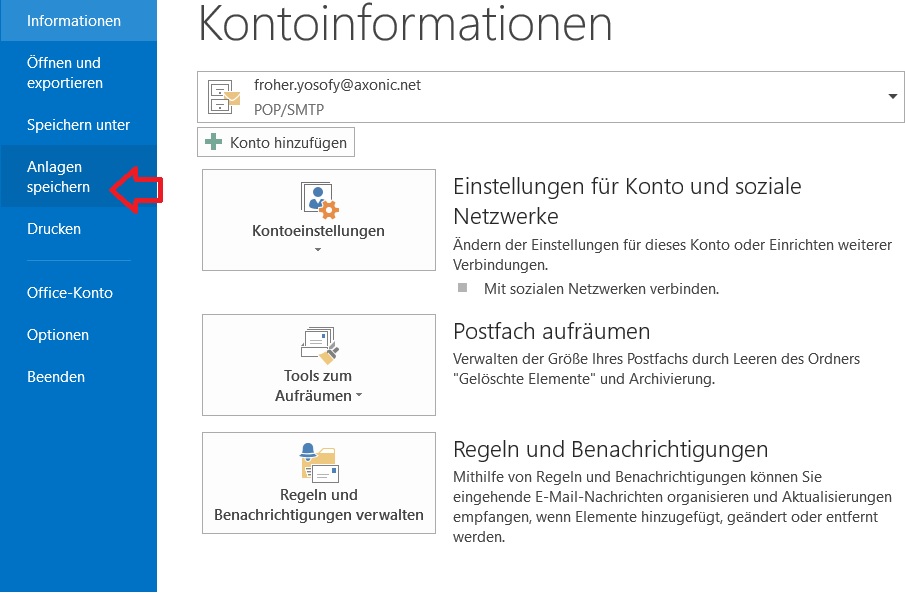
Step 3: Click File and then Save Attachments.
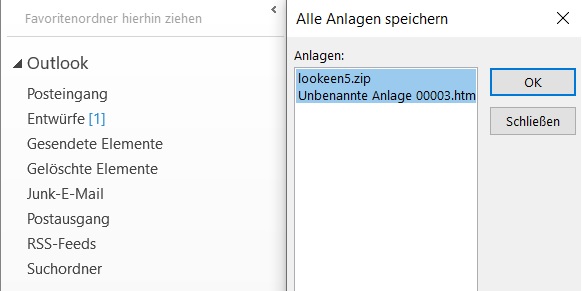
Step 4: Select the attachments to save and confirm with OK.
I hope this article helped you save multiple attachments in Outlook at once.
See you soon!
With Lookeen, you can search your Outlook attachments in real time!



Comments