

Searching for and Within PDF Documents – Here's How
PDF files can contain very large amounts of text, and it often takes a long time to locate a specific section. Wouldn’t it be more effective to search for certain keywords within the document? Below, we present a few simple methods for efficiently searching within a PDF document.
Search a PDF file – here’s how
Quick and easy search for PDF documents? Click here...
- Open the PDF document you want to search.
- Use the shortcut Ctrl + F on your keyboard.
- A search field opens in the upper right corner where you can enter a term or phrase.
- Press the Enter key to start the search in the PDF document. If there are multiple search results, you can navigate between them using the buttons Next, Enter, or Back.
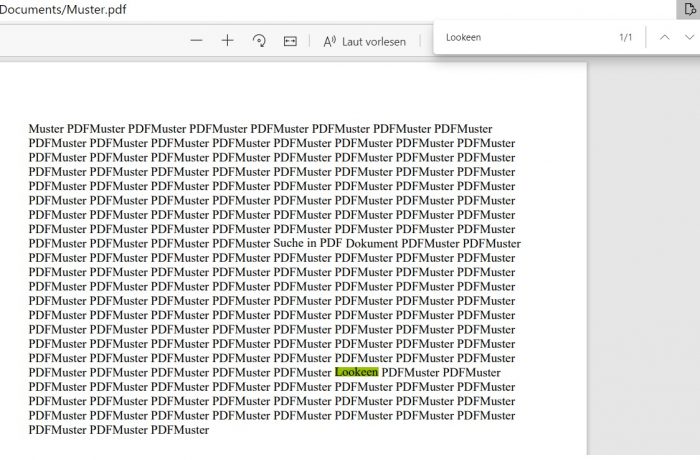
The respective match is highlighted in the text of the PDF file (see photo). You can close the search bar by clicking the X button or pressing the Escape key (ESC) on your keyboard.
Search multiple PDF files at once – here’s how
With the basic search, you can only search within the currently open PDF document. However, if you want to search multiple PDF files simultaneously, you can use the Advanced Search. Here’s how it works:
- Open a PDF document of your choice using Adobe Reader or another PDF viewer.
- Use the shortcut Shift + Ctrl + F.
- Check the box for All PDF documents in.
- Then select the folder or drive you want to search.
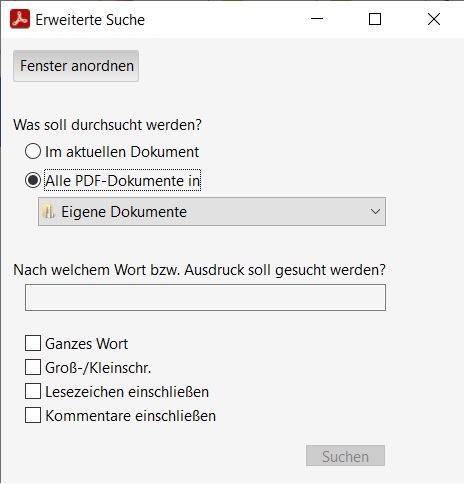
To refine the search, you also have the option to select from several search options.
PDF search options in advanced settings
In the search field for the advanced PDF search, you can click Show more options at the very bottom. This will display additional criteria for searching within PDF documents.
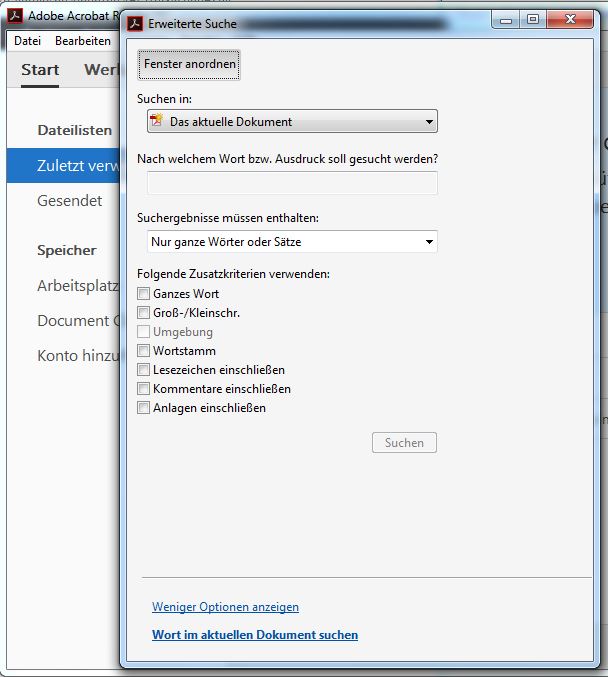
In the Search results must contain dropdown, you can choose between: Whole words or phrases only: With this setting, you search for the complete string, including spaces, in the exact order entered. The Any words function searches for all occurrences of at least one of the search terms. Thus, the search results include all instances of each individual word as well as combinations of the words. Additional criteria for searching within PDF documents are as follows:
- Whole word
- Case sensitive
- Context: only activated when searching multiple PDF documents; searches for at least two terms, with a maximum number of words allowed between them as specified in the search settings
- Word stem: this option also finds words that contain only a part, the so-called stem, of the searched word
- Include bookmarks
- Include comments
- Include attachments
You can make even more search settings in the document properties. For example, you can specify the creation date, author, or object data. In the search results view, you can then display the file path and the individual matches within the PDF files. Other PDF readers also feature a function to search a PDF document for a search term. This works similarly to Adobe Reader. With this, searching PDF documents for individual words or phrases should no longer be a problem.
Speed up searches by creating a PDF index
To speed up searches, you can group PDF files in a catalog and create a PDF index. This is particularly advantageous when working with a large number of related PDF files and frequently using the search function. Here’s how to easily create an index:
- Open a PDF document and go to Tools. Select the Document Processing option and then Manage Embedded Index.
- Click on Embed Index.
- Read the instructions and then click OK.## Searching for PDF Files with the Windows Search Function
If you know that a searched word or phrase is located within a PDF document, the built-in search function in PDF reader programs is a useful tool. However, if you are looking for a specific term and no longer know which file it is in, or even whether it is in a PDF document at all, you can also easily use the built-in Windows search function. To do this, simply open the Start menu and enter the searched term into the search bar.
Problems with Searching for PDF Files in Windows 7 and Windows 8
Normally, you can easily search for PDF files using the Start menu search bar in Windows, including terms within the file. However, the search function in Windows 7 and Windows 8—specifically the 64-bit versions in each case—regrettably does not include PDF format files in some instances. This is naturally frustrating if you find searching directly within the PDF reader too cumbersome and would prefer to use the Windows search function to locate PDF documents. The problem lies in the missing iFilter, which is required for indexing PDF documents under Windows 7 and Windows 8. You can easily find out whether you are experiencing this issue as well:
- Open the Control Panel.
- Select Indexing Options from All Control Panel Items.
- Click the Advanced button.
- Go to the File Types tab and scroll down to pdf.
If the message “The registered ‘iFilter’ was not found.” appears next to it, you are also experiencing this problem with searching for and within PDF files. The missing filter can be downloaded here.
However, if you now search for a PDF file using the Start menu search bar, you will find that it still does not work. This is because PDF documents have not been indexed yet, so you must first rebuild the search index. This can take some time, so it is advisable to do this overnight, for example. You can rebuild the index as follows:
- Open the Control Panel and then Indexing Options.
- Click on Advanced.
- On the Index Settings tab, click Rebuild.
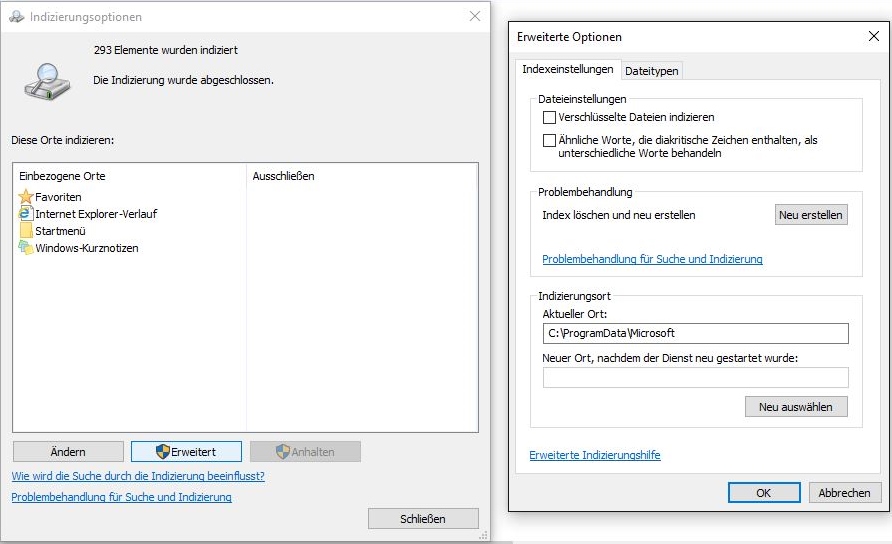
You should now also see PDF files displayed in the search results again.
The PDF format has several advantages: it includes its own security mechanisms that, for example, prevent the document from being altered afterwards. The PDF format is a standard format for which there are numerous programs available for reading and editing. This is why the PDF format is particularly popular in business communication. It arrives at the recipient exactly as the sender designed it – complete with all fonts and formatting – regardless of operating system or device.
I hope I could assist you in searching for and within your PDF documents.
See you soon!


Comments