

Too many search results in Lookeen? – Here's what you can do about it
It often happens that a search query yields a large number of results or requires searching through an excessively high volume of emails. However, since this would result in an unnecessarily long wait time, Lookeen searches your index retroactively from the current point in time and displays the last 1,000 results by default. The number of search results can be increased in the options under the “Index Details” tab under “Maximum Preview Length.” If you are searching for a specific email, it may still not appear among the search results, or you might not spot it immediately among the many hits. In this article, we will show you how to use the various filters for an effective and targeted search with Lookeen to quickly find the desired email.
Article title: Too many search results in Lookeen? – Here’s what you can do about it Excerpt 1 of 2: With Lookeen, you can search your files including file contents in real time! Click here for more information!
Preparations for Your Search
To ensure that your searched emails can always be found by Lookeen, you should check the following in advance.
- Is the latest version of Lookeen installed, or does it need to be updated first?
- Are all desired email addresses or servers configured for indexing in the Lookeen options?
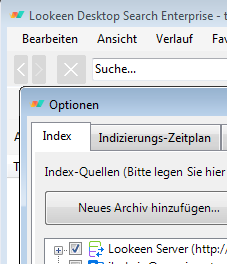
- Is the index up to date? Otherwise, perform a new indexing just in case.
Understanding Search Filters
Once you have checked the preparations, we will now move on to the actual search. Open Lookeen, to access the various search filters.
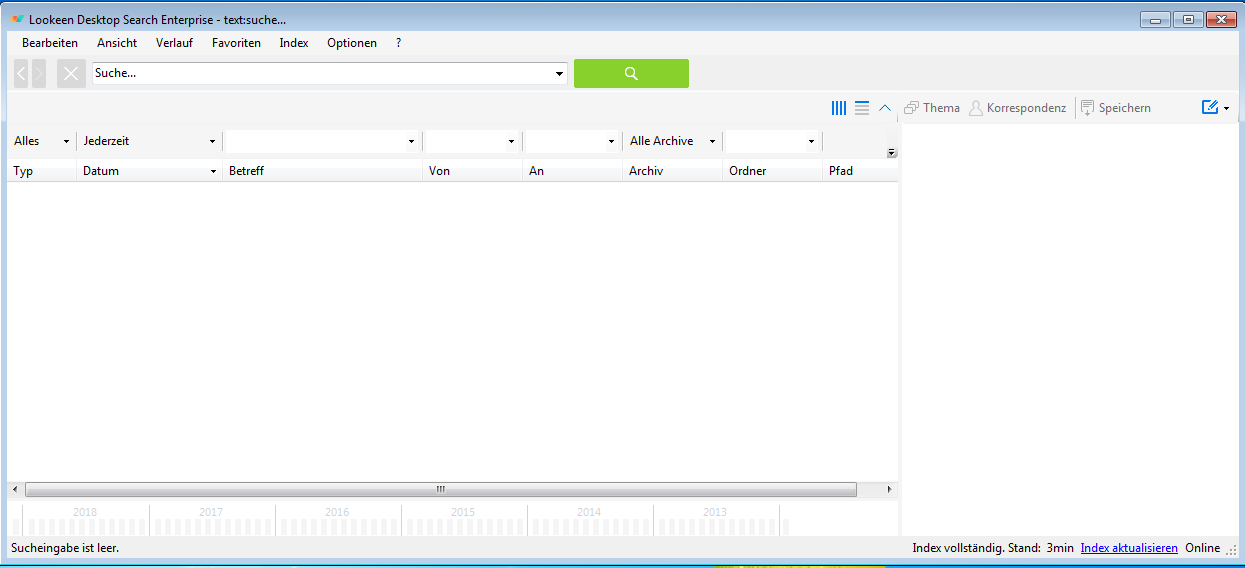
It is not necessary to use all filters for your search. Often, just a few pieces of information or search filters are enough to find the corresponding email. On the other hand, you might only remember certain pieces of information that you can use to guide your search. First, enter the desired search term. Afterwards, you can press the green search button after each new setting to track the results of your filtered search. The following section will explain the various search filters. To configure them accordingly, use the drop-down menus and text fields above the respective columns.
“Type”
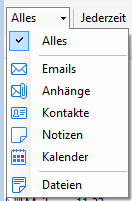
“All” is selected as the default for the first column, because Lookeen searches not only your emails with a full-text search, but also files, notes, the calendar, and your desktop with an appropriate license. With this filter, you can restrict the search to a specific type, thereby significantly reducing the search volume. If you are searching for an email, select “Emails”. However, if your goal is to search for an attachment within an email, you should select the type “Attachments”.
“Date”
By default, this search parameter scans the index for all time. To find a specific email, you can enter time intervals here during which the searched email was received or sent.
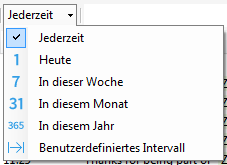
If you know a more precisely defined time period or are looking for a message from the last year, you should select “Custom Interval” and set the corresponding time range.
Lookeen – the desktop search with real-time indexing. Click here for more information!
“Subject”
Do you know the exact wording of the subject or at least a single word? Then you can enter this in the “Subject” column to further narrow down the search.
“From” & “To”
These two columns can be very important for your search. Often, multiple email accounts are managed in Outlook. Therefore, Lookeen searches all your email addresses that you use in Outlook. To narrow down your search results, it can be helpful to enter the names or email addresses of the sender and/or recipient.
“Archive”
The “Archive” column displays all storage locations. During the preparation phase, you have entered all important email accounts and servers that you need access to. This helps when you frequently start a search. In each individual search, you can then select the corresponding account or server if you know the location of the search object. Otherwise, simply continue using the default “All Archives”.
“Folder”
This search filter can also be a great help. For this, you need to know in which folder in Outlook the email or document is located. For example, if you are looking for an email that you sent yourself, you should use the “Outbox” or “Send Items” folder. However, note that the folder name must match the folders in Outlook and your mailbox.
“Path”Too many search results in Lookeen? – Here’s what you can do about it
Excerpt 2 of 2: The final search filter specifies the file path for your desired search. Especially when searching on a server, paths can become quite long and confusing. For this reason, this filter is only recommended for advanced users. Each filter you apply will further narrow down the search results and should give you the opportunity to find the desired item faster. Even if you only use individual filters, this will significantly simplify your search.



Comments