

Windows: Open and adjust indexing options
Do you want to customize your search index in Windows? This step must be performed via the indexing options in Windows. In this article, we will show you how to open and adjust these settings in all newer versions of Windows. Click here if you want to improve your Windows search index.
Open Indexing Options in Windows
Step 1: Type “Indexing Options” in the search field next to the Windows icon. Alternatively, you can use the keyboard shortcut Windows key+R. A new window will then open. Type the command “control.exe srchadmin.dll” here.
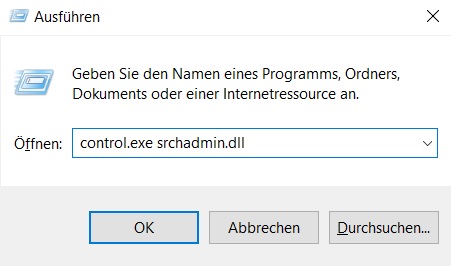
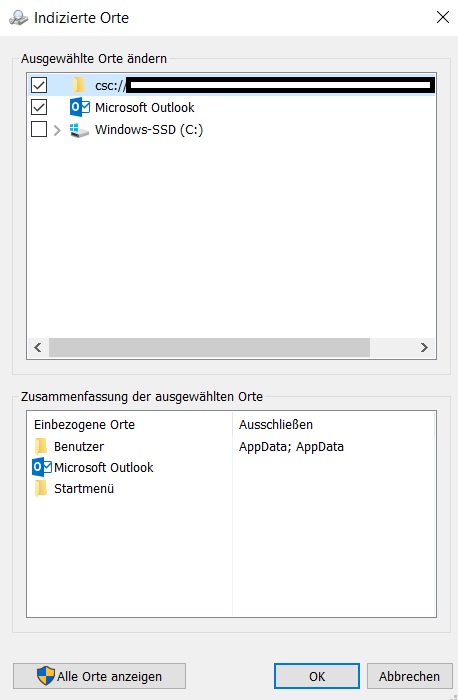
Step 2: A new window with the Windows Indexing Options will open. Click on Change to see which data is included in your Windows search index.
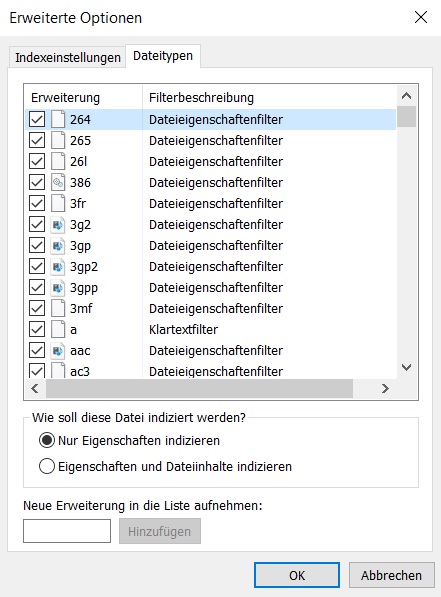
Step 3: Click on Advanced Options to access the advanced indexing options in Windows.
Search your PC with the Lookeen search in seconds!
Customize Indexing Options in Windows
Step 1: In the Indexing Options, click on Change. You can now select which files you want to continue including in your Windows search index and which ones you do not. To do this, check or uncheck the boxes as needed. To avoid significantly slowing down your system, it is advisable not to index an entire drive at this point. Therefore, for better time management, uncheck “(C:)”.
Step 2: In the advanced indexing options (See Chapter 1, Step 3), under File Types next to Index Settings, you can specify whether the Windows search index should also consider file contents. If you want to search within file contents as well, this feature should be enabled.
Alternative to the Windows Search Index
A more efficient alternative to the Windows search index is Lookeen: Indexing is performed completely once upon the first launch of Lookeen and includes not only file names and headings, but also the contents of the files. The system automatically detects when these are modified, deleted, or newly created – thanks to synchronization, the index remains always up to date. Thanks to this real-time indexing, new data is immediately available to the system, which greatly increases search speed. While Windows search can significantly slow down the system, Lookeen handles your file search in seconds! Click here for more information on Lookeen desktop search.

I hope this article has helped you open and customize your indexing options in Windows.
See you soon!


Comments