

Outlook: Block Senders – Here's How
Digital correspondence has opened many doors in global communication. Nowadays, using email for daily correspondence with customers and even in the private sphere is almost indispensable. Nevertheless, it can happen that you receive unwanted emails from anonymous individuals, but don’t worry—you can do something about it. Here’s how to block a sender or an email and banish spam from your inbox:
Block Senders in Outlook
Want to be able to search your spam folder too? We have a tool for that!
Outlook features a so-called Junk E-mail Filter that compares senders against a list of addresses and domains to roughly pre-filter which senders are blocked and which are classified as safe. You can customize this filter to suit your needs, allowing you to block specific senders or entire domains. To do this, proceed as follows:
- Make sure you are in the Home ribbon of Outlook. There you will find the Junk E-mail option, which opens a dropdown menu. Click on Junk E-mail Options… .
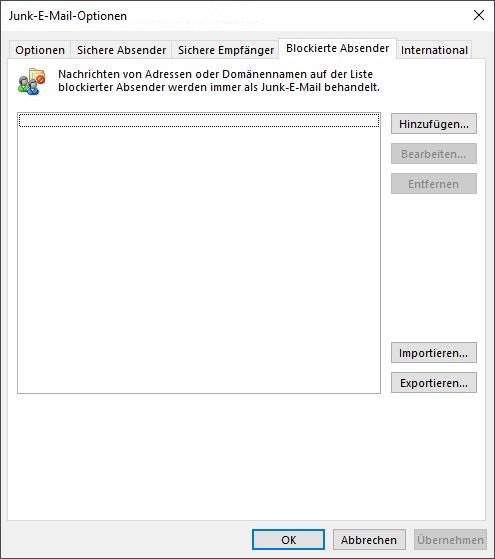
- In the Junk E-mail Options, navigate to the Blocked Senders tab.
- Using Add, you can block individual senders (max@mustermann.de) or entire domains (@mustermann.de). Then confirm with OK.
Block Senders Immediately Upon Receipt
- Right-click on the corresponding email.
- A pop-up menu will open. Hover over the Junk E-mail option with your mouse to reveal a secondary menu. From there, you can directly block the email’s sender or the sender’s domain.
Block Emails in Outlook
- The Junk E-mail Options offer additional settings. Under International, you can block emails from specific countries or block emails that use a different encoding (alphabet).
- It would be advisable to adjust your spam filter. Find out how to do this here. This way, unwanted emails are automatically sorted into Spam.
I hope this guide helps you avoid unwanted emails. It would also be advisable to look into the Inbox Zero method, as it ensures an empty and organized inbox.
See you soon!



Comments