

Outlook: How to Disable Push Notifications and Popups
You are a daily Outlook user and the constant pop-up and push notifications are disrupting your workflow? Then you should consider disabling your pop-ups. However, if you have important contacts who you would like to receive such notifications from, you can individually enable push messages for them. Find out how this works in this blog post.
Outlook: Disable message popups for all senders
Step 1: Start Outlook.
Step 2: Click on File and then on Options.
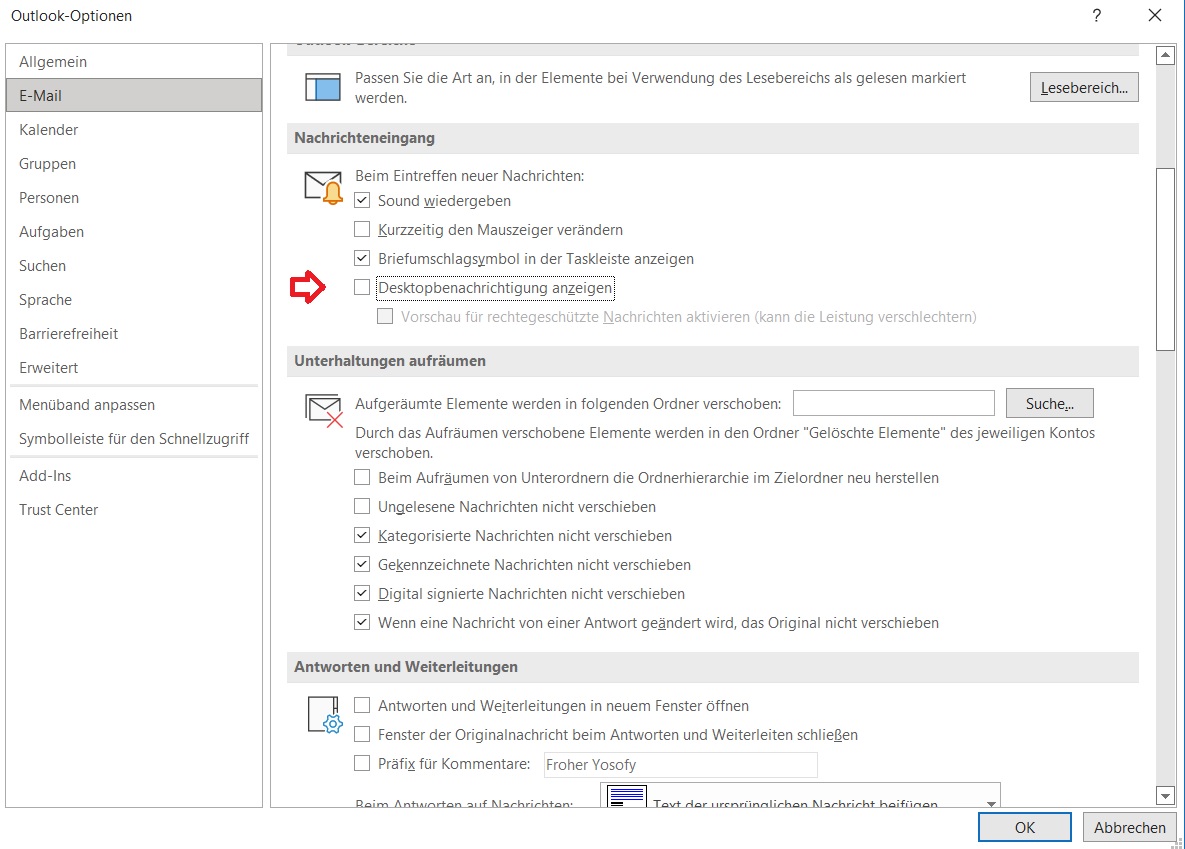
Step 3: On the Mail tab, you will find the heading Message delivery. Uncheck Show desktop notifications here and confirm with OK.
Outlook: Enable message popups for individual senders
After you have disabled your push notifications (see above) for all senders, you can enable them for individual contacts, for example if they are particularly important. You will receive a notification only when one of the selected people sends you an email. For the rest of your contacts, the deactivation remains in effect. To enable popups for individual contacts, you need to create a corresponding rule. Here’s how it works:
Step 1: Start Outlook.
Step 2: Click on File and then on the field Rules and Notifications.
Step 3: In the new window, select the New Rule tab.
Step 4: Click on the rule: Display a Desktop Alert for messages from a specific person.
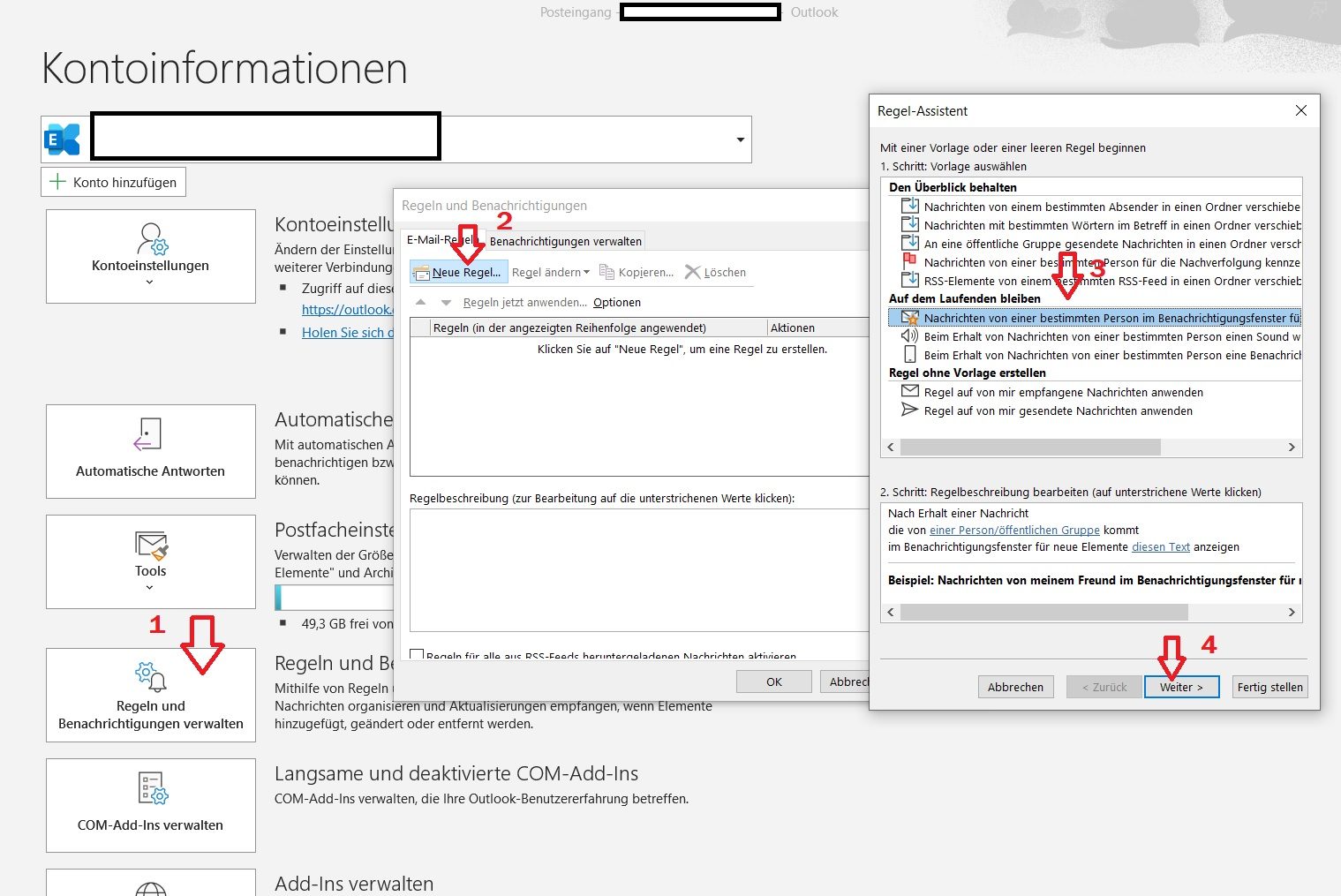
Step 5: In the next window, you can now select from which people or groups of people you want to receive popups or push notifications.
I hope this article helped you reduce or avoid annoying popup notifications.
See you soon!
Search your Outlook with Lookeen now and be guaranteed to find every document again!
Looking for a specific email? With Lookeen, you can find everything in seconds!



Comments