

Outlook: Move email to folder – here's how it works
Structuring your e-mails into different folders is highly practical. This way, you always keep your mailbox clear and organized (more tips on this here). In Outlook, you have two different options for moving your e-mails into folders. Find out what they are in this blog post. The following instructions apply to all Outlook versions.
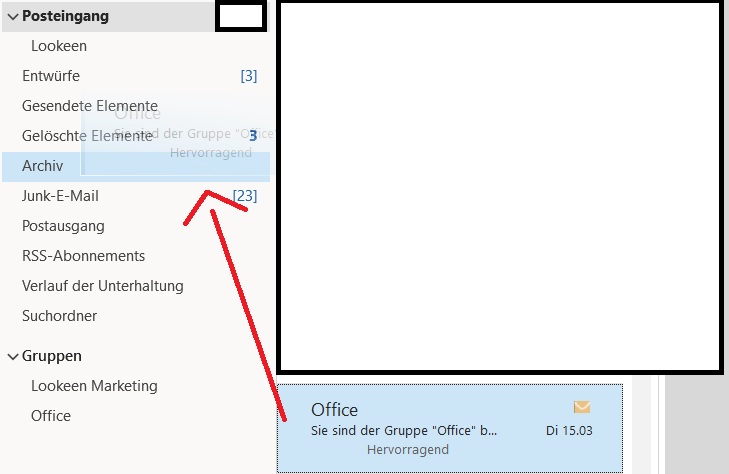
Move Email to Folder via Drag & Drop
Step 1: Select the email you want to move by clicking on it.
Step 2: Hold down the mouse button and drag the email to the desired folder.
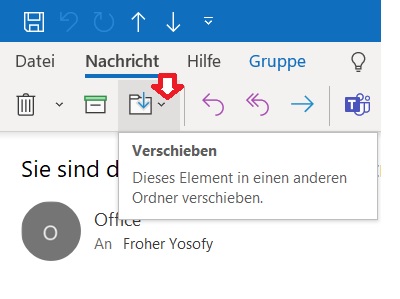
Move Email to Folder via Double-Click
Step 1: Double-click the email you want to move.
Step 2: A new window will open. On the Message tab, you will find the Move field or icon. You can now move the email to the desired folder.
I hope this article has helped you move your emails to folders. Did you accidentally move an email to a folder and want to find it again? Click here for the relevant guide.
See you soon!



Comments