

Outlook: Setting up G-Mail – here's how
Outlook: Setting up G-Mail – here’s how
Do you want to connect your Gmail account with Outlook so that your emails are also displayed in Outlook from now on? You have two options available for this. Find out what they are in the next step.
Want to find your Gmail account emails more easily in Outlook? Try Lookeen!
Set up G-Mail automatically in Outlook
- Open Outlook and click on the File tab. In the new window, select Add Account.

- A small window will open where you must enter your name and email address. The name will be displayed to the recipients of your emails in the future. Enter your Gmail password and click Next. Outlook will now automatically set up your Gmail account.

Configure G-Mail manually in Outlook
If the procedure fails, it is necessary to configure it manually.
-
To do this, open your Gmail inbox in your browser.
-
Click the gear icon in the upper right corner of Gmail and select See all settings. A pop-up menu will open.
-
In the menu, click on Forwarding and POP/IMAP and then on Enable IMAP.

-
Now open Outlook and click on Home and Add Account**,**as described above.
-
Instead of the default option Email Account, select Manual setup or additional server types and click Next.

- On the Choose Service tab, click on POP or IMAP and then click Next.

- Now, next to your details such as name, Gmail address, Gmail username, and password (browser login), enter imap.gmail.com for the Incoming mail server and smtp.gmail.com for the Outgoing mail server (SMTP). Make sure the checkbox for Automatically test account settings after clicking Next is selected.

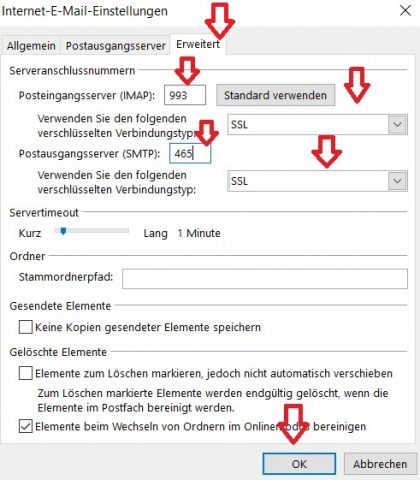
- Open More Settings. In the new window, on the Outgoing Server tab, enable the option My outgoing server (SMTP) requires authentication.
- Under Advanced, enter SSL and set the Incoming mail server (IMAP) to 993 and the Outgoing mail server (SMTP) to 465. In the final step, complete the manual configuration by clicking Next.

I hope I could help you set up your Gmail account in Outlook. Whether manually or automatically, you should now be able to access your Gmail emails in Outlook.
See you soon!



Comments