

When Windows 8 Search Is Too Slow
Windows 8 arrived with many changes primarily aimed at the tablet market and sparked considerable controversy among customers. Many users not only complained that Microsoft had removed the Start menu without replacement but also criticized the operating system’s very slow search. Unfortunately, even the update to Windows 8.1 has done little to change this problem. Sometimes, search queries simply cause the processor to spike to 100% usage temporarily, regardless of its performance capabilities. However, there are several tricks you can use to get your sluggish Windows 8 search under control.
Add “Start Menu” to the index
Find out how you can search your desktop faster with Lookeen here!
A major reason for performance issues with the Windows 8 search lies in how the Windows Search process indexes files. The Windows Index stores all file names, contents, and system settings in a special index file. When a search query is made, not all files need to be searched; instead, only the data stored in the index that points to these files is queried. Which files or locations are indexed can partially be configured in the Windows indexing options.
If your Windows 8 search is slow, it may be because you are searching for a file that has not yet been indexed. Naturally, the search will take much longer than when accessing the index. You should accordingly check which locations are being indexed by Windows.
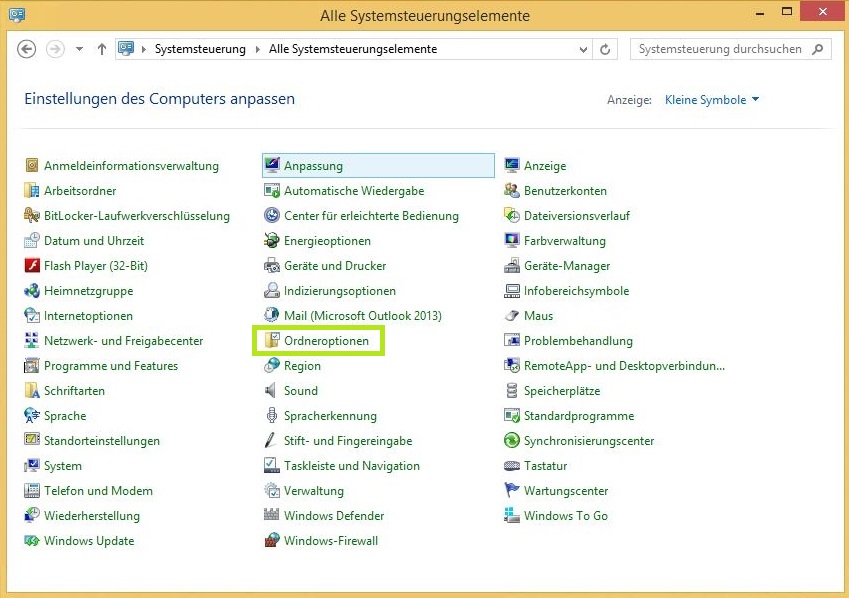
- To do this, you must first configure the folder options to show all “Hidden files and folders”. To do so, open the “Control Panel” and click on the “Folder options” link.
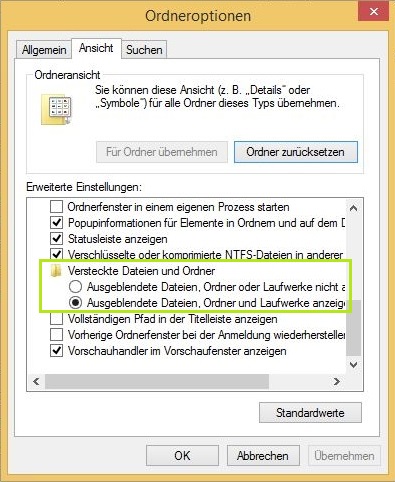
- A window will open where you must select the middle tab “View”. Scroll down in the window until you reach the “Hidden files and folders” section. Below that, you must select the option “Show hidden files, folders, and drives”. Confirm with “OK” and return to the “Control Panel”.
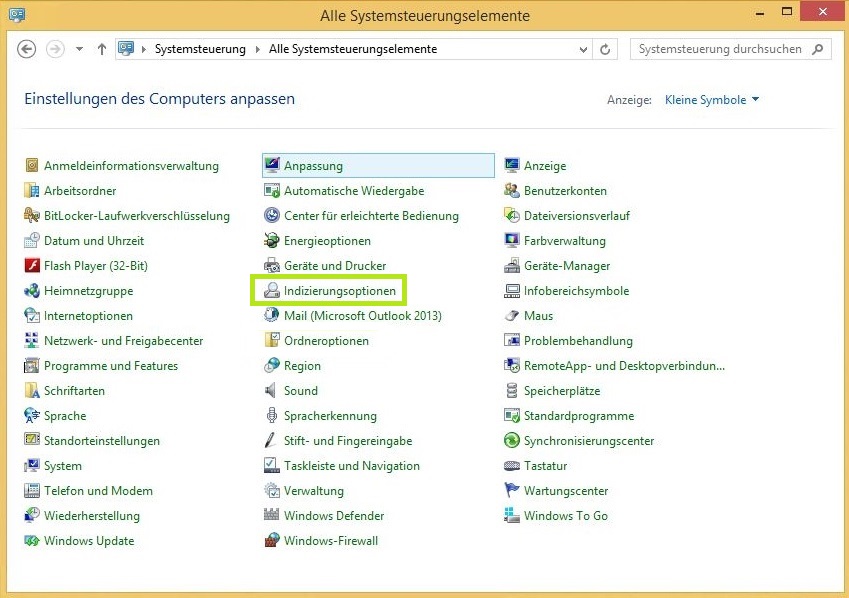
- In the “Control Panel”, you must now open the “Indexing options” link. The folder “Start Menu” should be listed among the indexed locations. Even though Windows 8 does not have a Start menu, the folder retains this name due to backward compatibility. If the “Start Menu” folder is not listed as an indexed location, this could explain why your Windows 8 search is slow.
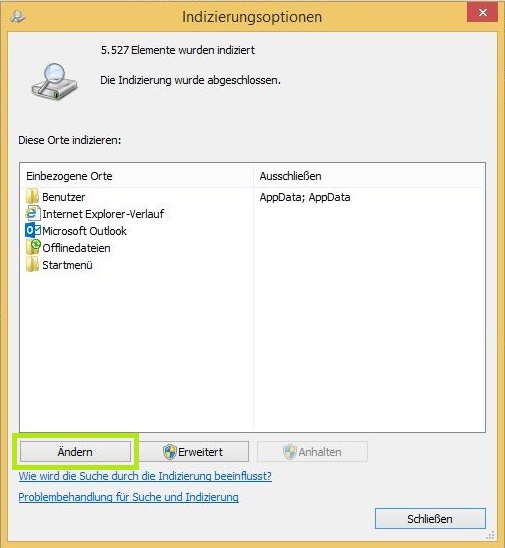
- In the “Indexing options” window, click “Modify” so that a new window with the title “Indexed locations” opens.
- In “Indexed locations”, you must use the drop-down menu under the directory C:\ProgramData\Microsoft\Windows\Startmenü, to navigate to the “Start Menu” folder and add it to the index.
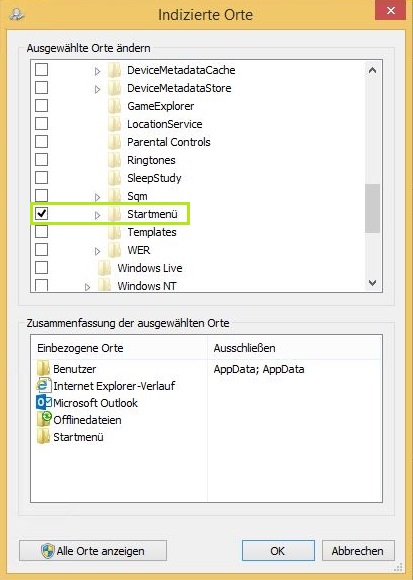
- You must repeat this process for the directory C:\Benutzer\Benutzername\AppData\Roaming\Microsoft\Windows\Startmenü as well. Here too, you need to add the “Start Menu” folder to the index. Confirm with “OK” and close all open windows.
Give Windows a few minutes to index the added locations. Your Windows search should be faster afterward. If your Windows 8 search is still slow, it may help if you completely rebuild your Windows Index (as described in the lower section of the linked article) or switch to a standalone search solution like Lookeen. Because Windows’ main task is not searching for documents, but rather providing a complete operating system package. The integrated search is only a small part of that package. In contrast, the sole purpose of professional search solutions like Lookeen is to search for documents and files.



Comments