

Windows 10: Using Multiple Desktops Simultaneously – Here's How
Multiple desktops are excellent for managing unrelated running applications. Additionally, you can switch between desktops in Windows even during an online meeting, ensuring that nothing goes wrong with screen sharing. The use of multiple desktops is also suitable as a parental control measure. In this blog post, you will learn how to easily use multiple desktops in Windows 10.
Article title: Windows 10: How to Use Multiple Desktops Simultaneously – Here’s How
How to Create a New Desktop in Windows 10
Step 1: Click the Active Applications icon immediately to the right of the Search and Cortana icons in the taskbar.

Step 2: A new window will open. Click + New Desktop.

With Lookeen, you can find your files for free on your desktops in seconds!
You have now created another desktop. You can repeat this process as many times as you like to create multiple new desktops.
How to Switch Between Desktops in Windows 10
Step 1: Click the Active Applications icon immediately to the right of the Search and Cortana icons in the taskbar.
Step 2: In the new window, you can switch back and forth between desktops.
Alternatively, you can use the keyboard shortcut Ctrl + Windows key + Right Arrow and Left Arrow.
How to Move Items Between Desktops in Windows 10
Step 1: Click the Active Applications icon immediately to the right of the Search and Cortana icons in the taskbar.
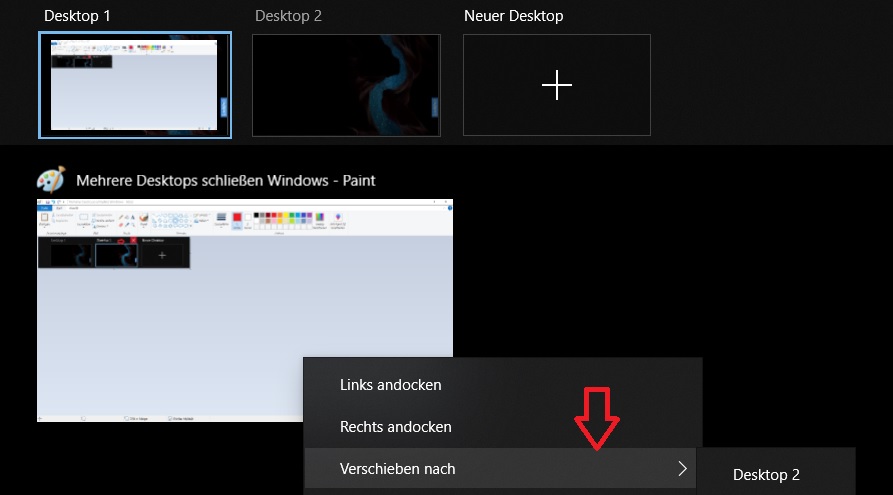
Step 2: Select a desktop. Right-click the window or item you want to move to another desktop. Click Move to and select the appropriate Windows desktop.
How to Close Multiple Desktops in Windows 10
Step 1: Click the Active Applications icon immediately to the right of the Search and Cortana icons in the taskbar.
Step 2: Select the desktop you want to remove and close it using the X icon.
You can search multiple desktops with Lookeen for free in real time!

I hope this article has helped you use and manage multiple desktops simultaneously in Windows.
See you soon!



Comments