

Windows: Create a New Folder – Here's How It Works
Organizing your files into folders and categorizing them helps you maintain a clear overview. Files can be easily saved in folders as well as subfolders. This article explains how to create a new folder in all Windows versions. After you have created your folders and saved your documents within them, ensure that you can reliably find them again later. Lookeen software is excellent for this purpose. Lookeen searches your desktop in seconds and helps you locate your files in real time using keywords. Click here for more information.
How to Create a New Folder Step-by-Step
Step 1: Use the shortcut Windows key + E or click the folder icon to open File Explorer.
Step 2: Navigate to the desired location and right-click. Click New, then Folder. You can do it faster with the shortcut Ctrl + Shift + N. Either way, you have now created a new folder.
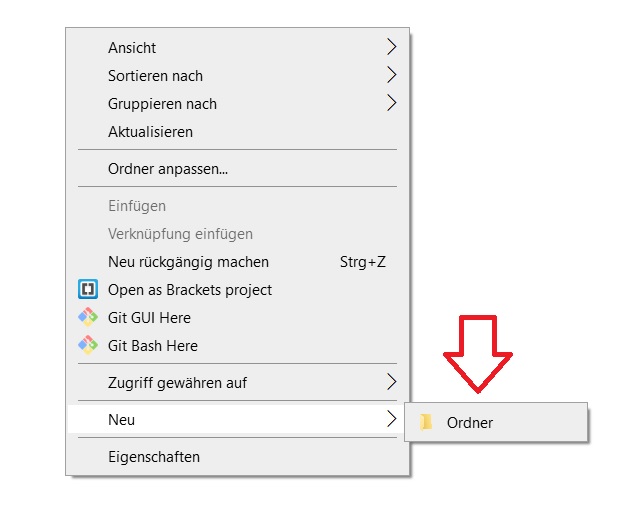
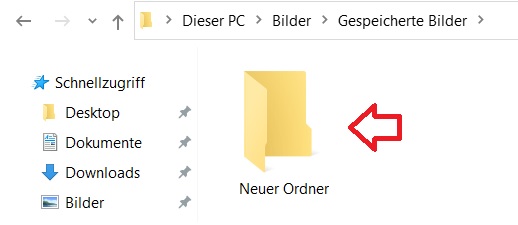
Subfolders can also be created using these steps. You can now move your documents into these folders or save them directly there. Learn how to select, copy, or paste your files in this blog post.
I hope this article has helped you create a new folder in Windows.
See you soon!
Find all your folders and files again with the Lookeen search in seconds!



Comments