

Windows: Searching for files – here's how it works
You are looking for a file but can’t recall its name or location? You only have a keyword in mind that the file might contain? In that case, you can make use of the Windows search feature. Because with the correct settings, it can search your files by their contents. This means the file name is no longer required. Here’s how you can enable these settings in your Windows search:
1. Option: Add files to the Windows search index
You can configure the Windows search to also consider file contents when searching for your files. To do this, you need to add the folders containing your files to the search index (the search engine index is a text-based registry within which your files are searched). Right-click the desired folder in File Explorer and select Properties. Under the Advanced section on the General tab, you can check the box next to Allow to enable the option.

2. Option: Include all folders in the Windows search index
Another option is to instruct your Windows search to consider file contents in folders that have not yet been added to the Windows search index. To do this, you need to change the folder options, which you can access most easily by typing “ord” into the Start menu search field. Under the Search tab, there is an option called Always search file names and contents that you should enable.
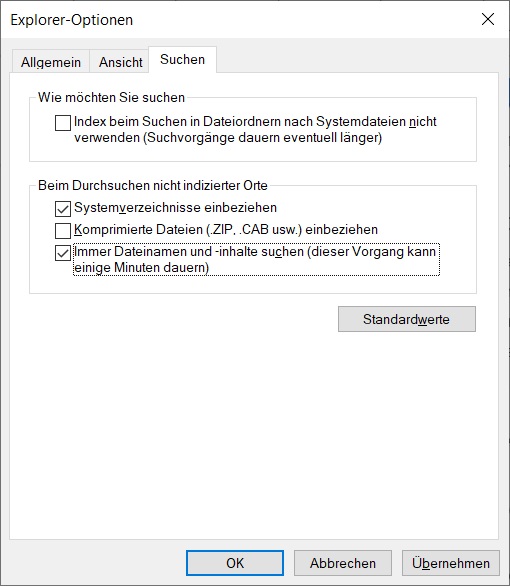
This option comes with a note that the process may take a few minutes. This is because the index must be rebuilt in this case, which takes some time.
3. Option: Search contents of selected files
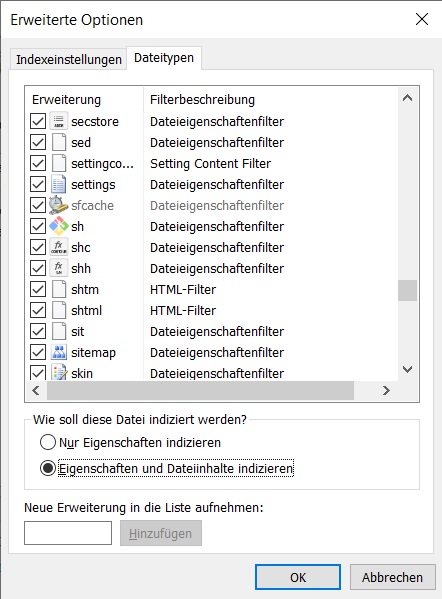
There is also the option to search the contents of selected file types. To do this, you need to change the Windows search settings by clicking Advanced under Indexing Options and checking all desired boxes on the File Types tab. At the bottom of the window, the Index Properties and File Contents option must be enabled so that searching for the contents of these files works.
If you no longer want to worry about the question of file contents, file types, and indexed or non-indexed folders, then use the best alternative to Windows search now: Lookeen. Our Lookeen search engine automatically searches all file contents on all hard drives, the entire network, and in Outlook and Exchange servers. The data is immediately available thanks to real-time indexing. Thanks to the special features, search results are even displayed while you are typing.
I hope this article has helped you optimally search your files, including file contents.
Find out how you can streamline file content searches using Lookeen!



Comments