

Disable web search in Windows 10
The integration of local desktop search with web search has attracted user interest for years. Long before Microsoft integrated web search into Windows, Google released Google Desktop Search, a tool used by millions. Although development of Google Desktop Search has since been discontinued, it was the innovative connection to the internet at that time that drove the success of this free tool. Today, it is common to be constantly connected to the internet. This trend has brought not only positive aspects. Data has become the new currency on the internet, and if even local search queries are sent halfway around the world first, this can certainly be unsettling.
Disable Web Search in Windows 10 Since Windows 8.1, web search has been integrated into Windows Search by default. As a result, for every search query you enter in the search box in the Start menu or on the taskbar, you will receive web results alongside local matches. Since the Anniversary Update of Windows 10 has additionally resulted in the fact that you have to use the Microsoft search engine Bing for web search . Although there are some tricks on how you can still use your favorite search engine, many users find this infringement on their freedom of choice goes too far.
How to Disable Web Search in Windows
To disable web search in Windows 8.1 and Windows 10, you must first open the “Local Group Policy Editor”. The easiest way to get there is via “Run”:
-
Press the Windows key and R on your keyboard. A small window with an input field will open.
-
Enter the command gpedit.msc into the input field and confirm your entry by pressing the Enter key or “OK”.
-
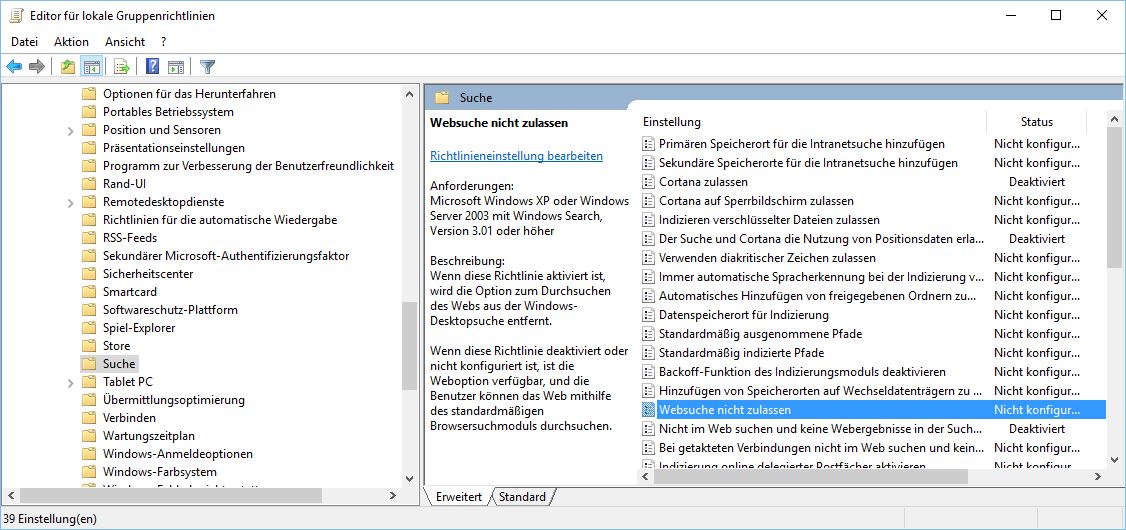
In the Local Group Policy Editor, you must sequentially open the subfolders Administrative Templates, Windows Components, and Search.
-
On the right side, various settings will be listed. First, enable the option Do not allow web search and then Don’t search the Web or display Web results in Search by double-clicking them.
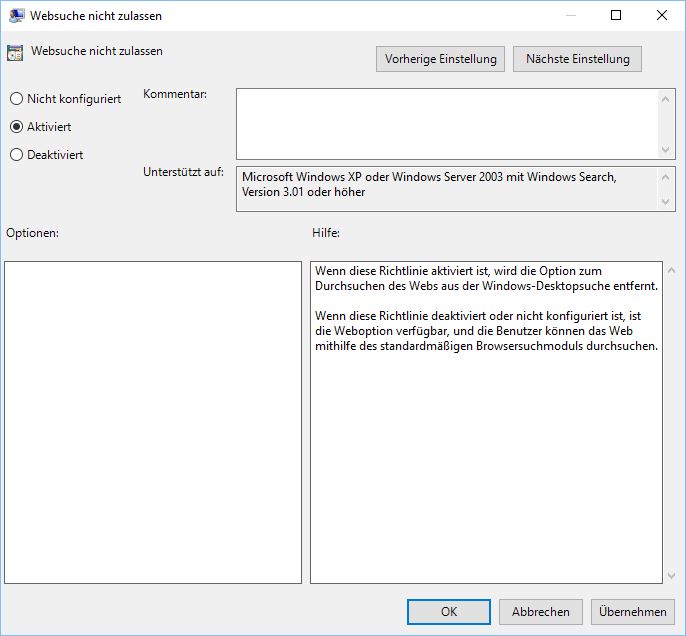
After you restart your computer, web search in Windows will be permanently disabled. If you decide to re-enable web search, simply repeat the steps described above and set the settings back to “Disabled”.



Comments