

Disable Windows Search – here's how
There are several reasons why you should disable the built-in Windows Search feature. For instance, Windows Search continuously indexes your data in the background to enable faster access when needed. It is particularly frustrating that Windows Search still fails to deliver quick results despite this. Furthermore, the Windows Search process consumes important system resources, especially on devices with limited RAM. The problem becomes even more severe if you work within a virtual desktop infrastructure (VDI) environment.
How easily you can disable Windows Search in Windows 7
Search files in seconds with Lookeen – Learn more about it here!
-
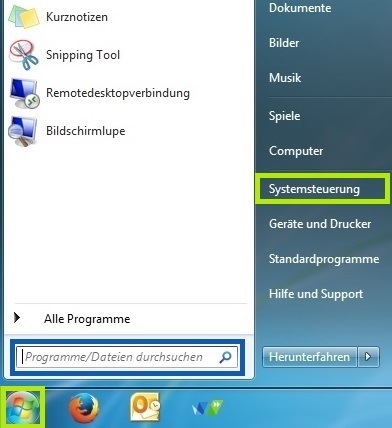
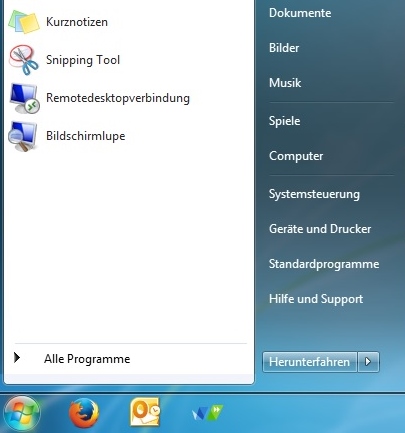
To do this, click Start on the taskbar.
-
From there, select Control Panel.
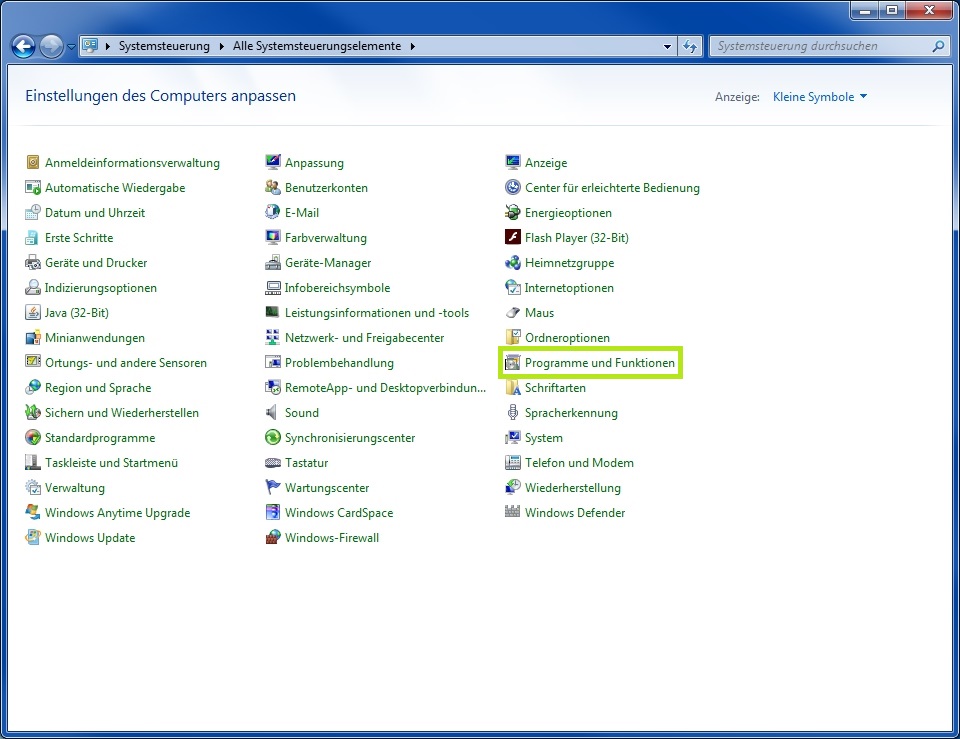
- Now click on Programs and Features (in category view, via the intermediate step Programs).
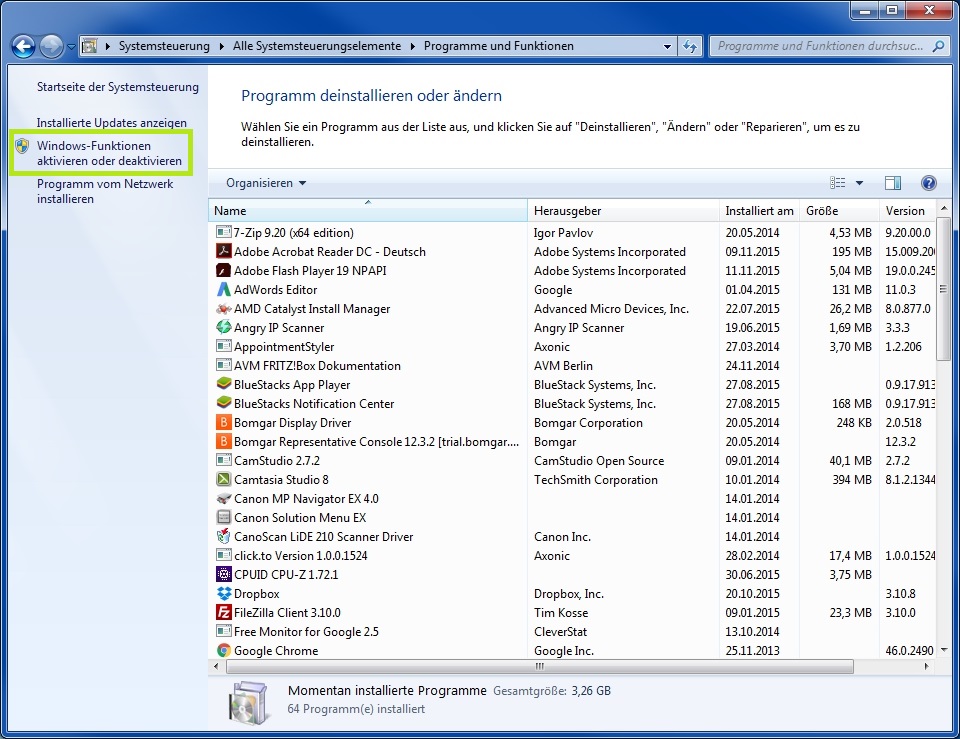
- On the left side, you will see the entry Turn Windows features on or off, a simple left-click opens a list.
- Here, you must scroll to find the entry Windows Search.
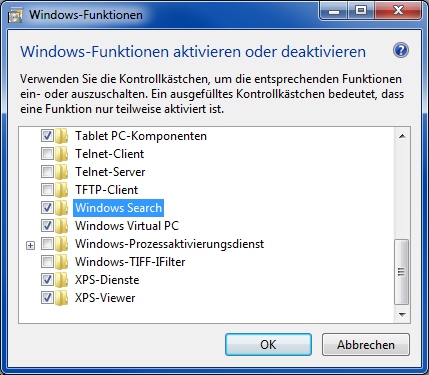
- Remove the checkmark next to Windows Search by clicking the checkbox. You must confirm the pop-up warning message with Yes. Windows will now apply changes to the system.

- As soon as this process is complete, the system will prompt you to restart.

Once you confirm this, not only will the search bar disappear from your Start menu and Windows Explorer but also the complete indexing of your data by Windows Search will be disabled.
If you wish to re-enable Windows Search, simply repeat the steps described above and check the box next to the Windows Search entry again.
Quick guide for all Windows versions
There is another way to disable Windows Search:
-
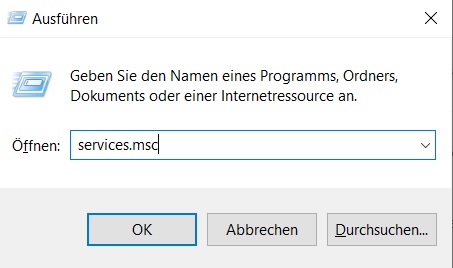
Use the shortcut Windows key + R
-
Type services.msc into the field that opens and then press OK
-
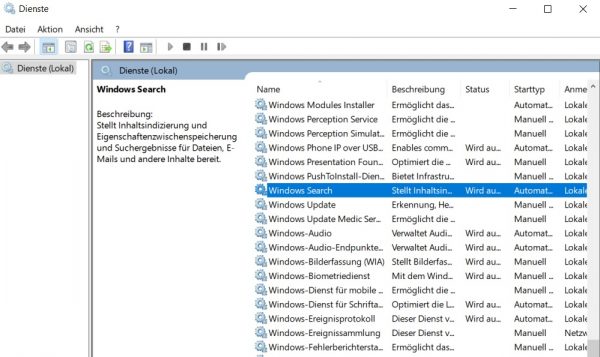
The new window Services will open
-
Scroll here until you find Windows Search and perform a double-click
-
In the General tab, you can now Stop Windows Search.
-
In the Startup type dropdown, click Disabled if you want to turn off Windows Search in the future as well.
-
If you wish to re-enable Windows Search, you can also set this in the Startup type dropdown.
Alternative search solution
If you have now realized that you actually do need search functionality in Windows. Or if you disabled the search only to improve performance in a virtual network environment, a professional search solution like Lookeen could be a suitable alternative for you. Because Lookeen also works quickly and without issues in virtual server and desktop environments. It helps users quickly find emails, PDFs, Word documents, Excel spreadsheets, and many other file types. Microsoft Outlook is searched just like Microsoft Exchange Server, hard drives, or file servers. The user-friendly interface of Lookeen leads to more effective searching with significantly faster results. By providing extensive group policies, IT administrators can easily deploy and manage Lookeen in the virtual Citrix environment.
I hope this article has been helpful to you in disabling your Windows Search.
See you soon!



Comments