

Hide the Windows 10 Search Box from the Taskbar
Hide the Windows 10 Search Box from the Taskbar The Windows 10 search relies not only on stronger internet connectivity. Microsoft’s latest operating system is primarily intended to save users time. The motto is: The fewer clicks, the better. That’s why the search box was prominently placed in the taskbar in Windows 10. However, it may take up unnecessary space there. This can be quite annoying, especially when multiple programs are running simultaneously and thus appear in the taskbar. The search bar doesn’t even need to be visible in the taskbar for this to happen. It can easily be minimized or completely hidden without restricting search functionality.
The taskbar has long been a fixed component of the Windows interface. The Taskbar Notification Area (commonly known as the system tray) in the right corner provides system information or allows access to programs. Additionally, hidden there next to the date and time display is the new Windows 10 Action Center. Through the notification area, you can access most important settings. On the left side of the taskbar is the reintroduced Start menu. Next to it, the search box is integrated by default.
Windows 10 Search Box

The search box is essentially the extended arm of the Windows search Cortana. If you haven’t disabled Cortana and web search is still enabled, the search box can provide an answer to almost every question in life. However, if you don’t use the search box or only use it irregularly, it takes up unnecessary space. You can just as easily search via the Start menu. Ultimately, it makes no difference whether you have to click into the taskbar’s search box with your mouse or click on the Start menu and enter a search query directly. So why not hide the search box from the taskbar or at least minimize it to save space by reducing it to a magnifying glass icon.
Minimize the Search Box or Hide It from the Taskbar
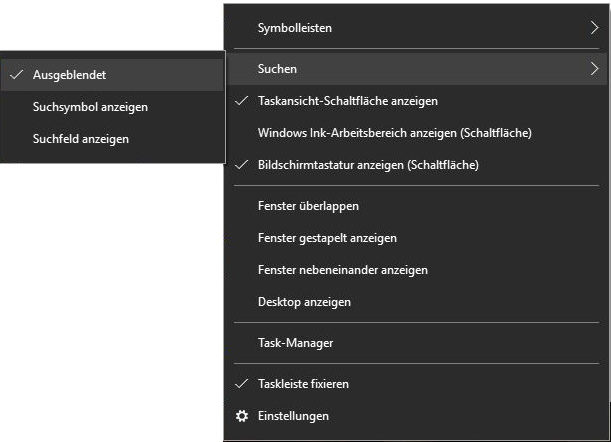
- Right-click anywhere on an empty area of the taskbar. A context menu will open.
- Move your mouse over the “Search” option.
- Here you can choose between “Show search icon” – so you get the magnifying glass icon instead of the search box –, “Hidden” – to completely hide the search box – and “Show search box” – for the default search box display –.
If you also want to adjust your Windows search settings to suit your needs, this can be done quite easily via the Start menu. By right-clicking the Windows icon, you can go to “Search” and click the gear icon in the left sidebar to make all relevant settings.



Comments