

How Desktop Search Works in Windows 8
Generally, desktop search is an easy-to-use standard tool in Windows. However, many questions arise due to the changes Microsoft introduced with the Windows 8 desktop search. Therefore, it is normal that you need some time to familiarize yourself with the new features. This article will help you learn how to work with Windows 8 desktop search more quickly.
Finding Apps with the Windows 8 Desktop Search
Do you need a professional search solution? Simply use this easy-to-use desktop search.
The Windows 8 Desktop Search places a stronger focus on finding apps and programs compared to earlier versions. It has been observed that Windows users have already used the search for such queries in previous Windows versions. In contrast, file searches in the Windows 8 Desktop Search are performed using File Explorer, which this article will address further below.
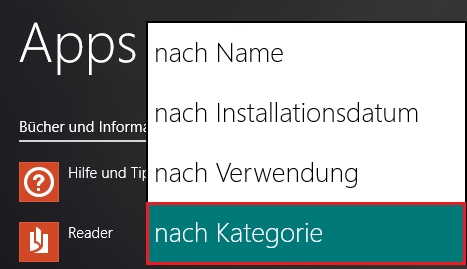
When you enter a search query in the Windows 8 Desktop Search, the results list will already display apps and programs that match your letter sequence as you type. Since some users prefer not to use this method, you can also find apps and programs in a different way. The Windows 8 Desktop Search can display a complete list of the apps installed on your computer. To do this, click the small downward-pointing arrow in the lower-left half of the window in the apps view. This arrow leads you to the “All Apps” view. You can now sort the app list alphabetically, by category, by most used, or by installation date, making it even easier to find the apps you are looking for.
Configuring the Start Page
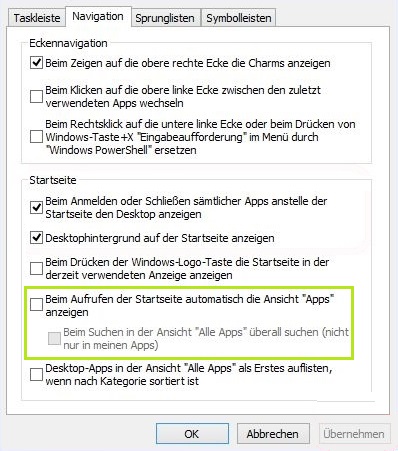
Additionally, it is possible for the start page to search directly for apps and files when queries are entered, rather than limiting itself to your apps. To do this, proceed as follows:
- On the desktop, right-click the taskbar to open Settings. Then click on “Properties”.
- Open the “Navigation” tab. Here, you must check the box next to the sub-item “Search everywhere when searching in the ‘All Apps’ view (not just in my apps)”.
3.Press “OK” to save the settings and close the window.
Feel free to familiarize yourself with the navigation settings. These allow you to set up the start page according to your personal preferences. The rule here is: try it out and see what you prefer.
Searching for Files with File Explorer
To search for files and documents, it is recommended to use File Explorer within the Windows 8 Desktop Search. If you are on the desktop, you simply need to open the folder or drive you wish to search, or click Windows Explorer in the taskbar and select the corresponding folder from there. Using File Explorer, you can search all contents of your PC.
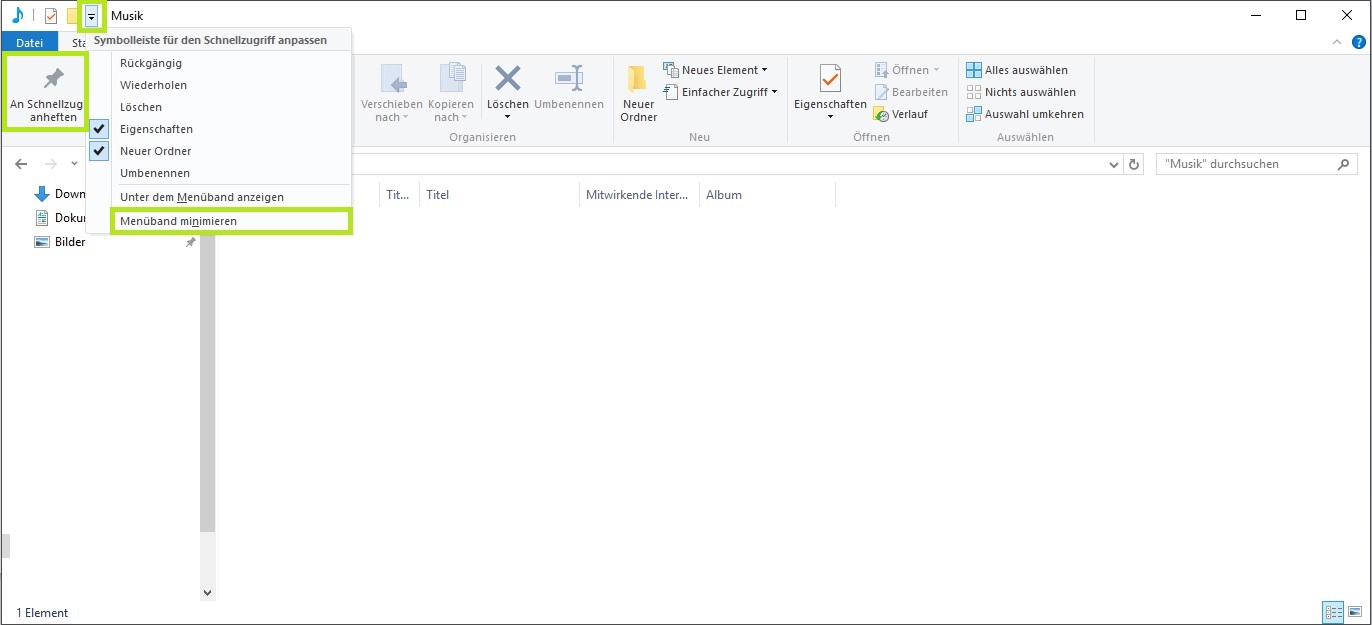
In Windows 8, the desktop search was simplified by adding a Ribbon or menu band to File Explorer, which provides various settings and shortcuts. In this article about the Windows 10 Desktop Search you can read about all the File Explorer features that can be applied to Windows 8 almost without restriction.
Although the Windows 8 Desktop Search may feel somewhat unfamiliar at first, with a little practice you will quickly learn how to use Microsoft’s new default search.



Comments