

Outlook: Automatically sort emails – here's how it works
If you want your emails in Outlook to be automatically sorted and filed into the respective folders, you can save a lot of time. Find out how easily you can set this up in all current versions of Outlook in this blog post.
How to automatically file an email into a folder in Outlook
Step 1: Start Outlook.
Step 2: Right-click your email and click Rules.
Step 3: Click Always move messages from (sender). In the next step, select your desired folder.
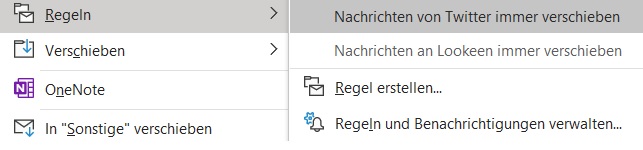
Your emails from this sender will now be automatically sorted into the selected folder upon receipt. This keeps your mailbox organized and saves you from having to move each email individually. Learn here how you can keep your inbox clean using the Inbox Zero strategy.
I hope I could help you automatically sort your emails in Outlook.
See you soon!



Comments