

Save E-Mails in Outlook as PDF
Many documents are now saved as PDF files. This has many advantages, not least because they can be better protected than other text documents. Additionally, the format can be viewed without restrictions on almost any system. As a result, nowadays a majority of people rely on the so-called Portable Document Format, both in private and professional environments. Unfortunately, Outlook still lacks a function to save an email directly as a PDF. However, since Windows 10, there has been the option to save documents as PDFs instead of printing them.
You want to search PDFs with your desktop search as well?
Save Email as PDF on Windows 10
Microsoft has finally implemented some long-awaited features in Windows 10. If you have upgraded to Windows 10, you can now use the “Microsoft Print to PDF” option. This option can be easily selected in the “Printer” field. In Outlook, this means that as soon as you have opened an email and open the print menu via “File” – “Print” or using the keyboard shortcut “Ctrl+P”, you can also save the email as a PDF.
-
Open Outlook.
-
Open the email you would like to save as a PDF.
-
Click on the “File” ribbon and select the sub-item “Print”, or use the keyboard shortcut “Ctrl+P” (Control and P) as described above.
-
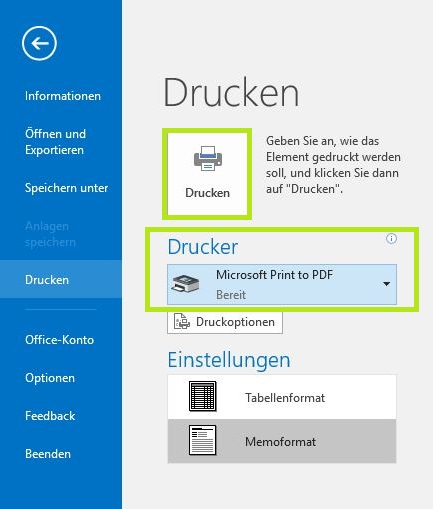
Under “Printer”, select the “Microsoft Print to PDF” option.
-
Use the preview image to verify that it is the correct email. If so, click the printer icon labeled “Print” above the printer selection.
-
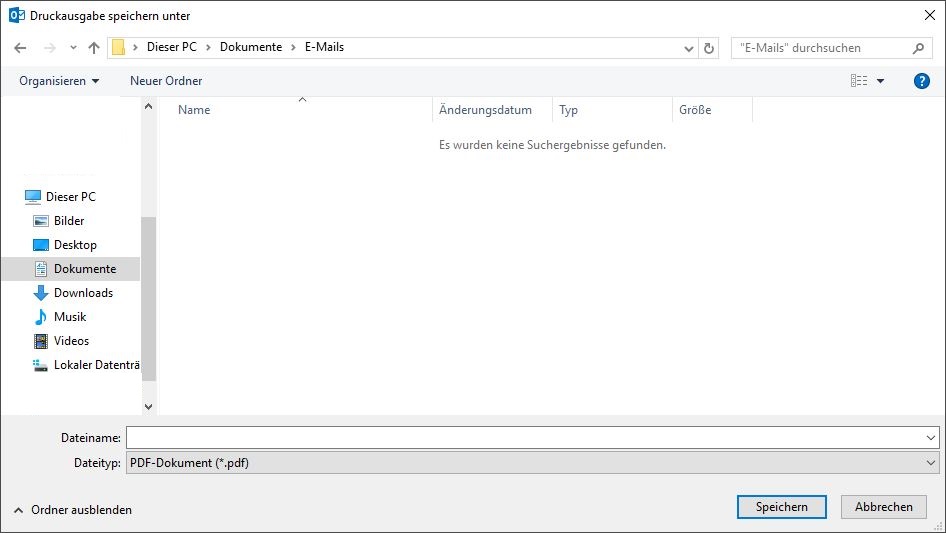
A new window will open where you must specify the save location for the created PDF file as usual. Name the file and click “Save”.
Congratulations, you have successfully saved an Outlook email as a PDF.
Windows 10 has made it much easier to save emails as PDFs. If you have not yet switched to Windows 10, perhaps this article with the most important new features of Windows 10 will convince you. Under Windows 7 or 8.1, your only option is to search for an Outlook add-in capable of saving emails as PDFs. However, there should be a larger number of these available on the web.


Comments