

Windows 10: Change Cortana's Default Search Engine or Default Browser
During the installation of Windows 10, the new Microsoft browser Edge is automatically activated as the default browser. Additionally, the new Windows Search sets Bing as the default search engine for Cortana. Would you prefer a different default search engine than Bing or a different default browser than Microsoft Edge? Here you will find out how to easily change your default browser and your default search engine in Cortana.
Windows 10: Change Cortana’s Default Search Engine or Default Browser
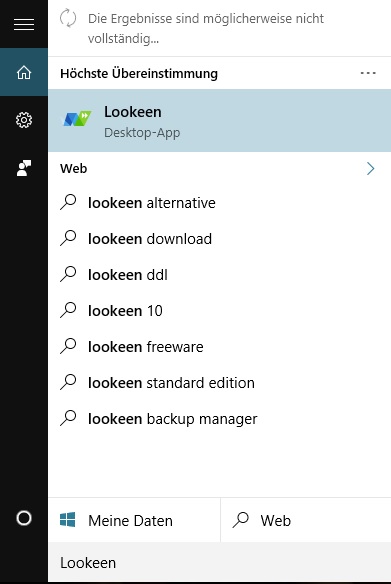
Bing is an Internet search engine by Microsoft and the successor to Windows Live Search. It is therefore not surprising that Bing is pre-installed as the default search engine in Windows 10. If you are satisfied with Bing, you can even bring internet search to your desktop with “Bing Desktop”. If you want to keep Internet Explorer or Microsoft Edge as your default browser but prefer a different default search engine for Cortana, you must first change the browsers’ default search engine. The same naturally applies to other popular browsers, which often already use Google Search or have been individually customized by the user. You can read how to completely disable Cortana in this blog article.
Internet Explorer: Adjust Cortana’s Default Search Engine
1.To change the default browser of Internet Explorer, you must first open the settings in the browser – in the form of a small gear icon in the top right corner.
2.Next, click on Internet Options and go to the Programs tab. By clicking on Manage Add-ons, a new window will open.
3.Under Search providers, all installed search engines are displayed. To remove Bing, you must first set a different search engine as the default. Click on Get more search providers… at the bottom of the window. You will reach the so-called Internet Explorer Gallery, where you can download add-ons for Internet Explorer.
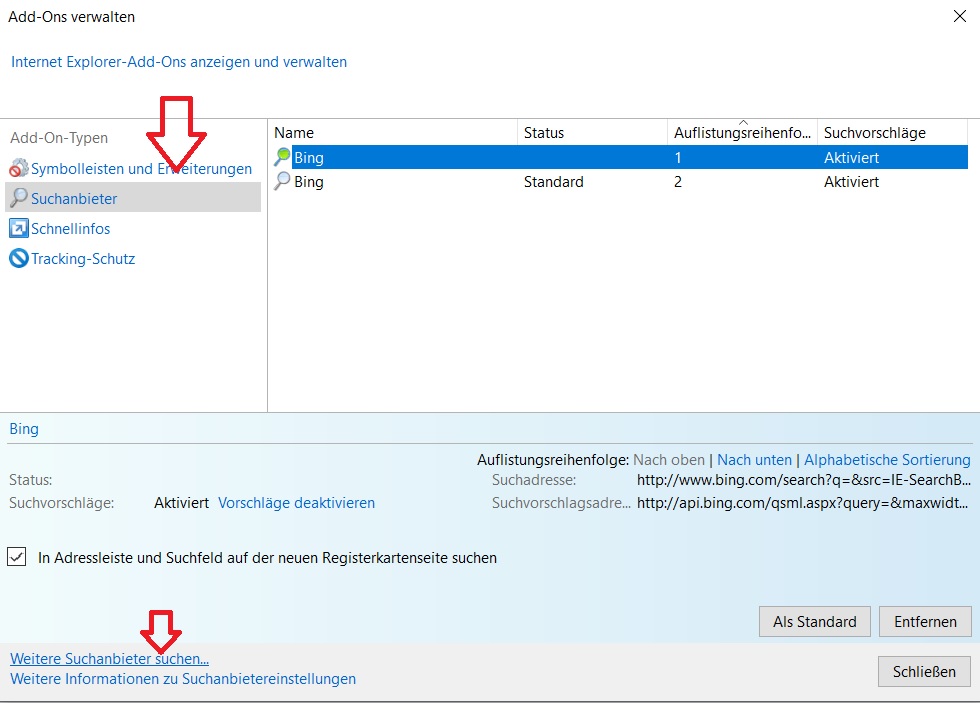
4.Select a search engine add-on such as Google or Yahoo by clicking on Add to Internet Explorer. Close the Manage Add-ons window and open it again.

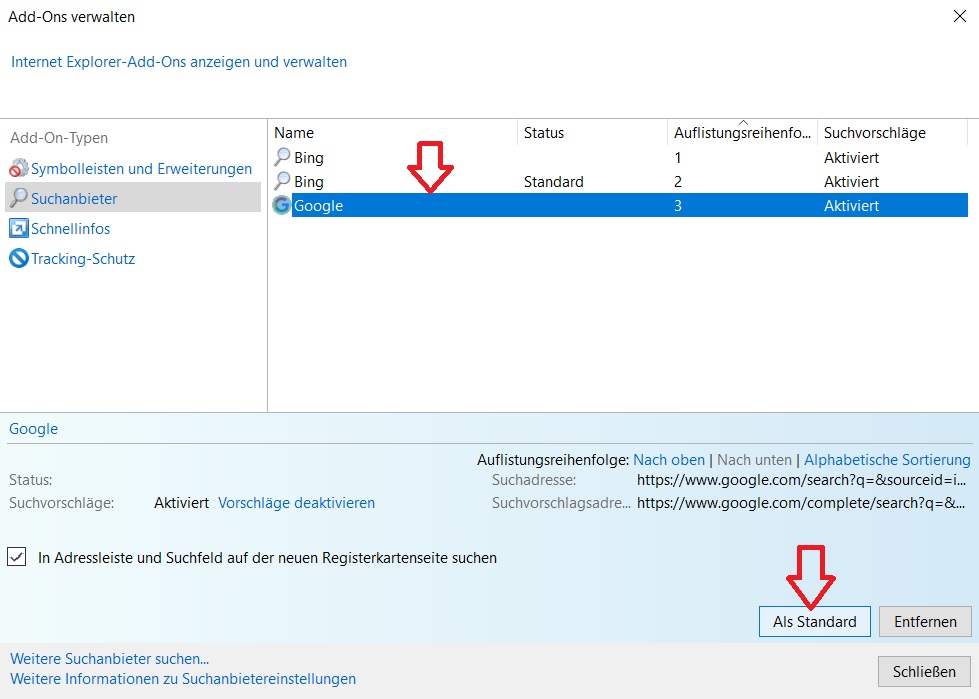
5.Set your default search engine (in this case, Google) and select it under Search providers. Now click on Set as default.
- You can Remove Bing if needed, or leave the add-on in place in case you want to switch Cortana’s default search engine back to Bing in the future.
Cortana automatically uses the search engine of your default browser. If you set Internet Explorer as the default browser for Windows 10, Cortana will immediately use its new default search engine. You can read how to change the default browser in Windows 10 further down below.
Microsoft Edge: Adjust Cortana’s Default Search Engine
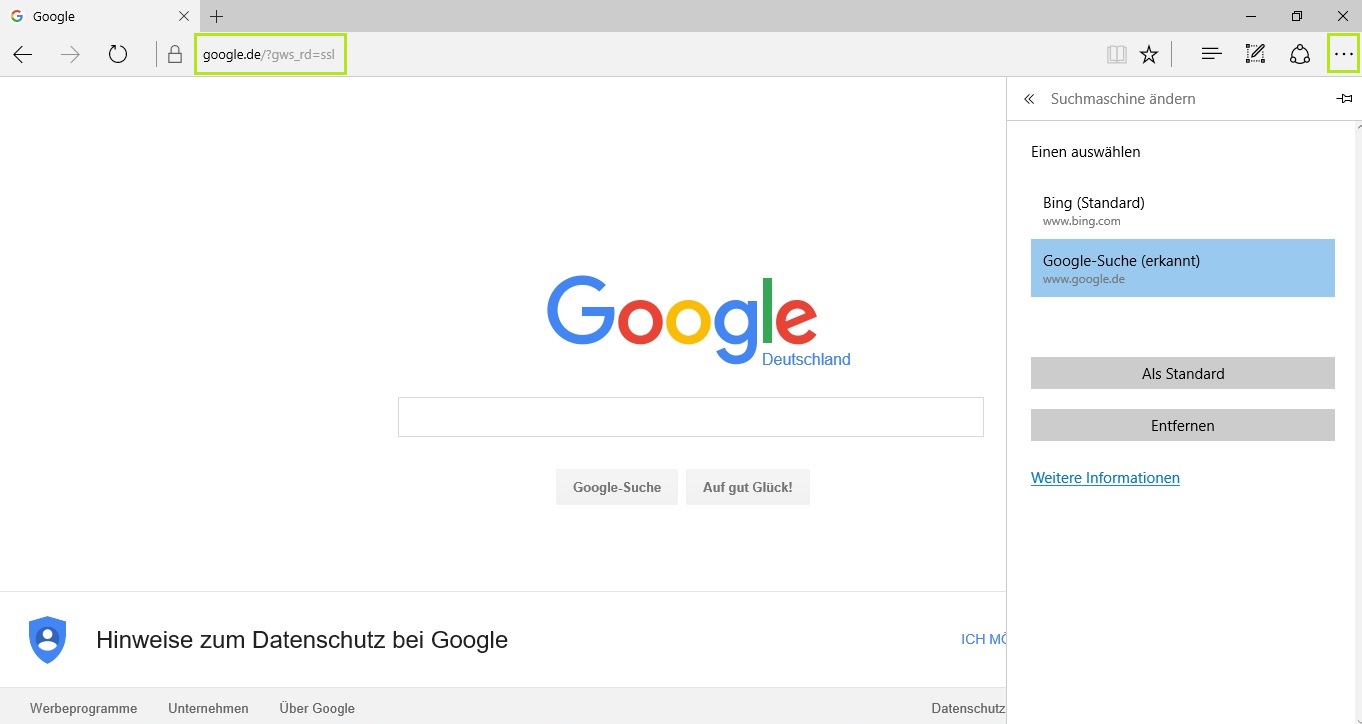
1.Open the website of your desired search engine using your Microsoft Edge browser first. If you want to use Google as your default search engine, for example, enter Google.de.
2.The three dots at the top right corner of Edge allow you to open the Settings in a next step. Click on Show advanced settings.
3.In the list, you must find Search with in address bar. Select e.g. Google Search and click on Add as default.
Microsoft Edge now uses your preferred search engine by default. Provided that Edge is your default browser in Windows 10, Cortana will also use this search engine.
Firefox: Adjust Cortana’s Default Search Engine
While Google Chrome naturally uses Google as its default search engine and likely requires little adjustment here, you can change the default search engine in Mozilla Firefox quite uncomplicatedly.
- Simply enter about:preferences#search into your browser’s address bar. You can also click on the three horizontal lines in the top right corner of the browser to navigate to the Settings from there.
2.If you now click on the magnifying glass icon on the left side, you can easily set Firefox’s default search engine.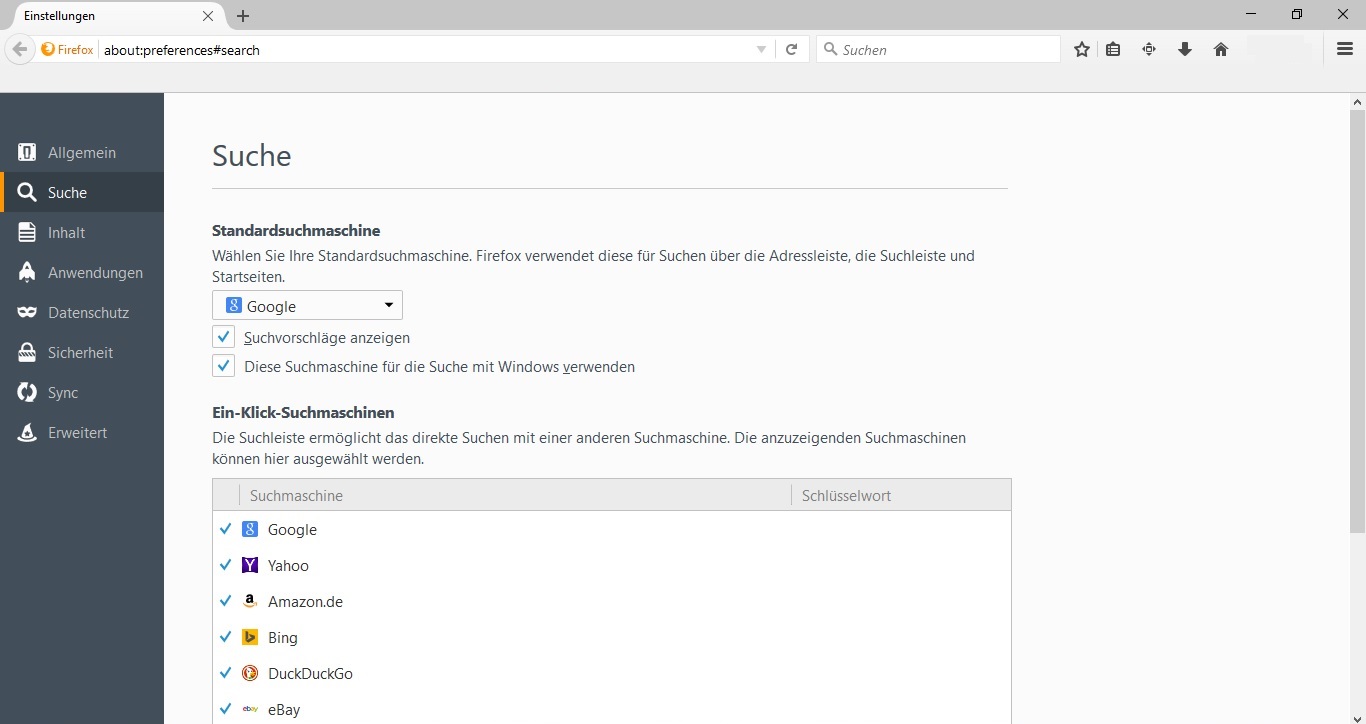
Opera: Customize Cortana’s Default Search Engine
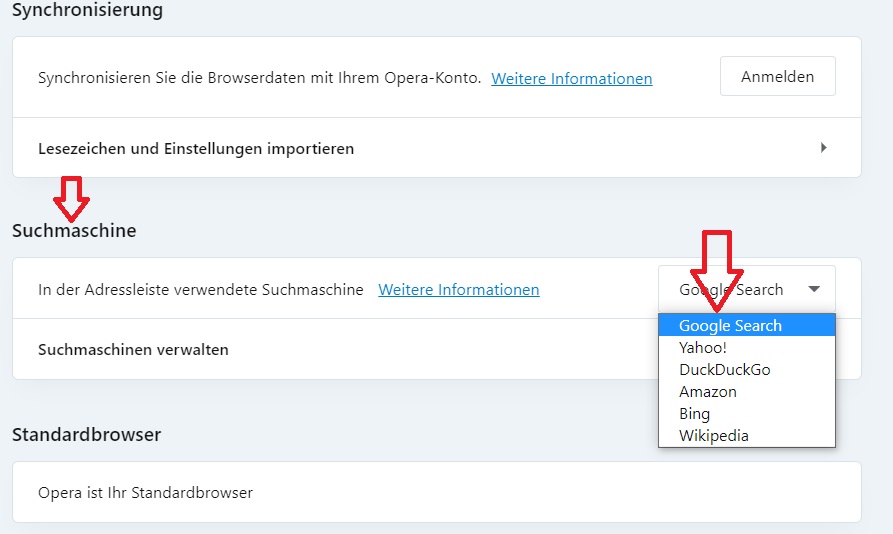
1.Click on the Opera icon on the left in the Opera browser and then on Settings, or use the shortcut (keyboard shortcut) Alt+P.
2.Scroll down to the Search engine tab. There you can select a new search engine from the list. If your desired search engine is not listed, you can enter all required data via Manage search engines and Add a new search engine.
How to Change the Default Browser in Windows 10
For Cortana to also use your preferred search engine, you only need to change the default browser for Windows 10. You have two options for making your favorite browser the default. The faster option is provided by the browsers themselves. They usually offer an option in their settings to set them as default. Additionally, all default apps can be selected directly within Windows 10.
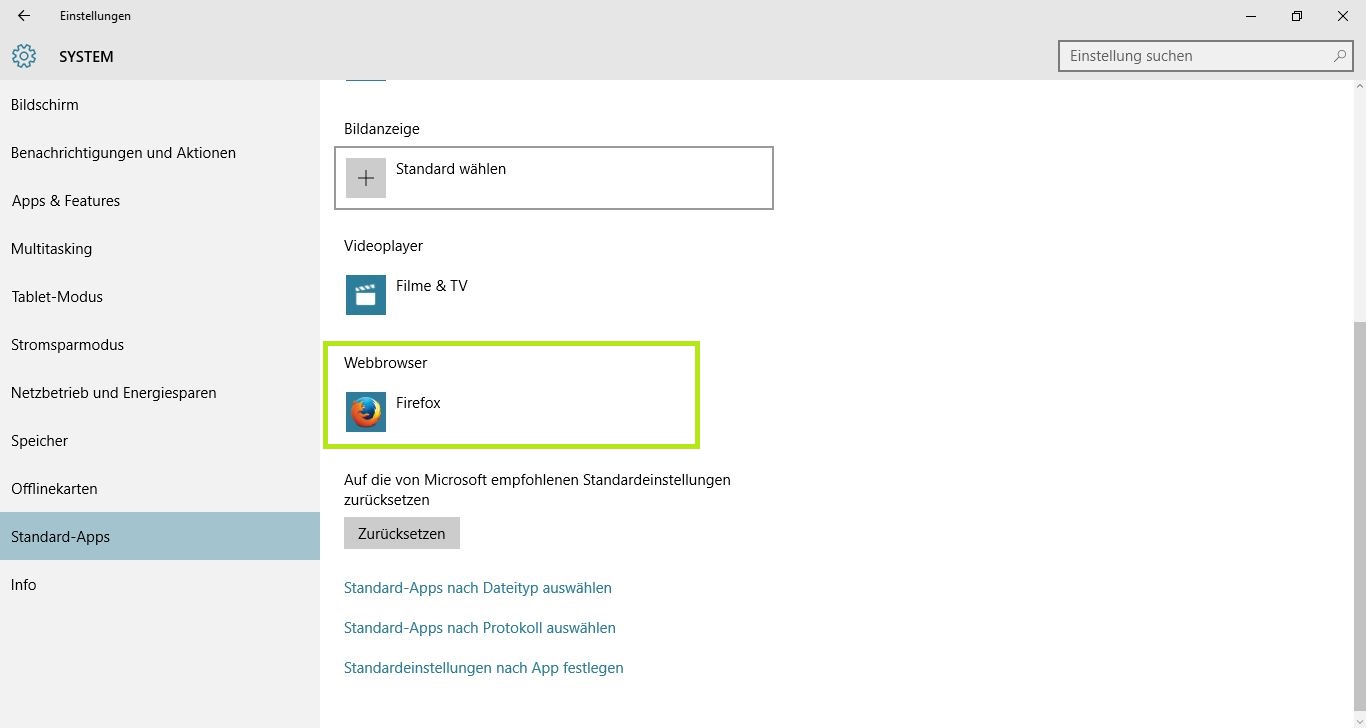
1.To do this, open Settings via the Start menu (the Windows icon in the bottom left).
2.Click on System and then on Default apps.
3.Here you can set your preferred web browser (it must be installed beforehand), whose default search engine will also be used by Cortana.
4.You can configure the Cortana search either by right-clicking your taskbar under the Search option, pinning the Cortana app to your start via the Start menu, or opening it via Search by right-clicking your Start menu. Update: It is no longer easily possible to change your default search engine to Google. Find out how you can still search with Google in Cortana in this article.
I hope this article has helped you easily change your default browser and Cortana’s default search engine.
See you soon!



Comments